LESSON 8
188
Customizing Tables
Formatting the imported table data
Next you’ll change the paragraph format of the table headings.
1
Click in the heading cell that contains the words
Fiscal Year
.
2
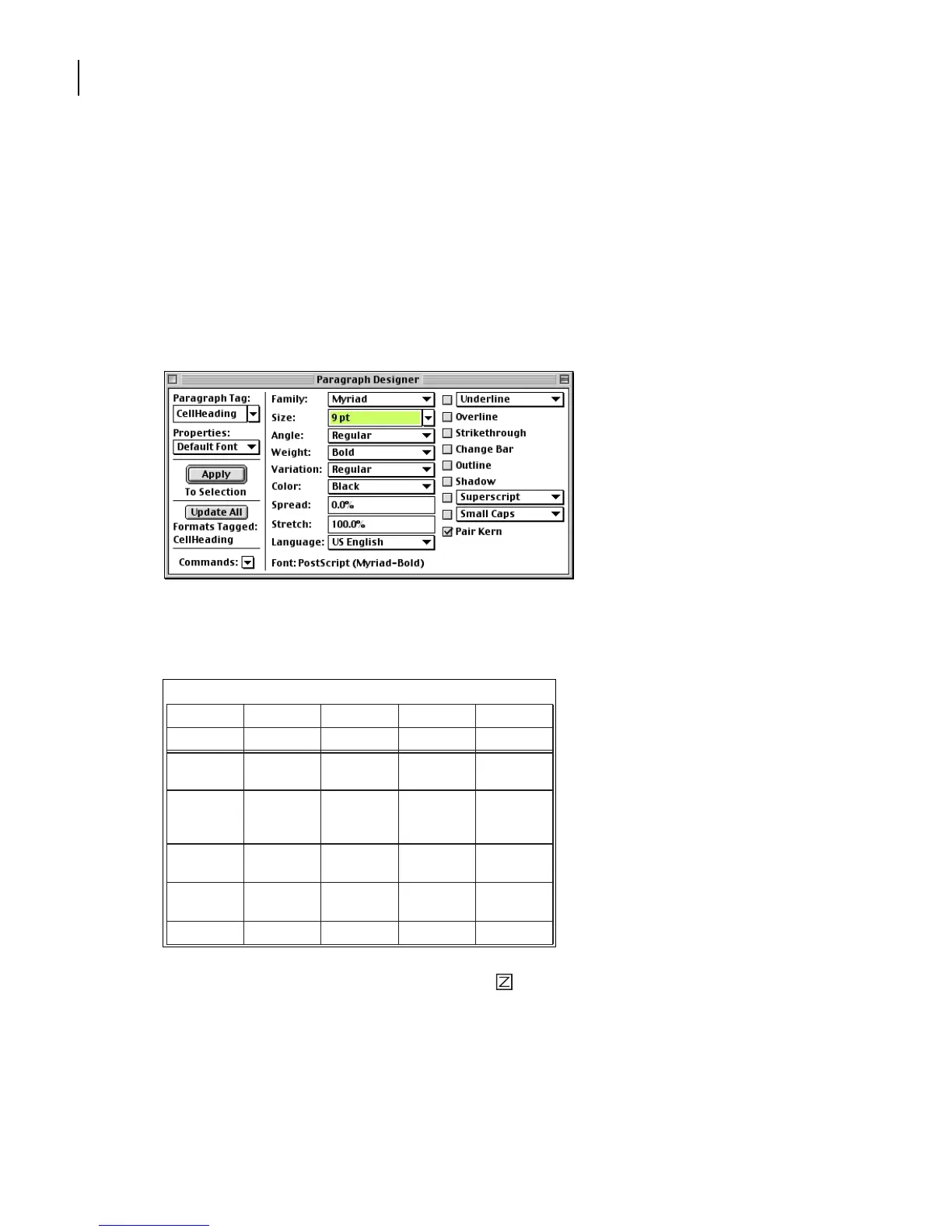
Choose Format > Paragraphs > Designer.
3
Choose Default Font from the Properties pop-up menu. (In Windows, you can just
click the Default Font tab at the top of the designer.)
4
Change the Family to Myriad-Roman (Windows) or Myriad (Mac OS and UNIX), the
Size to 9, and the Weight to Bold. Then click Update All.
5
If necessary, click the Zoom In button ( ) in the status bar until you can read the
headings easily.
Now you’ll move the heading
Fiscal Year
to the right side of the table.
Table 1:
Fiscal Year
2002 2001 2000 1999
Current
assets:
Cash &
cash equiva-
lents
203,461 146,992 89,557 72,429
Short-term
investments
157,700 90,853 55,650 47,005
Accounts
receivable
101,006 72,448 35,543 30,451
Inventories 49,349 30,557 20,512 15,627



 To Next Page