215
ADOBE FRAMEMAKER 7.0
Classroom in a Book
14
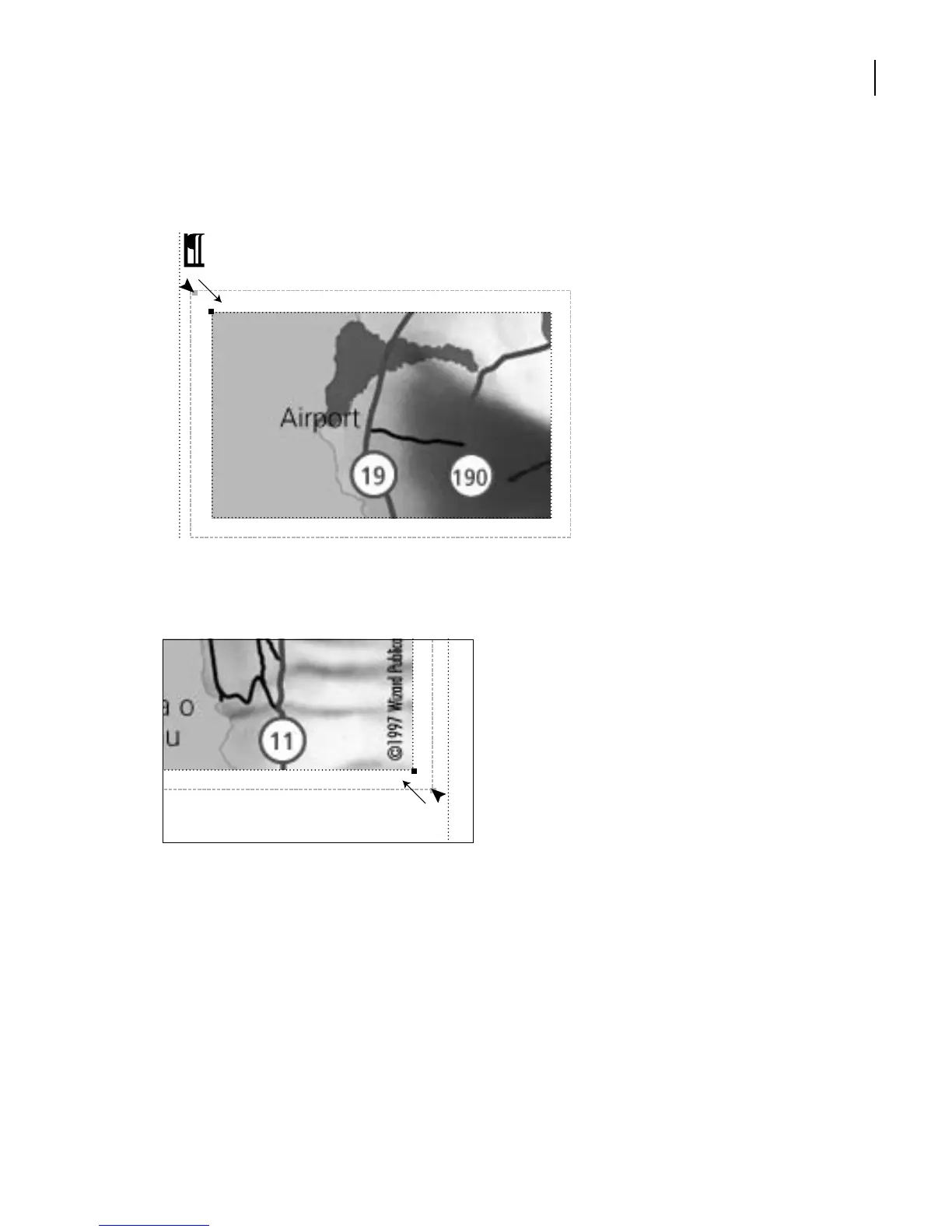
Drag the top-left handle of the anchored frame until the edges of the anchored
frame line up with the edges of the graphic.
15
Drag the bottom-right handle of the anchored frame until the edges of the
anchored frame line up with the edges of the graphic.
Now you’ll change the anchoring position of the frame.
16
With the anchored frame still selected, choose Special > Anchored Frame.
Note:
If the anchored frame is no longer selected, the first button at the bottom of the dialog
box is New Frame rather than Edit Frame. If this is the case, click Cancel, click the frame’s
border, and try again.
17
Choose At Insertion Point from the Anchoring Position pop-up menu.
in the heart of



 To Next Page