LESSON 9
222
Anchored Frames and Graphics
2
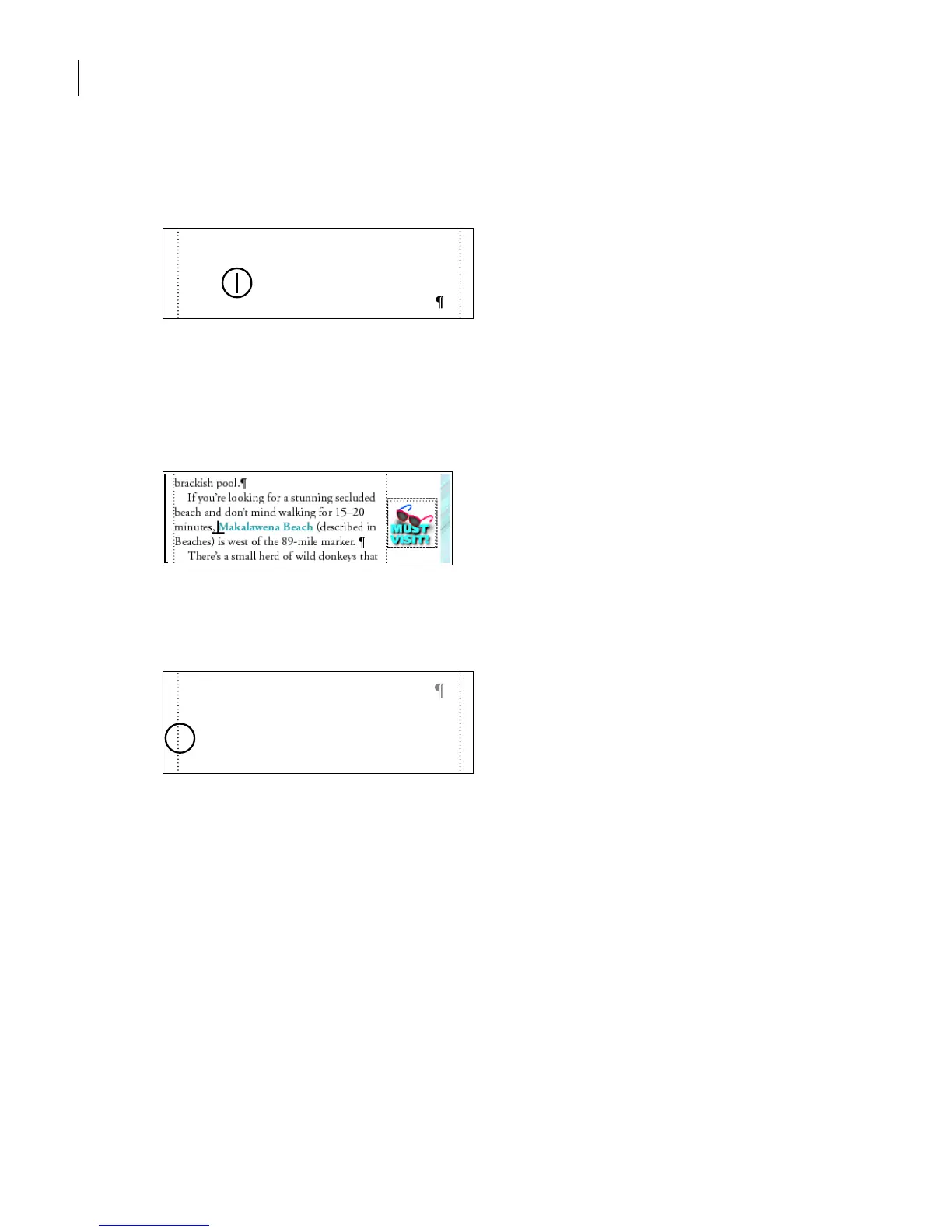
In the right column on page 1, click just to the left of
Makalawena Beach,
which
appears in blue.
3
Choose Edit > Paste. Because you specified that the graphic should appear on the side
closer to the page’s edge, the graphic appears at the right side of the column. The frame’s
Anchoring Position setting, and its vertical position with respect to the anchor symbol,
are already set appropriately, so you don’t need to adjust the frame’s position.
4
Go to page 3 of Anchors1.fm.
5
Under the heading
Downtown Kailua-Kona
, click just to the left of
Ahu‘ena Heiau
.
6
Choose Edit > Paste. The graphic appears at the left side of the column.
Using inline graphics
Now you’ll add a few small graphics in lines of text.
1
Go to the last page of Anchors1.fm.
The coffee information at the bottom of the page appears in a frame that’s anchored at
the bottom of the column. The text appears in a text frame that’s drawn inside the
anchored frame, and the picture of coffee beans is in an anchored frame that’s run into
the paragraph.
If you’re looking for a stunning secluded
beach and don’t mind walking for 15–20
minutes, Makalawena Beach
Beaches) is west of the 89-mile marker.
(described in
Downtown Kailua-Kona
To the right (north) of the pier is the
Ahu‘ena Heiau. Now wonderfully main-
tained and very picturesque, this was King



 To Next Page