223
ADOBE FRAMEMAKER 7.0
Classroom in a Book
2
Click just to the left of
Kona Coffee
in the first sentence of coffee information.
3
Choose File > Import > File.
4 Select the Mug.tif file in the Art folder (within the Lesson09 folder) and click Import.
5 In the Import Graphic Scaling dialog box, verify that 144 dpi is selected and click Set.
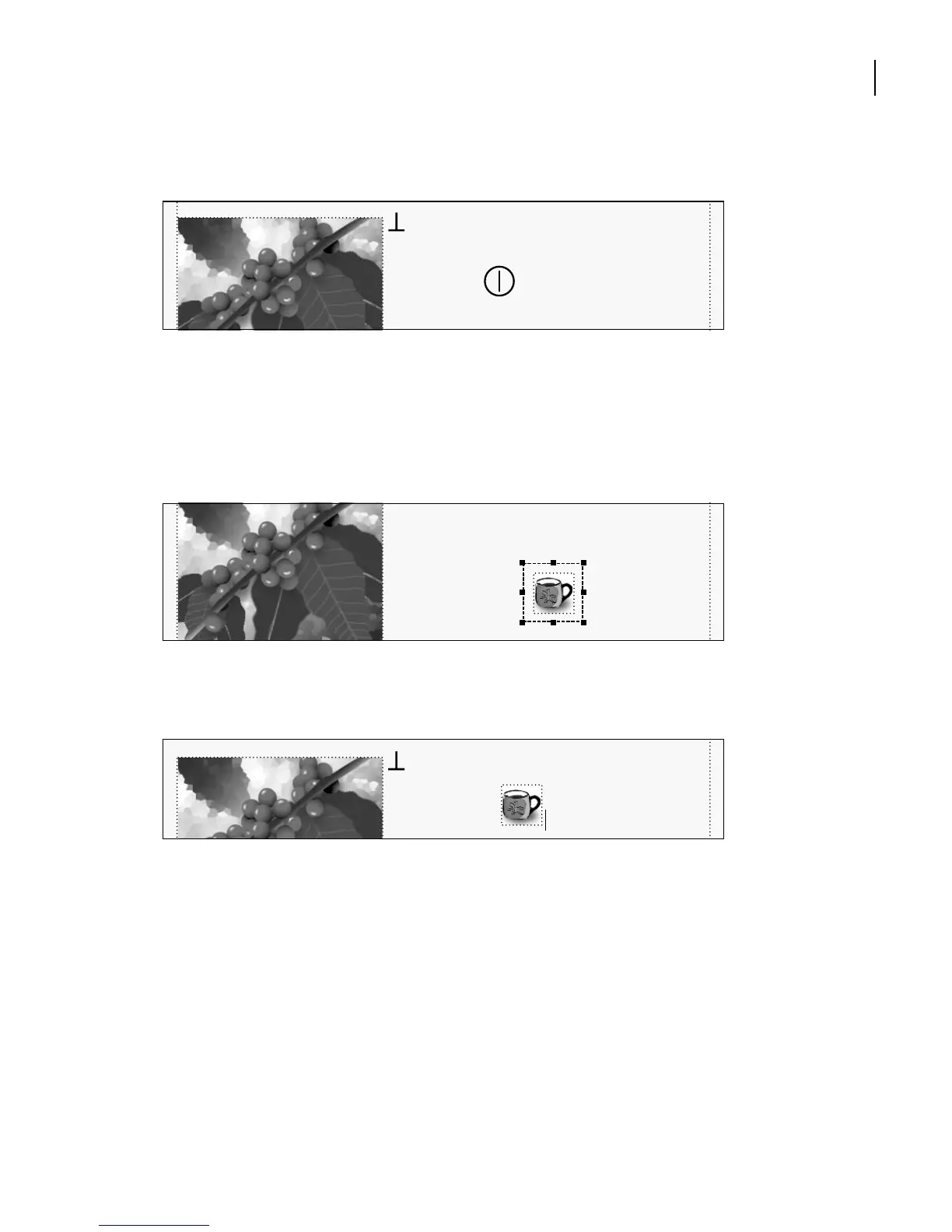
The graphic appears in an anchored frame under Kona Coffee.
6 With the anchored frame still selected, press Esc m p. The anchored frame appears in
the line of text, and the insertion point appears to the right of the anchored frame.
7 Press the spacebar to add a space between the frame and Kona.
The graphic is sized correctly, but appears too high in the line.
8 Click the frame’s border to select the frame.
You could drag the frame downward or use the arrow keys to reposition the frame, but
you’ll use the Anchored Frame command this time.
9 Choose Special > Anchored Frame.
Of all the products produced on the Big Island,
none is more well known or has received more
accolades than Kona Coffee. With the possible
exception of Jamaican Blue Mountain coffee,
none is more well known or has received more
accolades than Kona Coffee. With the possible
none is more well known or has received more
accolades than Kona Coffee. With the
Of all the products produced on the Big Island,



 To Next Page