23
ADOBE FRAMEMAKER 7.0
Classroom in a Book
8
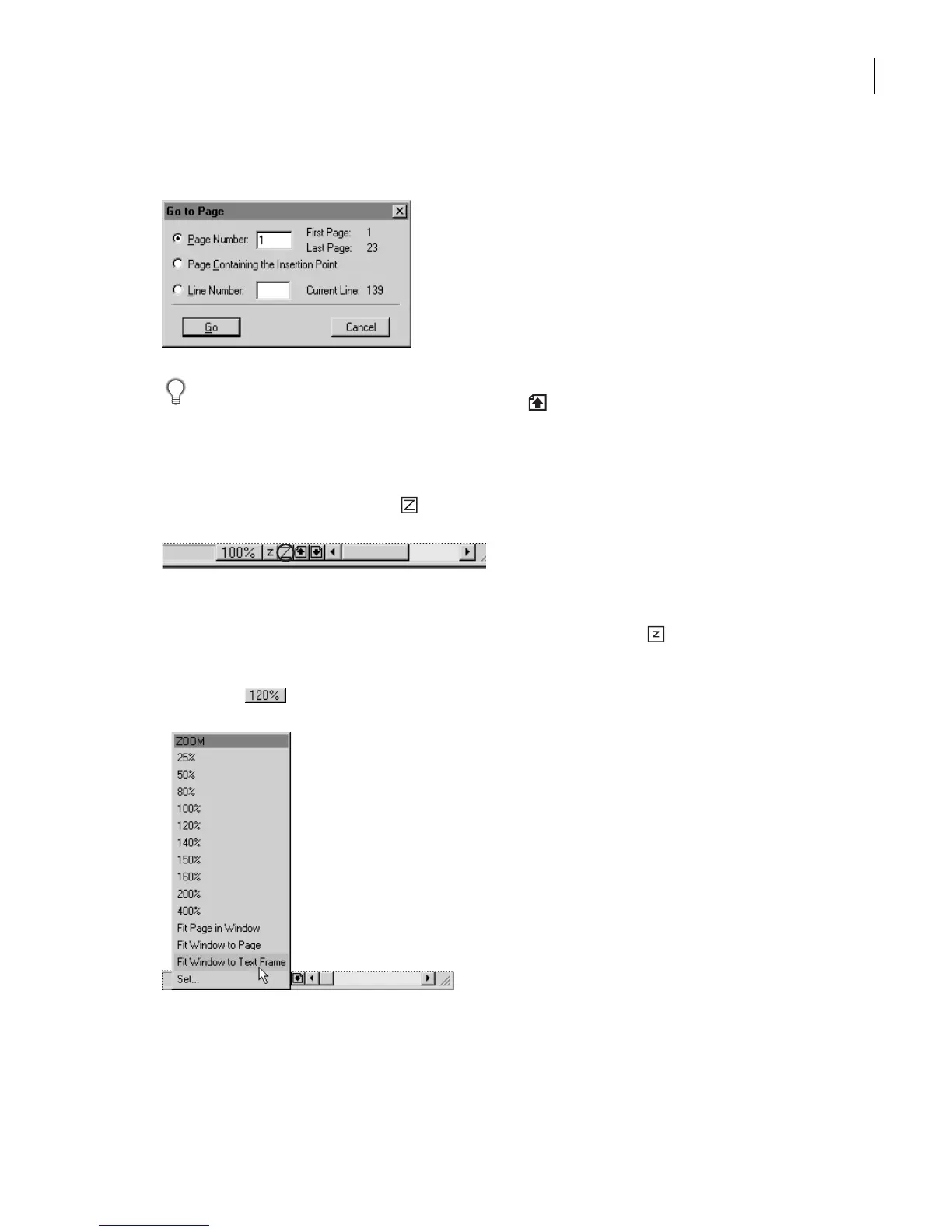
Enter
1
in the Page Number text box and click Go.
Yo u can also click the Previous Page button ( ) repeatedly to get back to page 1, or just
Shift-click the Previous Page button to go directly to page 1.
Now you’ll adjust your view again.
9
Click the Zoom In button ( ) in the status bar to zoom the document to 120%.
Note:
If you earlier zoomed to 120% to read the page footer, you do not need to zoom now. If
you zoomed to a higher percentage, click the Zoom Out button
()
to zoom out to 120%.
10
To save space on the screen, choose Fit Window to Text Frame from the Zoom pop-
up menu ( ).
11
Choose View > Borders to hide the borders of the text frame.



 To Next Page