LESSON 11
266
Books
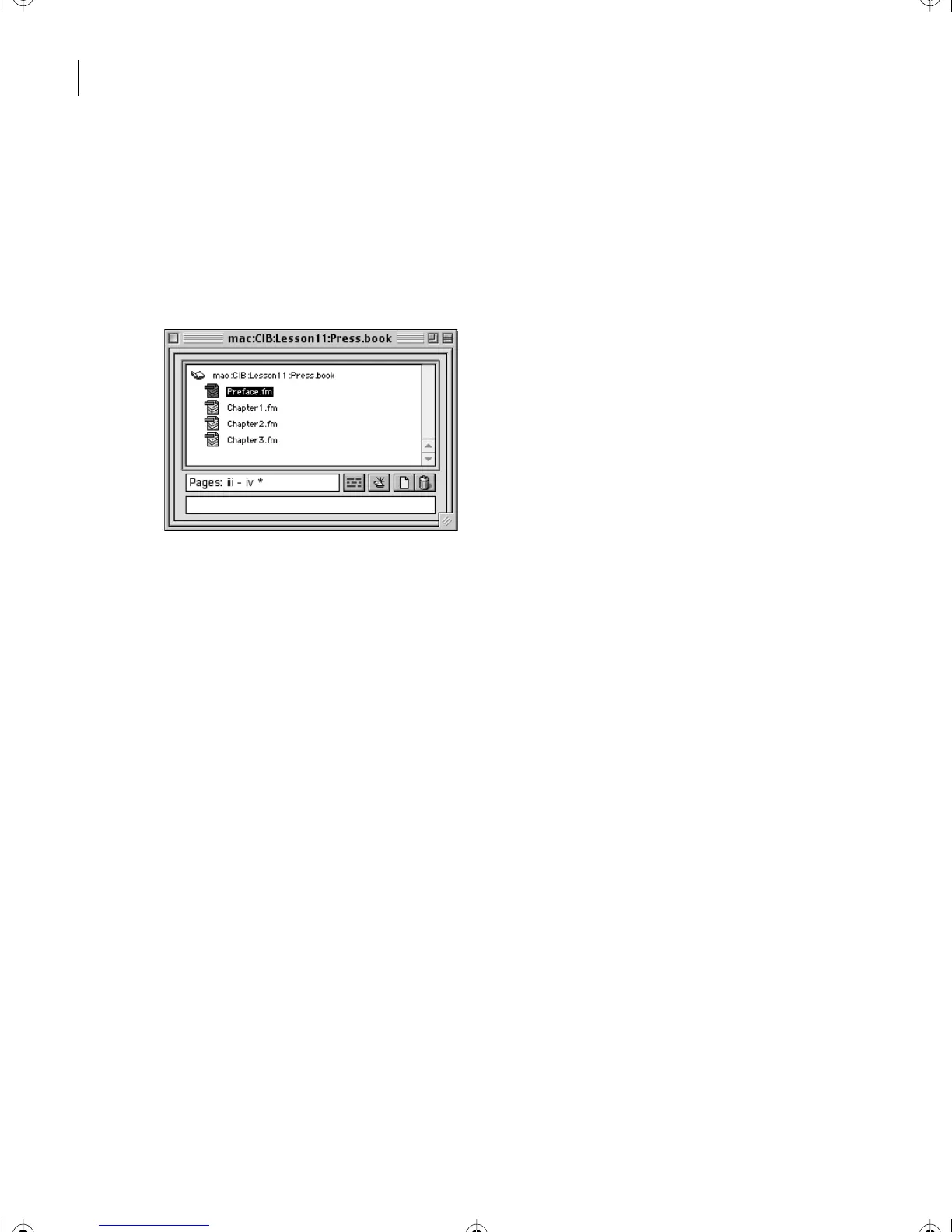
Notice that the preface appears at the bottom of the list in the book window instead of at
the beginning where it should be. You can fix that easily.
4
Select Preface.fm in the book window and drag it above Chapter1.fm.
5
You can rearrange one or more files in a book window by selecting them and dragging
them where you want them to appear in the book. The files are now in the correct order.
6
Choose File > Save Book to save the book file.
Opening files from the book window
Before adding a table of contents to the book, you’ll take a quick look at the individual
chapters in the book.
1
Double-click Chapter1.fm in the book window.
Double-clicking a filename is a quick way to open an individual file. However, you can
open many files at once by using a shortcut.
2
Close Chapter1.fm.
3
In the book file, hold down Shift and choose File > Open All Files in Book. All the
documents in the book are opened.
Note:
In Windows and on UNIX systems, the documents are minimized, so you’ll need to
open the minimized windows to see their contents.
L11.fm Page 266 Sunday, July 7, 2002 10:27 PM



 To Next Page