273
ADOBE FRAMEMAKER 7.0
Classroom in a Book
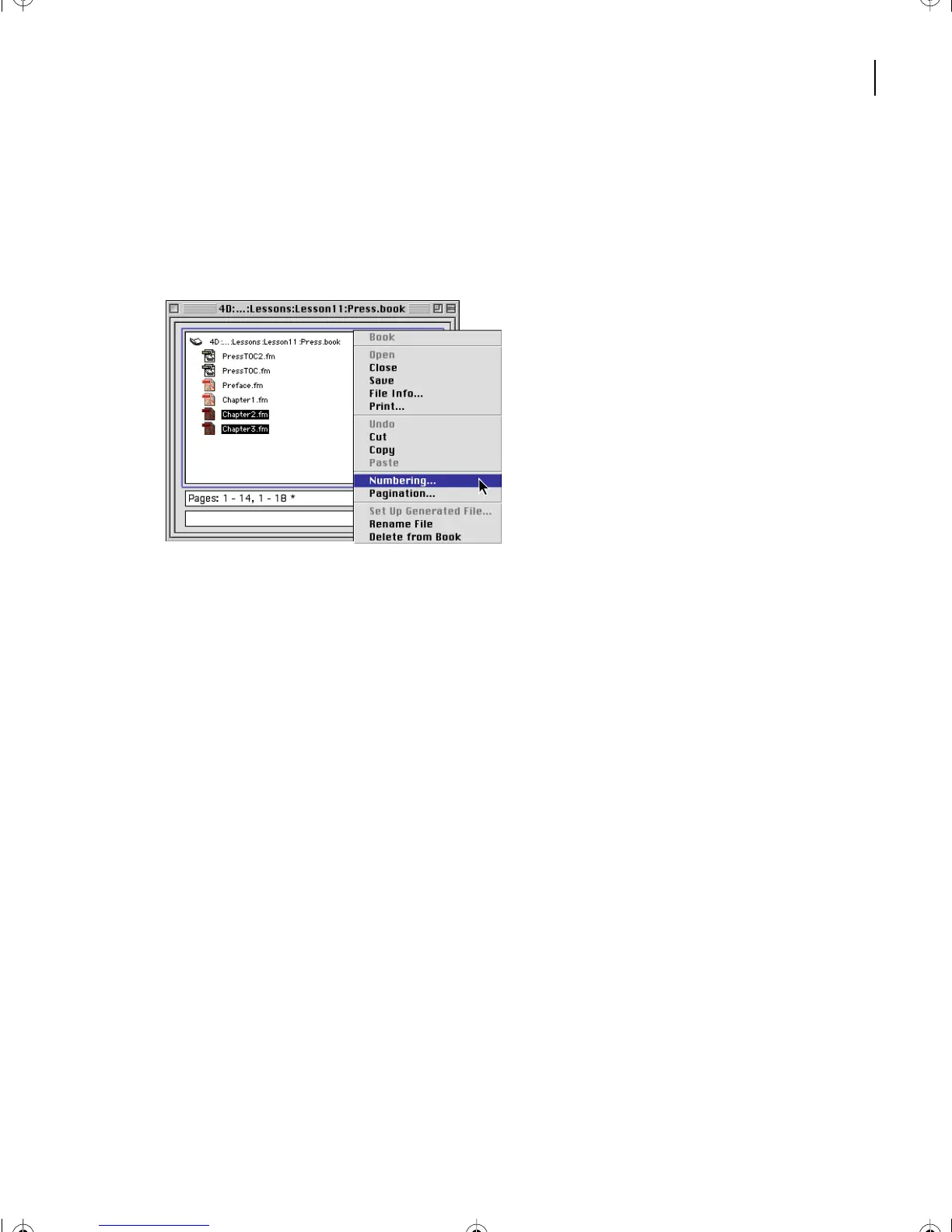
2 Select Chapter2.fm and Chapter3.fm in the book window, then do one of the
following:
• (Windows and UNIX) Right-click in the book window.
• (Mac OS) Hold down Control and click in the book window.
Context menu for a book
3 Choose Numbering from the pop-up menu.
4 Choose Page from the pop-up menu in the Numbering Properties dialog box.
5 Click Continue Numbering from Previous Page in Book.
6 Click Set.
Any time you make a change to a file in a book—either to its contents or to its setup—
you should update the book to see the change reflected in the book’s generated files.
7 Choose Edit > Update Book, then click Update.
8 Reopen the table of contents to see the new numbering. Notice that the book’s pages
are now numbered sequentially.
Yo u’ll make one more change to the book’s contents.
L11.fm Page 273 Sunday, July 7, 2002 10:27 PM



 To Next Page