LESSON 11
282
Books
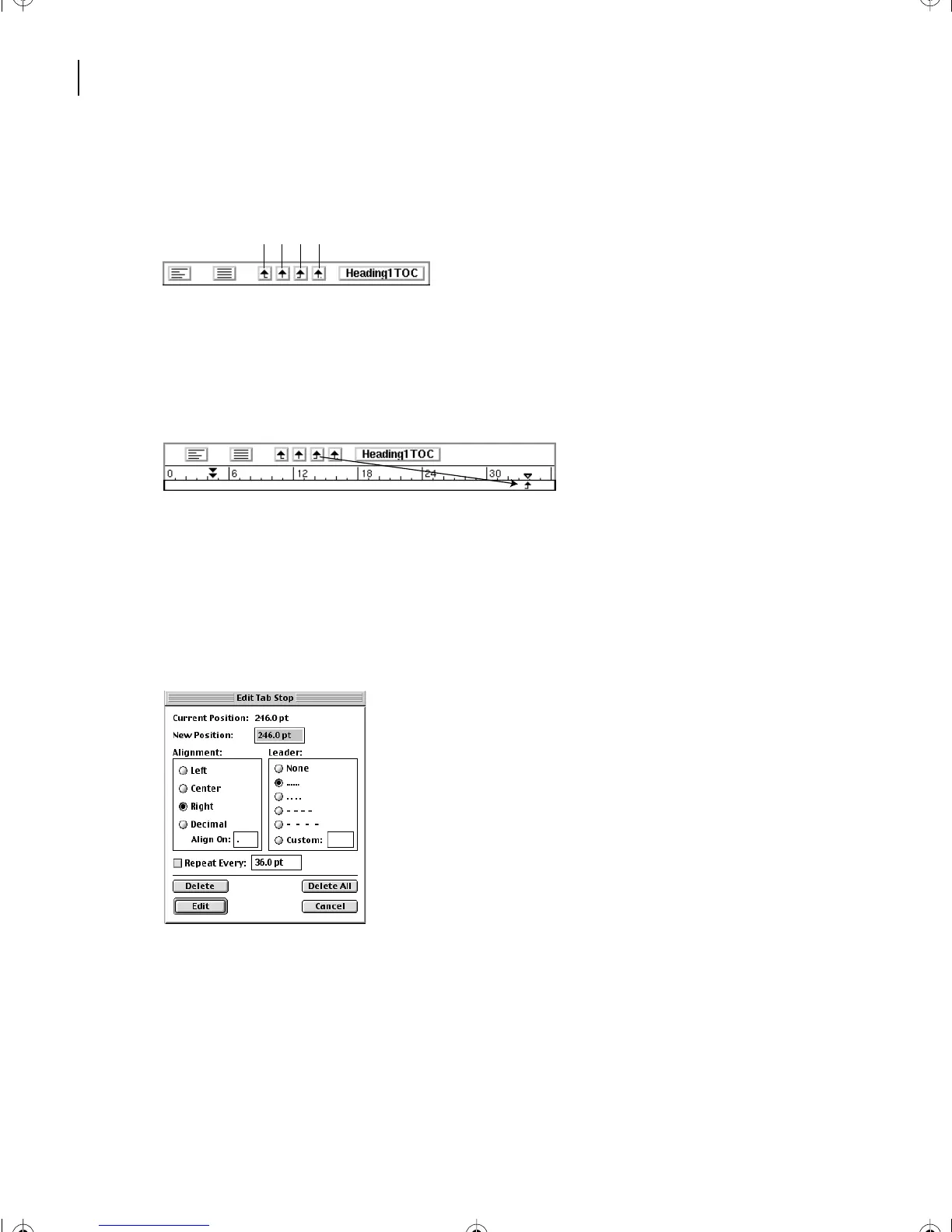
The formatting bar contains several formatting pop-up menus and tab wells that you can
use to set some paragraph properties. You’ll use the tab wells.
A. Left-aligned tab well B. Centered tab
well C. Right-aligned tab well D. Decimal-
aligned tab well
3 Click anywhere in the first entry for Chapter 1, The properties of color. Then drag a
right-aligned tab stop from the tab well to just under the right indent on the ruler.
You won’t see any result from having added the tab stop yet, because the Heading1
paragraphs don’t contain tab characters. (Tab characters will be inserted automatically in
the table of contents when it’s generated.)
4 Double-click the tab stop (the little arrow) under the ruler.
5 Select the first dotted leader in the Leader area of the Edit Tab Stop dialog box.
6 Click Edit.
7 In the Paragraph Designer, click Update All. The entries in the table of contents don’t
change, because they don’t contain a tab character yet. You’ll fix that in the next section.
8 Close the Paragraph Designer.
9 Choose View > Rulers to hide the rulers and save the document.
BC
D
A
L11.fm Page 282 Sunday, July 7, 2002 10:27 PM



 To Next Page