LESSON 13
320
Conditional Text
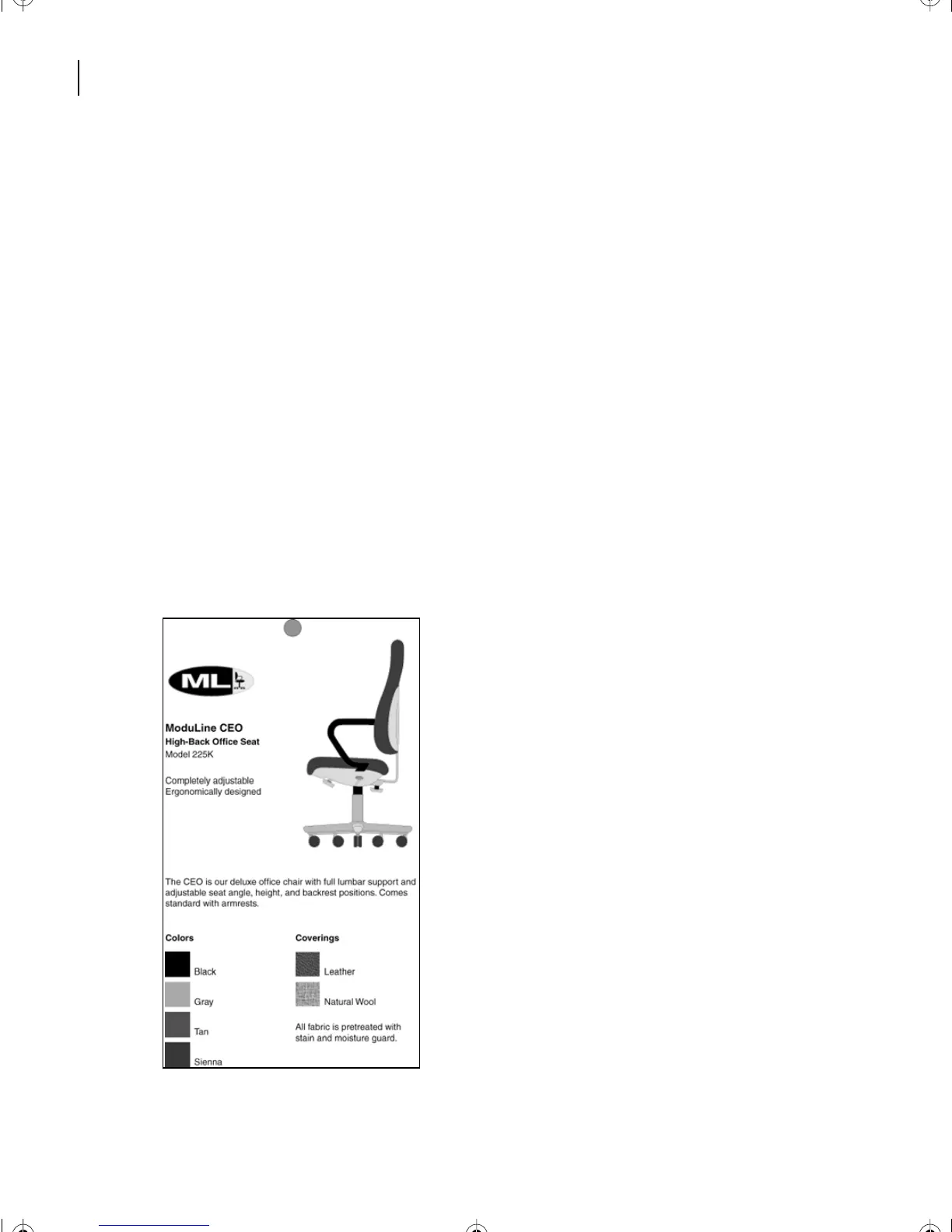
This lesson’s sample is a card that’s designed to be attached to office furniture. The card
already contains information about the ModuLine CEO office chair. You’ll use
conditional text to add information about a second model, the ModuLine Professional.
When you’re finished, the two versions of the card will be contained in one document.
In this lesson, you’ll learn how to do the following:
•
Create condition tags and assign condition indicators.
•
Apply condition tags to text, graphics, and table rows.
•
View different versions of a conditional document.
•
Save versions of conditional documents.
Viewing conditional text
Before you add information about the ModuLine Professional, you’ll take a look at the
finished document.
1
In the Lesson13 folder, open Finished.fm.
L13.fm Page 320 Saturday, July 6, 2002 12:42 PM



 To Next Page