325
ADOBE FRAMEMAKER 7.0
Classroom in a Book
4
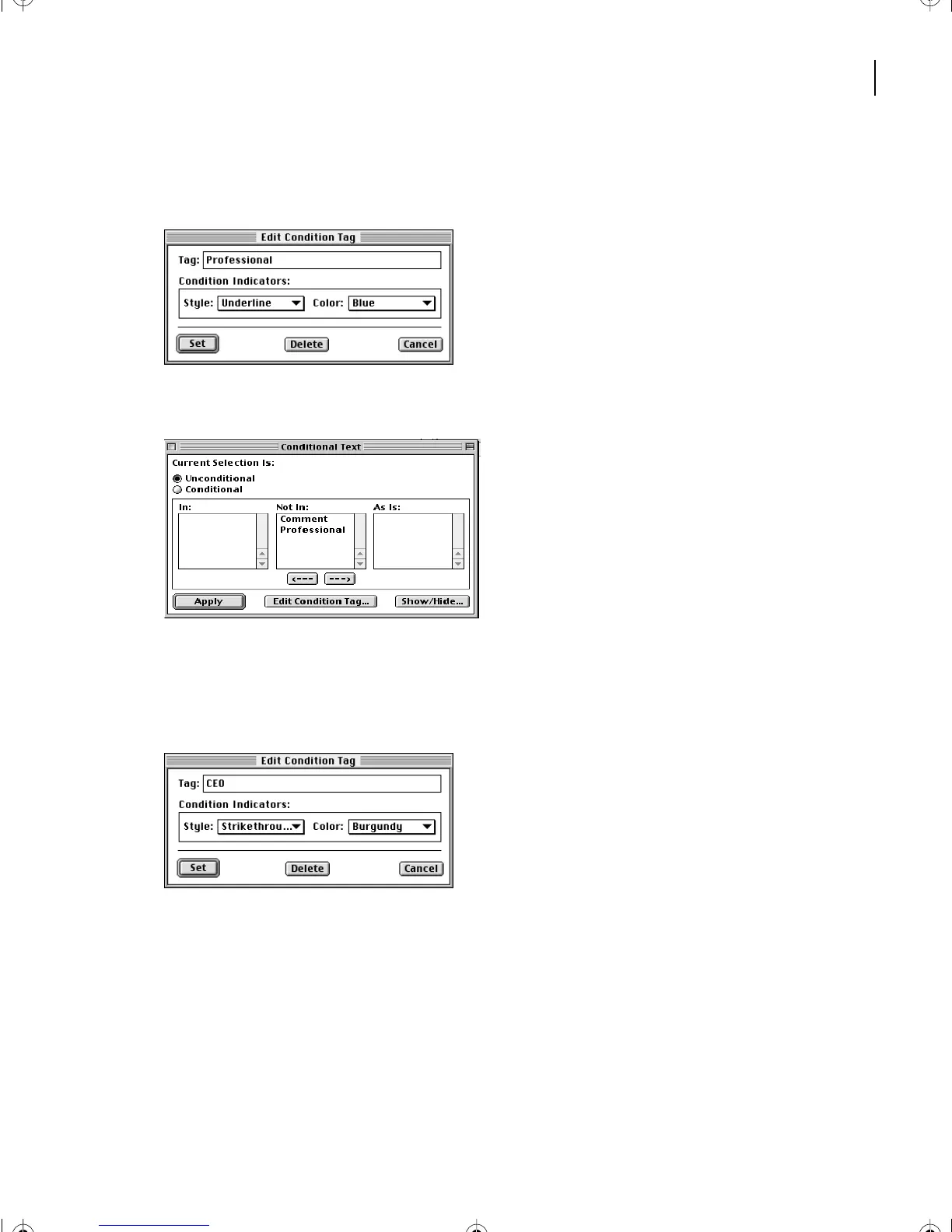
Choose Underline from the Style pop-up menu and Blue from the Color pop-up
menu.
5
Click Set. The new condition tag appears in the Conditional Text dialog box.
6
Click Edit Condition Tag again.
7
This time, replace the contents of the Tag text box with
CEO
. Then choose
Strikethrough from the Style pop-up menu and Burgundy from the Color pop-up menu.
8
Click Set. The new condition tag appears in the Conditional Text dialog box.
The document contains a third condition tag (Comment). You won’t need this tag, so
you’ll delete it.
9
Select Comment in the Not In scroll list and then click Edit Condition Tag.
10
Click Delete. Now only two tags appear in the Conditional Text dialog box.
11
Save the document.
L13.fm Page 325 Saturday, July 6, 2002 12:42 PM



 To Next Page