329
ADOBE FRAMEMAKER 7.0
Classroom in a Book
Yo u’ll now show both conditions before adding more conditional text.
15
Click Show/Hide. Then click Show All and click Set.
Adding a brief description
Now you’ll add an entire paragraph of conditional text.
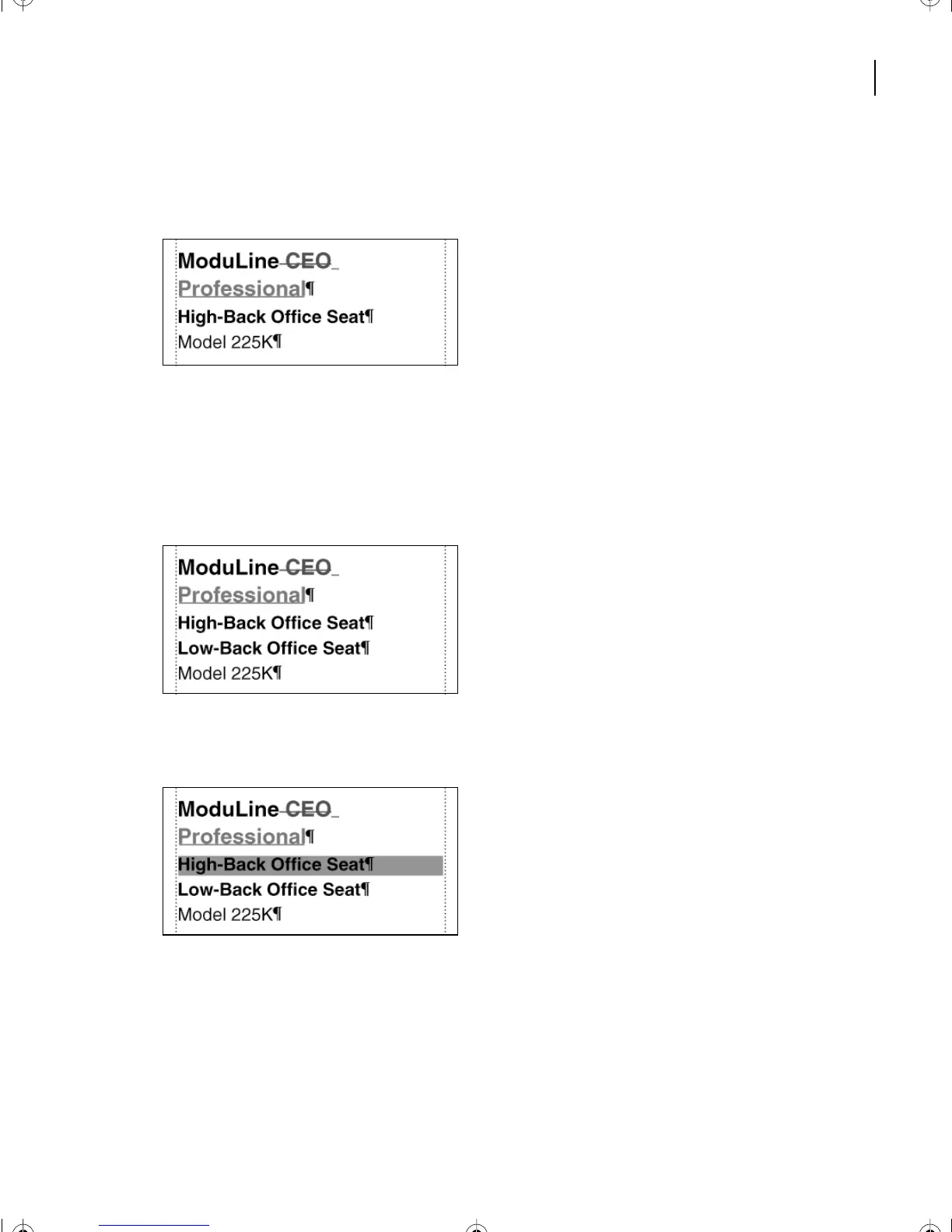
Place the insertion point at the end of the second paragraph,
High-Back Office Seat
.
1
Press Return and type
Low-Back Office Seat
.
2
Tr iple-click
High-Back Office Seat
to select the entire paragraph (including the
paragraph symbol).
3
In the Conditional Text dialog box, double-click CEO to move it to the In scroll list.
Then click Apply.
4
Tr iple-click
Low-Back Office Seat
to select the entire paragraph (including the
paragraph symbol).
L13.fm Page 329 Saturday, July 6, 2002 12:42 PM



 To Next Page