333
ADOBE FRAMEMAKER 7.0
Classroom in a Book
7 Press Control+4, then type the letter P. The status bar prompt changes to the
Professional tag.
8 Press Return. Now the Professional condition tag is applied at the insertion point.
9 Press the spacebar and type Available with or without armrests. Then type a period
to end the sentence.
10 Save the document.
Adding a conditional graphic
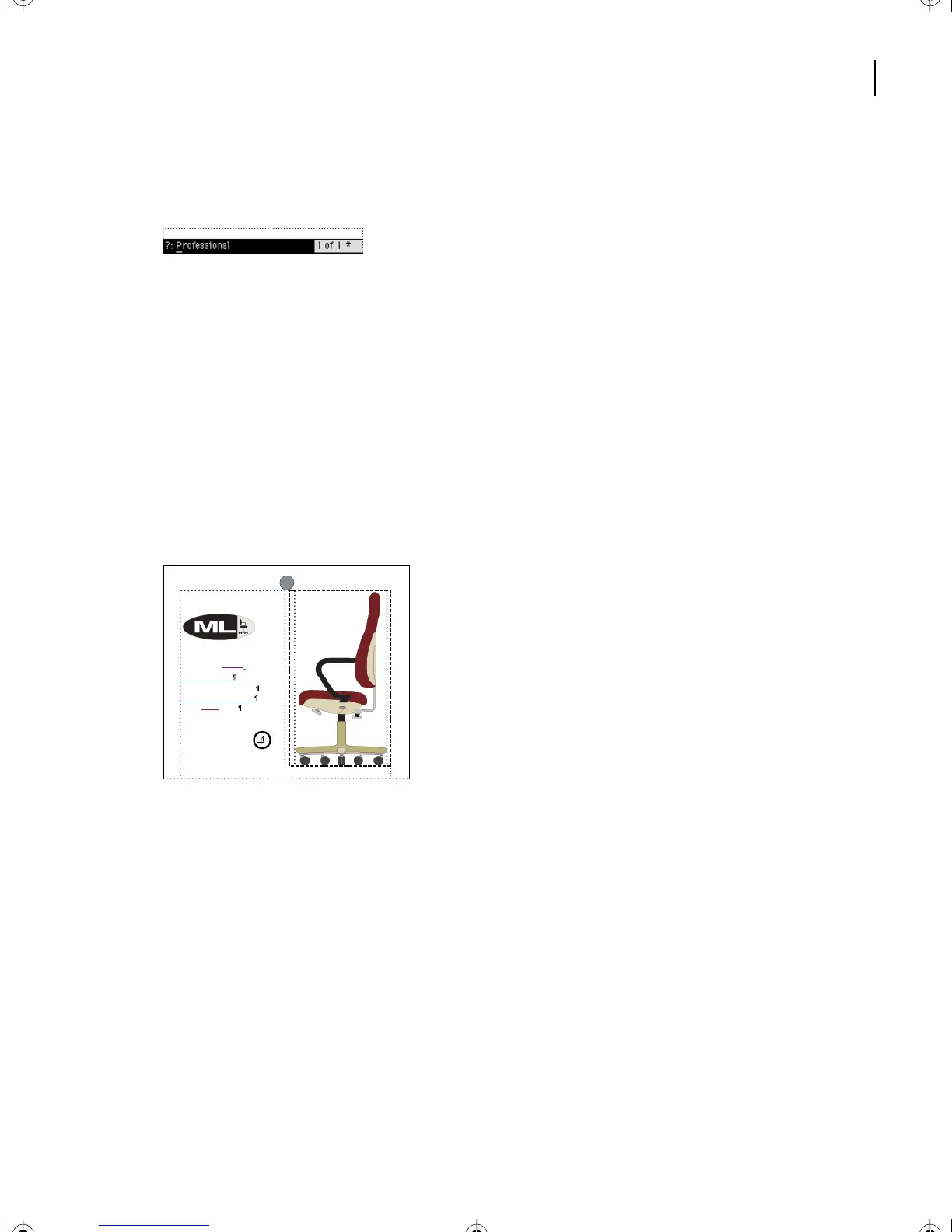
The card currently contains a graphic of the CEO office chair. The graphic is in an
anchored frame whose anchor symbol appears at the end of the paragraph Ergonomically
designed.
For this document to work as the single source for the cards for both the CEO chair and
the Professional chair, the graphic as well as the text needs to be conditional. You’ll do this
next by importing a graphic for the Professional chair, and then making the graphic’s
anchored frame conditional.
Completely adjustable
Ergonomically designed
Low-Back Office Seat
High-Back Office Seat
ModuLine CEO
Model 225K 186P
Professional
L13.fm Page 333 Saturday, July 6, 2002 12:42 PM



 To Next Page