LESSON 13
334
Conditional Text
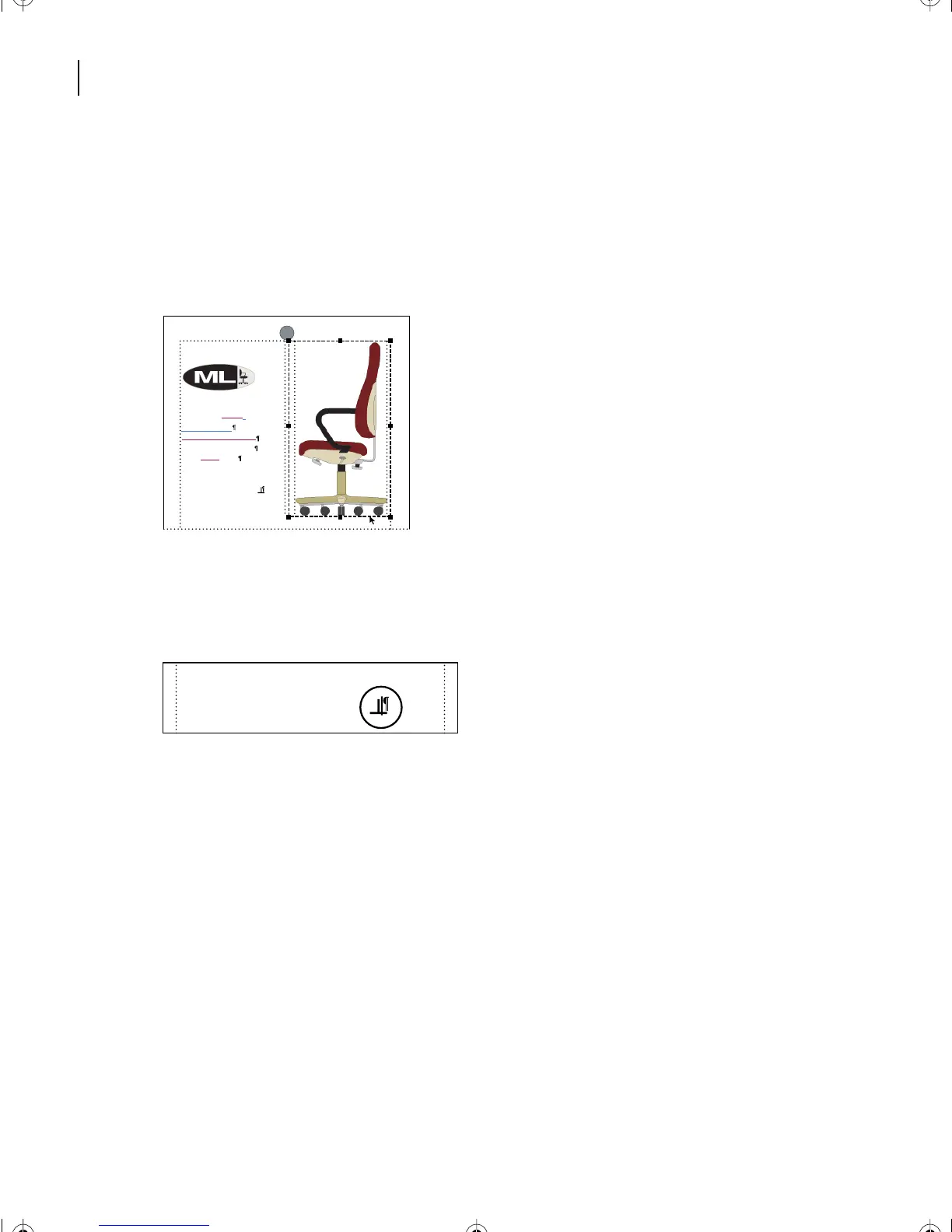
1 Click the bottom border of the anchored frame to select the frame. Handles appear
around the anchored frame.
Note: Be sure you click at the edge of the anchored frame to select the frame and not the
graphic. If you can’t see all eight handles around the selected frame, you probably accidentally
clicked the graphic instead of the frame.
2 Choose Edit > Copy.
3 Click to the right of the paragraph Ergonomically designed to place the insertion point
to the right of the anchor symbol.
Completely adjustable
Ergonomically designed
Low-Back Office Seat
High-Back Office Seat
ModuLine CEO
Model 225K 186P
Professional
Completely adjustable
Ergonomically designed
L13.fm Page 334 Saturday, July 6, 2002 12:42 PM



 To Next Page