335
ADOBE FRAMEMAKER 7.0
Classroom in a Book
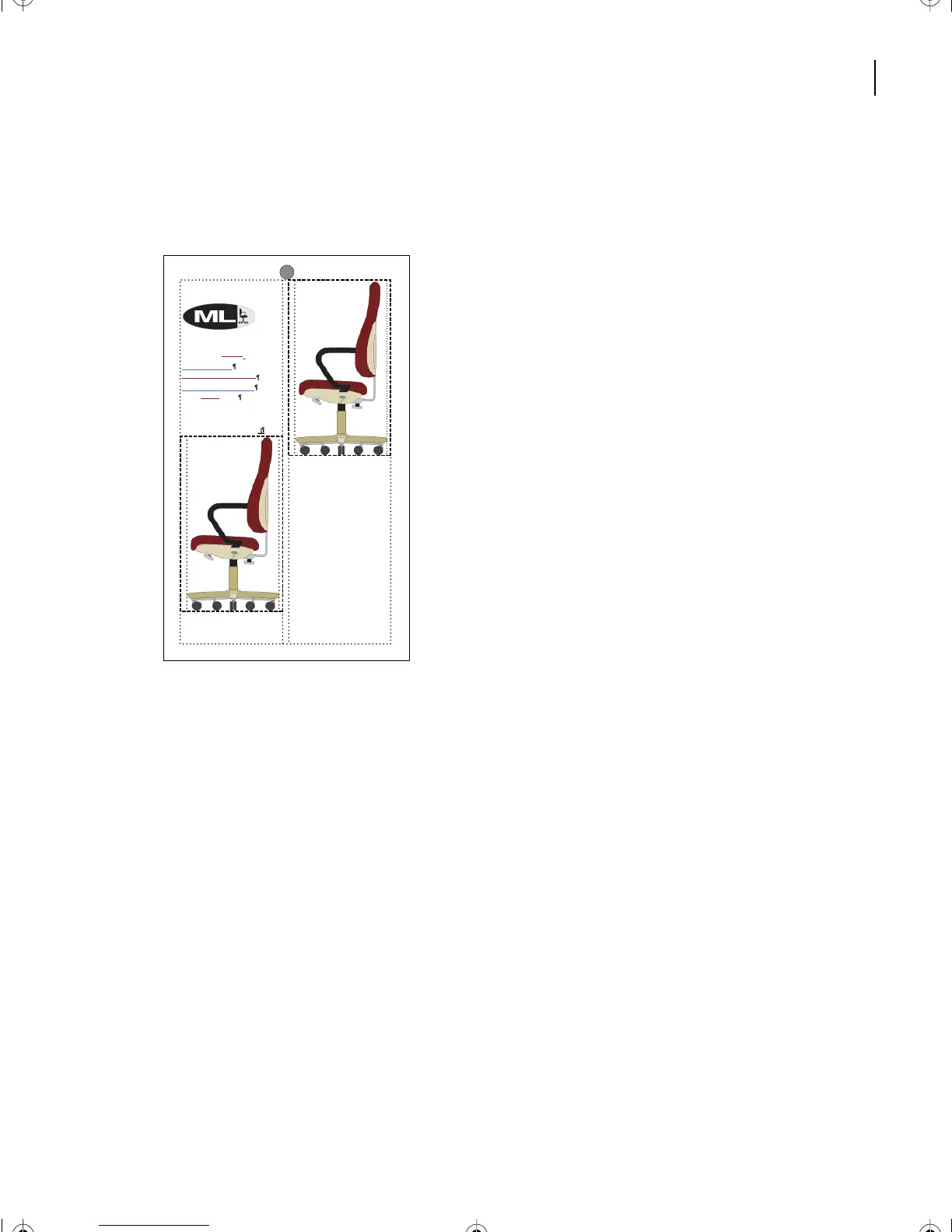
4 Choose Edit > Paste. Now the document contains two anchored frames. Don’t worry
about their placement. When you display only one condition tag, the document will be
formatted correctly.
5 Click the graphic that appears in the new anchored frame (the one on the left) to select
it. (Don’t select the anchored frame.)
6 Choose File > Import > File.
7 Select Pro.tif in the scroll list and click Replace.
Completely adjustable
Ergonomically designed
Low-Back Office Seat
High-Back Office Seat
ModuLine CEO
Model 225K 186P
Professional
L13.fm Page 335 Saturday, July 6, 2002 12:42 PM



 To Next Page