LESSON 13
340
Conditional Text
6 Experiment with showing different conditions to see how the conditional table row
works. When you’re finished, show all conditional text again.
7 Save the document.
Saving versions of a conditional document
When a conditional document is complete, you may want to create a separate document
for each of the versions. For example, you may need to hand off the files to a commercial
printer or to someone who might be confused by the presence of the conditional markers
in the text. Always retain the original conditional document, so you can edit the versions
easily if the need arises.
Saving the CEO version
First you’ll save a CEO version of the document. You’ll do this by deleting the conditional
text and graphic for the Professional version.
1 Use the File > Save As command to save the document as CEO.fm.
2 In the Conditional Text dialog box, select Professional in a scroll list and click Edit
Condition Tag.
3 In the Edit Condition Tag dialog box, click Delete.
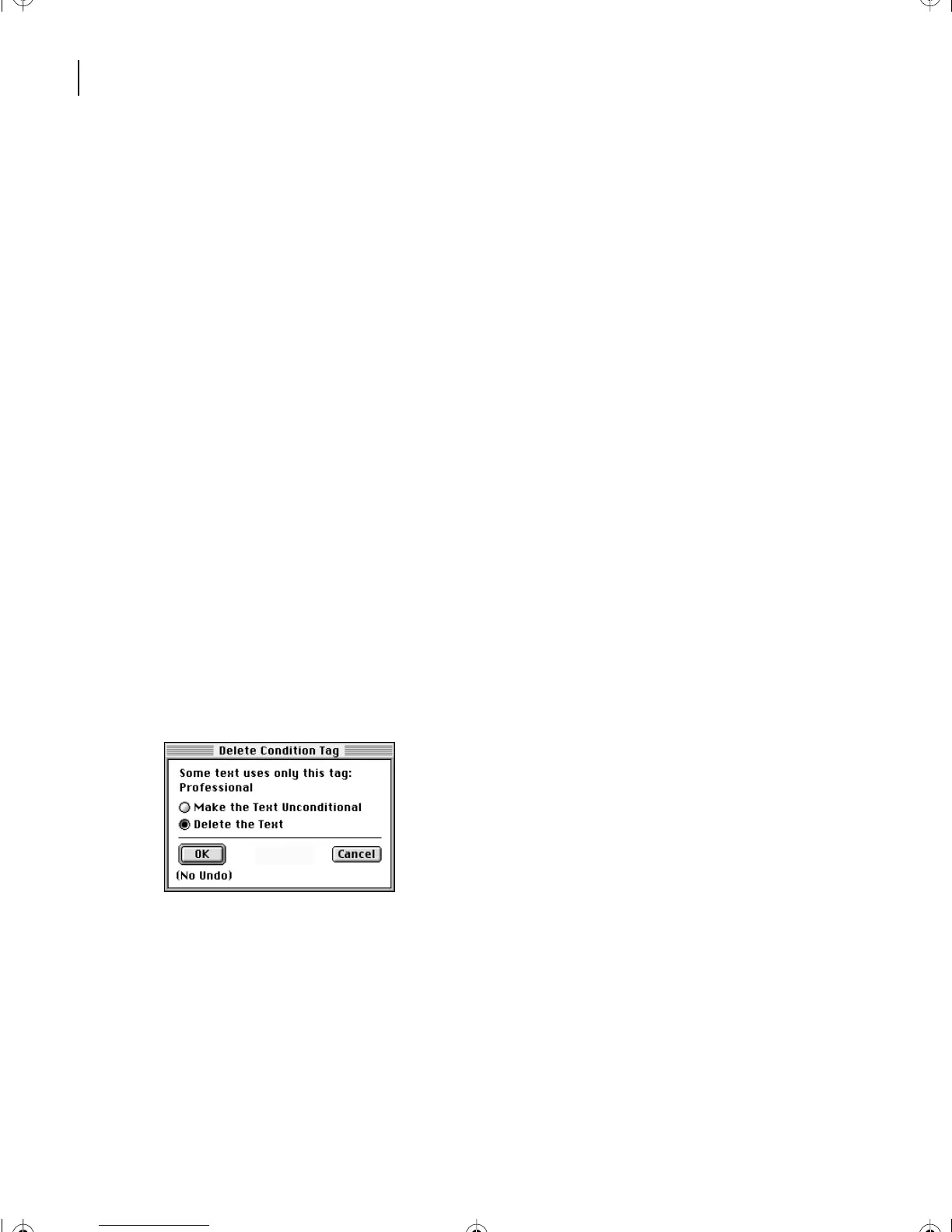
4 In the Delete Condition Tag dialog box, click Delete the Text.
5 Click OK. The document now contains just the CEO version.
6 If condition indicators are visible, click Show/Hide in the Conditional Text dialog box,
turn off Show Condition Indicators, and click Set.
7 Choose View > Borders and View > Text Symbols to see how the document will look
when printed.
8 Save and close CEO.fm.
L13.fm Page 340 Saturday, July 6, 2002 12:42 PM



 To Next Page