LESSON 14
352
Hypertext and PDF
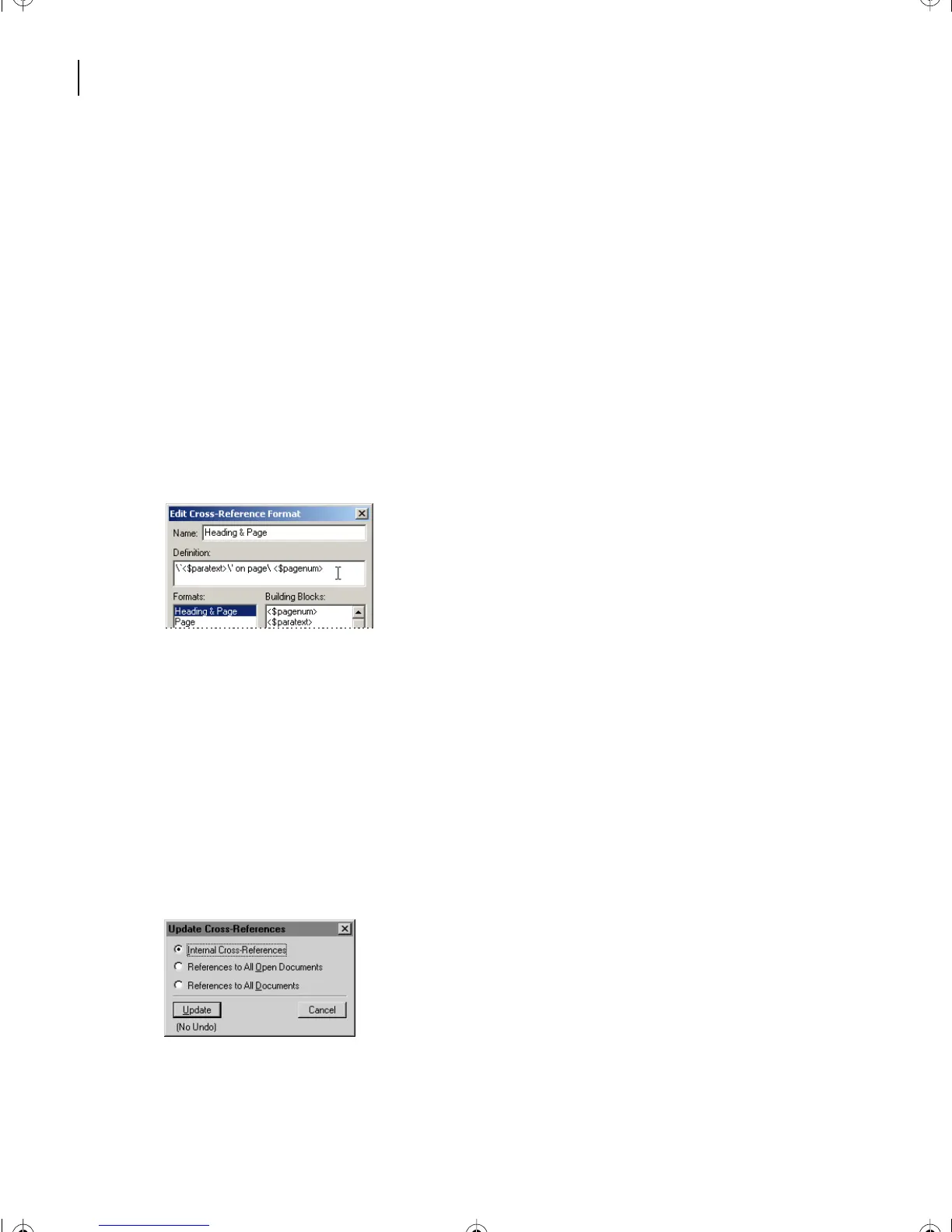
The format for this cross-reference is called Heading & Page, whose definition is
\‘<$paratext>\’ on page\ <$pagenum>.
On the Mac OS, the format’s definition is this: “<$paratext>” on page\ <$pagenum>.
This format uses a backslash-sequence for some special characters:
•
(Windows and UNIX) \‘results in an open double quotation mark (“) and \’ results in
a closing double quotation mark (”).
•
\ (space) results in a nonbreaking space.
Yo u’ll now modify this format to use a character format that will make the text purple and
underlined, so that it’s clear that a cross-reference is a hypertext link.
3
Click at the start of the definition to place the insertion point.
4
Scroll to the end of the Building Blocks list to find the character format building block
named <Link>, then click it. The definition now includes < Link> and looks like this:
<Link>\‘<$paratext>\’ on page\ <$pagenum>.
On the Mac OS, the definition is this: <Link>“<$paratext>” on page\ <$pagenum>.
Hyper1.fm already has a Link character format stored in the character catalog. This
format will make text purple and underlined so that hypertext jumps are easy to spot in
the document.
5
Click Change, then click Done. The Update Cross-References dialog box appears.
6
Make sure Internal Cross-References is selected, then click Update.
L14.fm Page 352 Sunday, July 7, 2002 10:18 PM



 To Next Page