LESSON 14
358
Hypertext and PDF
8
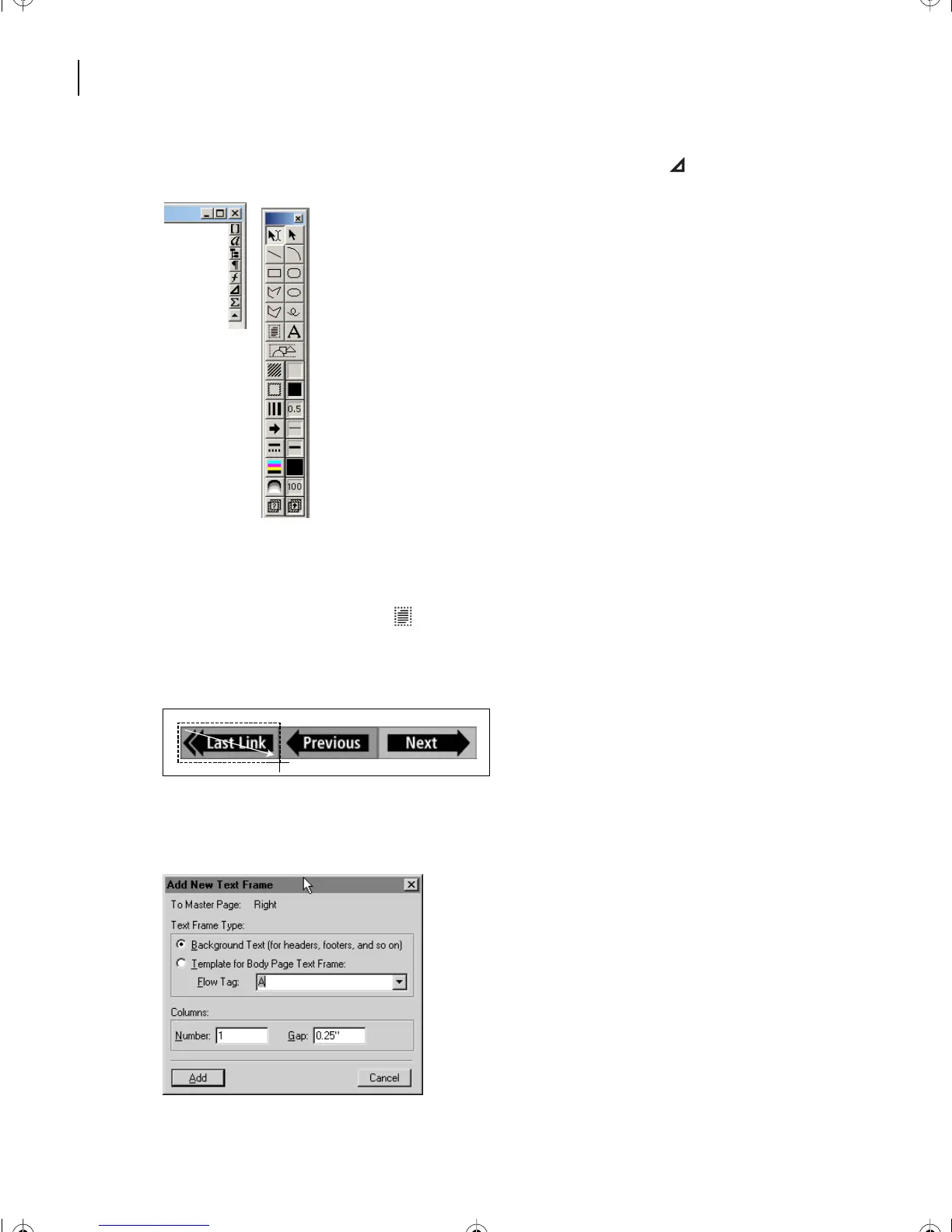
Display the Tools palette by clicking the Tools palette button ( ).
To make each arrow graphic work as a separate hypertext command, each will have to have
its own text frame around it (and each text frame will contain a hypertext command).
9
Click the Text Frame tool ( ) and drag a text frame over the leftmost button graphic.
(If you have trouble making the text frame the size you want, turn off the snap grid by
choosing Graphics > Snap.)
10
When you release the mouse button, FrameMaker 7.0 asks what kind of frame you
want to draw here. Click Background Text and then click Add.
L14.fm Page 358 Sunday, July 7, 2002 10:18 PM



 To Next Page