359
ADOBE FRAMEMAKER 7.0
Classroom in a Book
11 With the text frame selected, choose None from the Fill pop-up menu ( ) in the
To ols palette.
12 Repeat step 9 through step 11 for the other two button graphics. Use the selection
handles to adjust the size of the frames if you need to.
13 If the text boxes appear to have a white background, go to Window > Refresh or press
control + l (lowercase L) to redraw the screen.
All three graphics now have their own text frames over them, and you’re ready to add
hypertext commands.
Adding hypertext commands
The best way to insert a hypertext command into a document is to use the Hypertext
dialog box.
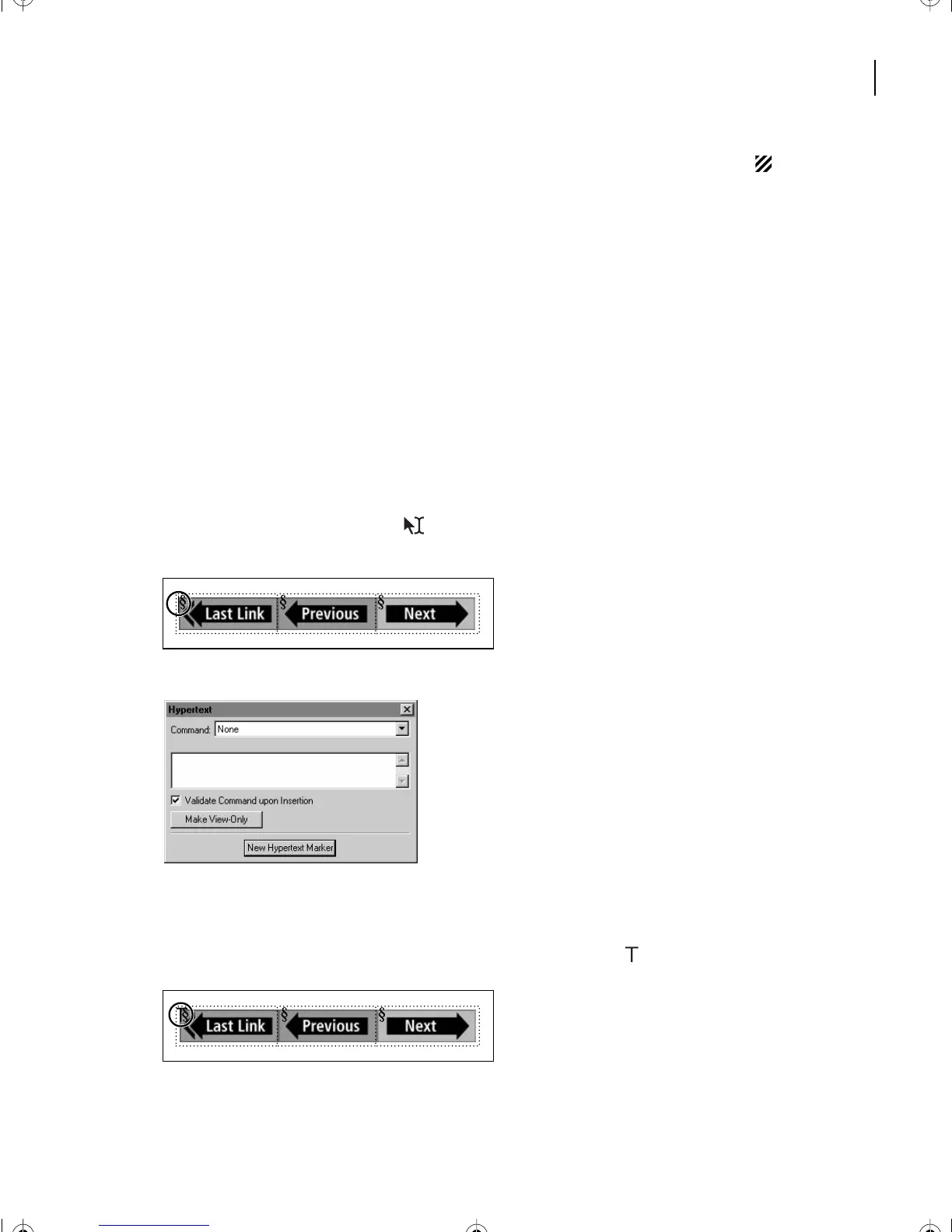
1 With the Smart Select tool ( ), click in the leftmost text frame to place the insertion
point there.
2 If the Hypertext dialog box isn’t open, choose Special > Hypertext.
3 From the Command pop-up menu, choose Jump Back, and then click New Hypertext
Marker. You’ve inserted a previouslink hypertext command. All hypertext commands
entered through this dialog box are contained in markers ( ).
L14.fm Page 359 Sunday, July 7, 2002 10:18 PM



 To Next Page