LESSON 14
360
Hypertext and PDF
In a view-only document, the previouslink command moves you back to the last pages
you jumped to, in turn, even if the pages are in different documents.
4 Click in the middle text frame.
5 In the Hypertext dialog box, choose Jump to Previous Page from the Command pop-
up menu, then click New Hypertext Marker. Yo u’ve inserted a previouspage hypertext
command. The previouspage command moves you to the previous page of the view-only
document.
6 Click in the rightmost text frame.
7 In the Hypertext dialog box, choose Jump to Next Page from the Command pop-up
menu, then click New Hypertext Marker. You’ve inserted a nextpage hypertext command.
The nextpage command moves you to the next page of the view-only document.
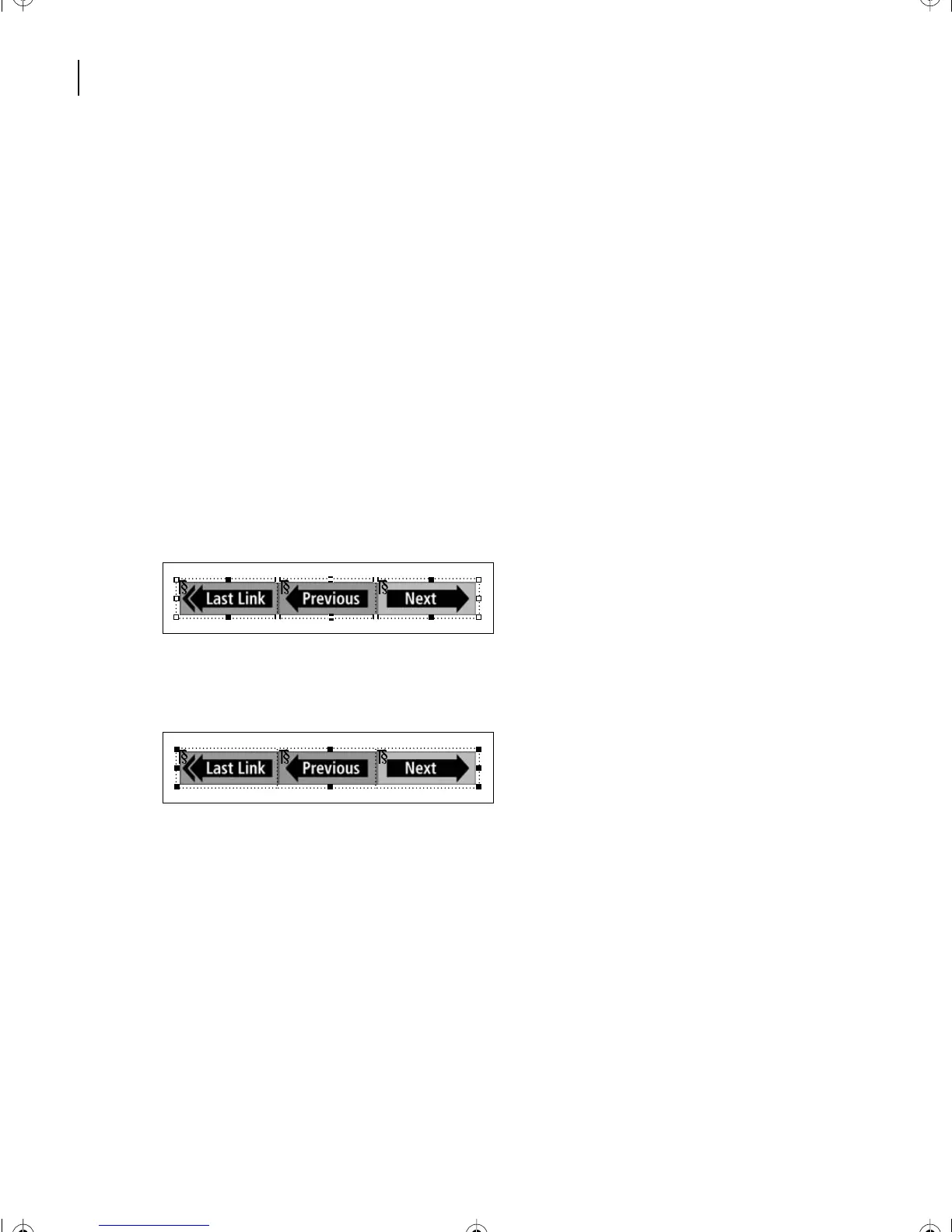
8 Drag a selection box around the entire graphic and the three text frames to select them
all.
9 Choose Graphics > Group to group them as a single object. (Refresh the screen if
necessary.)
10 Choose Edit > Copy, scroll to the other master page, and choose Edit > Paste. The
grouped graphic is now placed in the same spot on all the master pages of the document,
which means it will appear on every page.
L14.fm Page 360 Sunday, July 7, 2002 10:18 PM



 To Next Page