365
ADOBE FRAMEMAKER 7.0
Classroom in a Book
10 Click Set. After a few moments, the Hyper.pdf file appears in the folder you specified.
If you have Acrobat Reader or Exchange installed, you can now look at the PDF file.
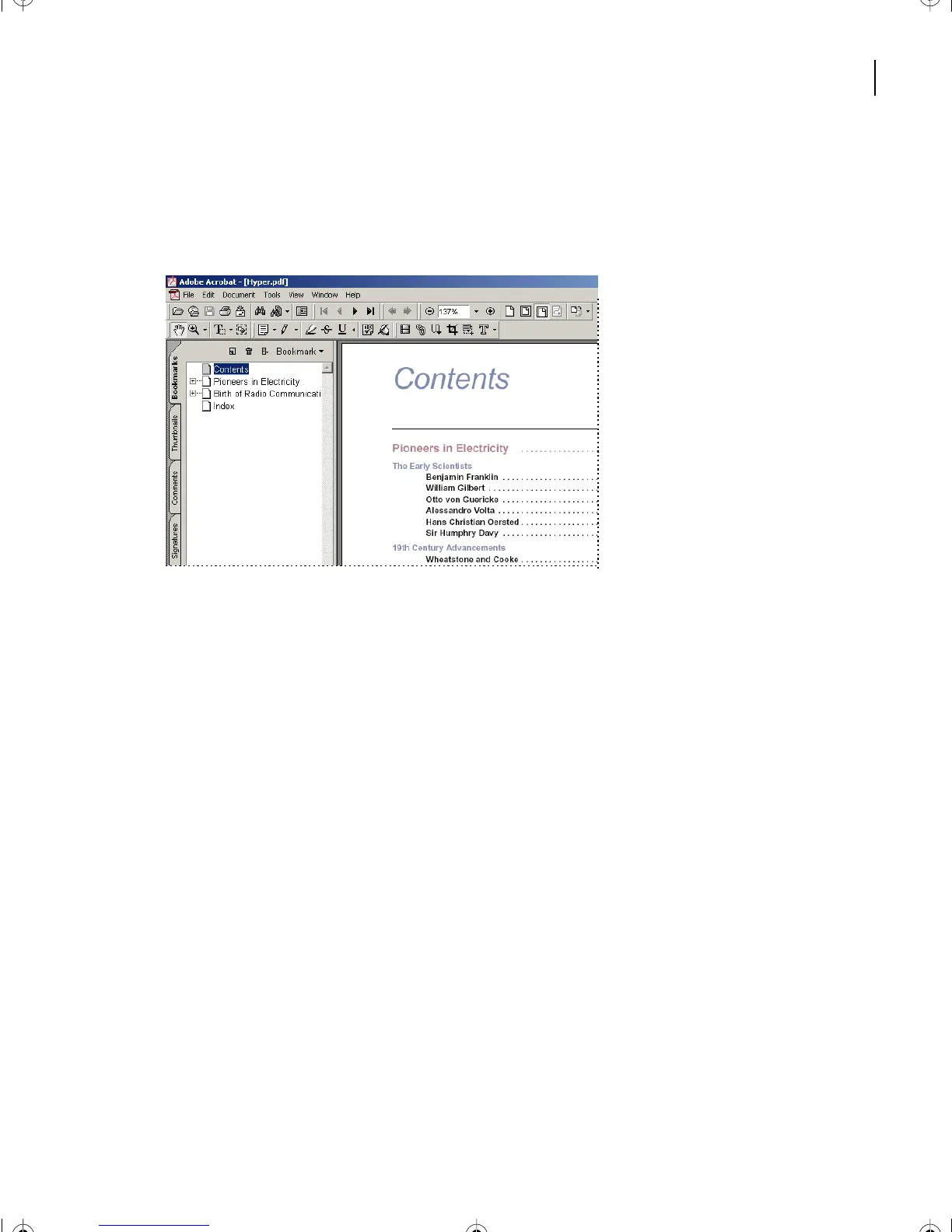
11 Open Acrobat Reader or Exchange and open the Hyper.pdf file.
Because you generated the table of contents and the index with hypertext links, those
links are active in the PDF file as well.
12 Click an entry in the TOC to move to the section indicated.
13 Click Index to display the index and find the entry for Thales. Click the page number
there to move to the corresponding place in the text.
14 When you’re finished exploring, quit Acrobat or Acrobat Reader, and close all open
files in FrameMaker 7.0.
Moving on
Yo u’ve completed this lesson. For in-depth information about hypertext, see Chapter 19,
“Hypertext and View-Only Documents,” in the Adobe FrameMaker 7.0 User Guide. For
in-depth information about PDF, see Chapter 20, “HTML and PDF Conversion.”
Review questions
1 How can you automatically create hypertext links for an index?
2 What other type of hypertext link does FrameMaker 7.0 automatically create?
L14.fm Page 365 Sunday, July 7, 2002 10:18 PM



 To Next Page