LESSON 2
42
Defining Paragraph Formats
An untitled, blank document appears. Because borders and text symbols are on, you see
a dotted text frame border with an end-of-flow symbol (§) in the upper left corner. This
is the only text symbol you see because the document doesn’t contain any text yet.
If borders and text symbols are not visible, choose View > Borders and View > Text
Symbols to see them.
11
Choose File > Save, make sure you are in the Lesson02 folder, and then enter the
filename
Formats.fm
and click Save.
Next, you’ll turn on a typing aid that will help you work more efficiently.
12
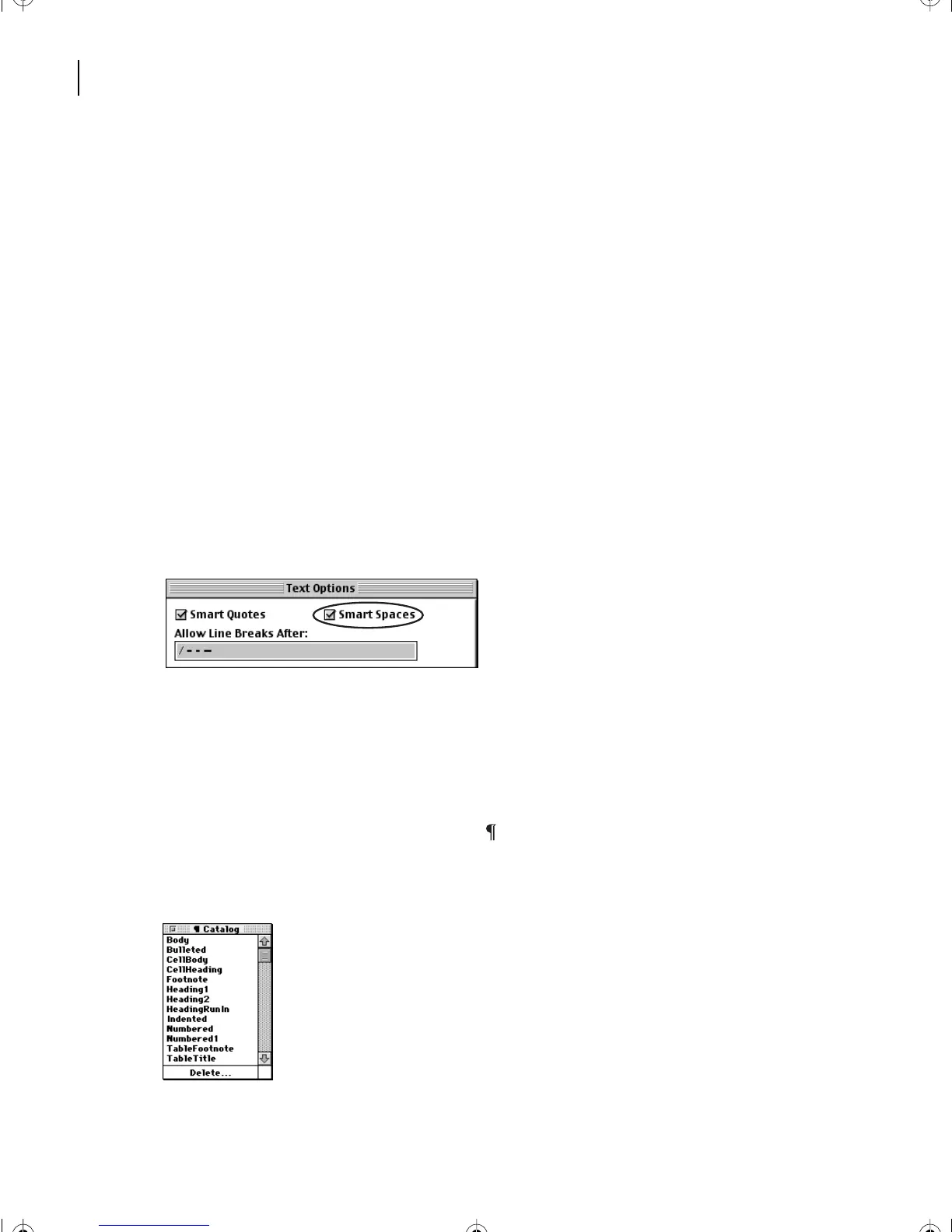
Choose Format > Document > Text Options.
In the Text Options dialog box, Smart Quotes is already selected. This tells FrameMaker
7.0 to insert the appropriate left or right curved quotation mark (“or”) when you type a
quotation mark.
13
Select Smart Spaces and click Apply.
Smart Spaces prevents you from typing more than one standard (proportional) space in
a row. This helps you keep spacing between words and sentences consistent. (Smart
Spaces does not affect special fixed-width spaces, such as em spaces.)
Finally, you’ll look at the Paragraph Catalog for the document.
14
Click the Paragraph Catalog button ( ) at the top right side of the document
window. Notice that even new custom documents contain a basic set of predefined
paragraph formats for headings, body text, numbered and bulleted lists, and other items.
Paragraph Catalog for a new custom document
L02.fm Page 42 Saturday, July 6, 2002 11:23 AM



 To Next Page