415
ADOBE FRAMEMAKER 7.0
Classroom in a Book
6
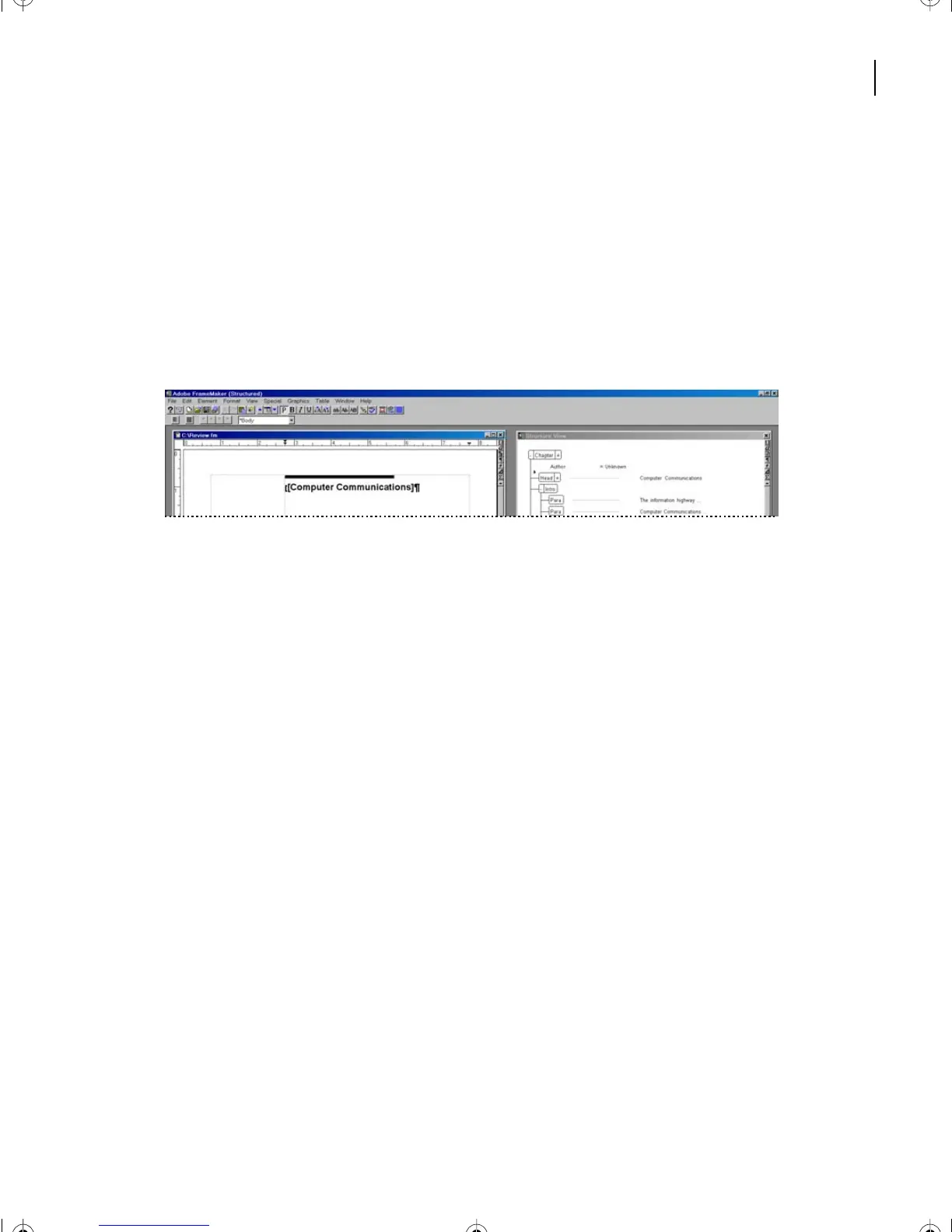
In the Document window, place the insertion point at the beginning of the C in
Computer Communications element.
The arrow in the Structure View changes to reflect the beginning of the element.
7
Use the Left Arrow key to move the cursor one key stroke to the left, outside of the Head
element.
The first bracket is the start of the Chapter element and the second bracket is the start of
the Head element. You are now inside the Chapter element and before the Head element.
Moving the insertion point in Structure View
•
(Windows) Press and hold Control + Alt, and then press the Down Arrow several times.
The insertion point moves from element to element.
•
(Mac OS) Press the Down Arrow to move from element to element.
Experiment moving between elements.
Collapsing and expanding elements
Collapsing elements in Structure View keeps the view compact, making it quicker to scroll
through long structures. You can expand elements as needed. When an element is
collapsed, all of its children are hidden but available. An element’s content in the
document window is not lost. You can expand the view when you want to see details.
Elements can be collapsed and expanded. In the element’s bubble, to the left of the
element name, click on the plus (+) symbol to expand or click on the minus (-) symbol
to collapse.
L16.fm Page 415 Saturday, July 6, 2002 4:02 PM



 To Next Page