417
ADOBE FRAMEMAKER 7.0
Classroom in a Book
Viewing attributes
Attributes provide a way to store nonprinting descriptive information with an element.
For example, a chapter can store the author’s name even if it isn’t shown. A list element
can contain an attribute to switch the list from using bullets to using numbers.
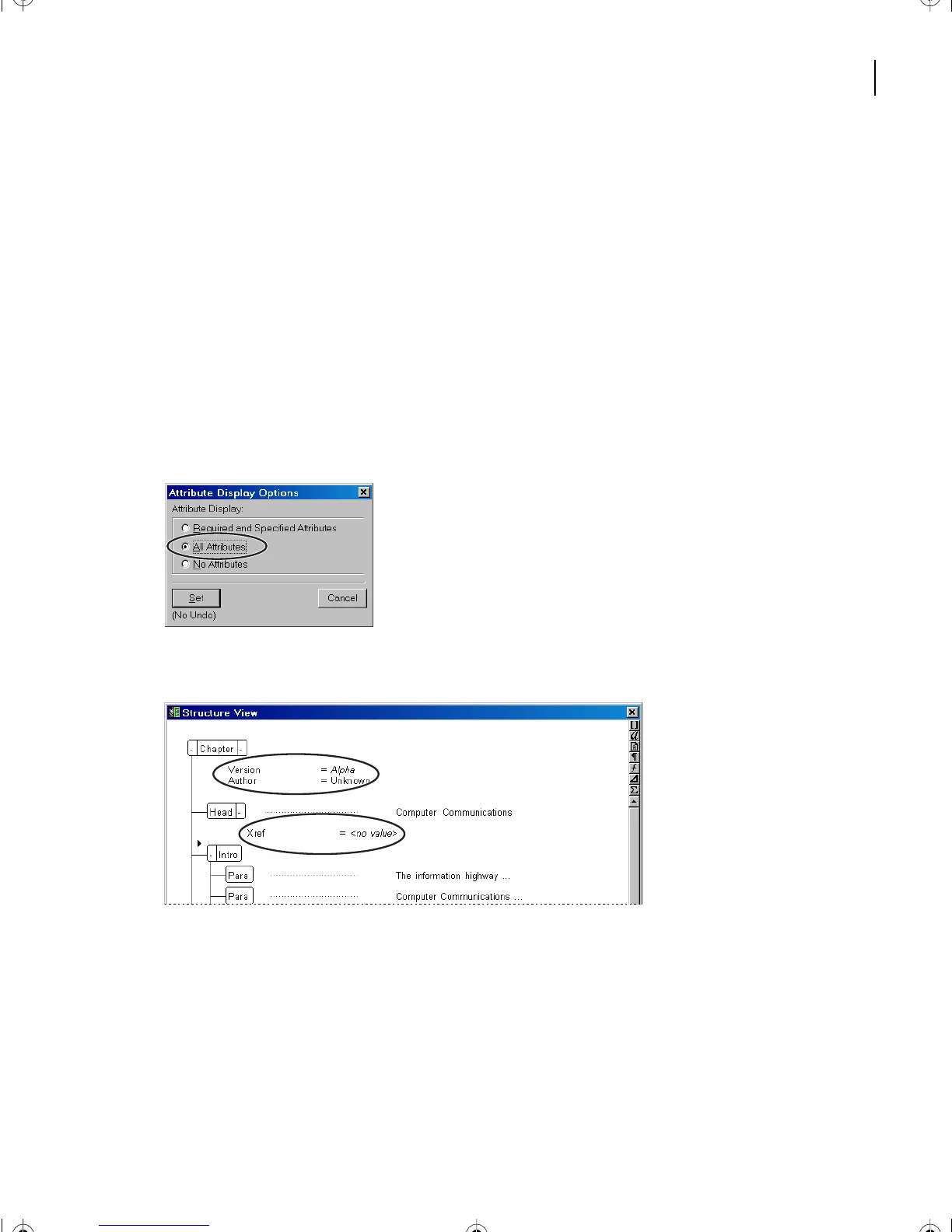
An element can contain several attributes, which are displayed in Structure View directly
beneath the element bubble. To reveal or hide attributes, click in the element bubble, on
the + symbol (to the right of the element name), or use Attribute Display Options.
1
Choose View > Attribute Display Options. The Attribute Display Option dialog box
appears.
2
Select the All Attributes option and click Set.
The Structure View displays all attributes.
Attributes
This won’t necessarily expand child elements to reveal their attributes. However, as lower
elements are expanded, the attributes are displayed.
3
Click the minus symbol (-) next to the element to hide or reveal attribute information.
Note:
When expanding the Chapter element, notice that it takes two clicks to review all of the
attribute information.
L16.fm Page 417 Saturday, July 6, 2002 4:02 PM



 To Next Page