425
ADOBE FRAMEMAKER 7.0
Classroom in a Book
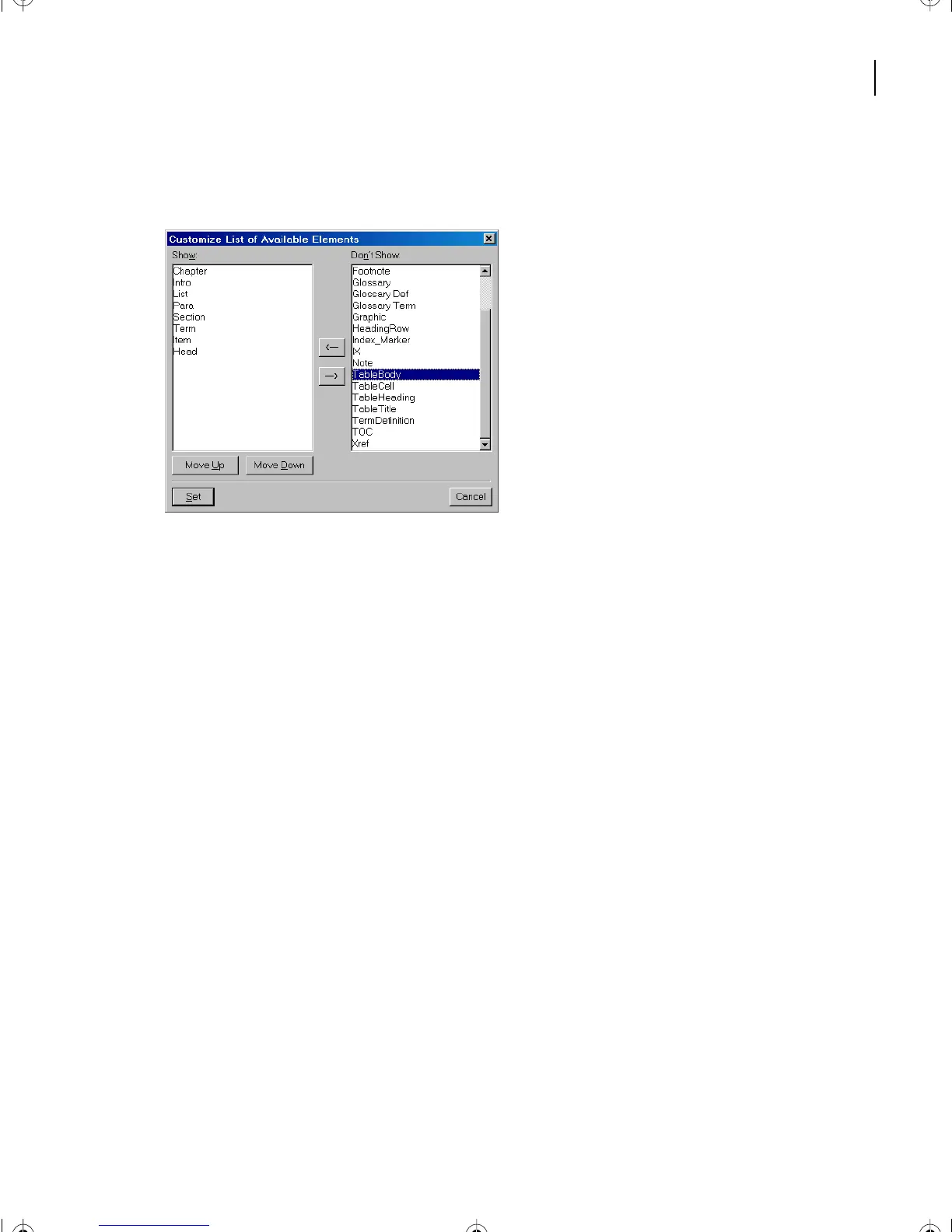
8 Use the Move Up and Move Down buttons to arrange the elements in the Show list in
the following order: Chapter, Intro, Section, Head, Para, List, Term, and Item.
9 In the Customize List of Available Elements dialog box, click Set.
10 The Set Available Elements dialog box appears. Click Set.
The Element Catalog now displays your customized list.
11 Save and close the file.
Moving on
Yo u’ve completed this lesson. For in-depth information about structured documents, see
Chapter 3, “Working with Structured Documents,” in the Adobe FrameMaker 7.0 User
Guide.
Review questions
1 What buttons have been added to the sidebar in structured FrameMaker?
2 How can you make the hierarchy structure of the document appear?
3 What are the 2 new choices in the structured FrameMaker menu bar?
4 Do you have to move the insertion point separately in Structure View and document
view?
5 What symbol beside an element indicates it has more content and can be expanded?
6 How do you collapse elements?
L16.fm Page 425 Saturday, July 6, 2002 4:02 PM



 To Next Page