437
ADOBE FRAMEMAKER 7.0
Classroom in a Book
5
Save the document.
Converting the XML section to editable text
1
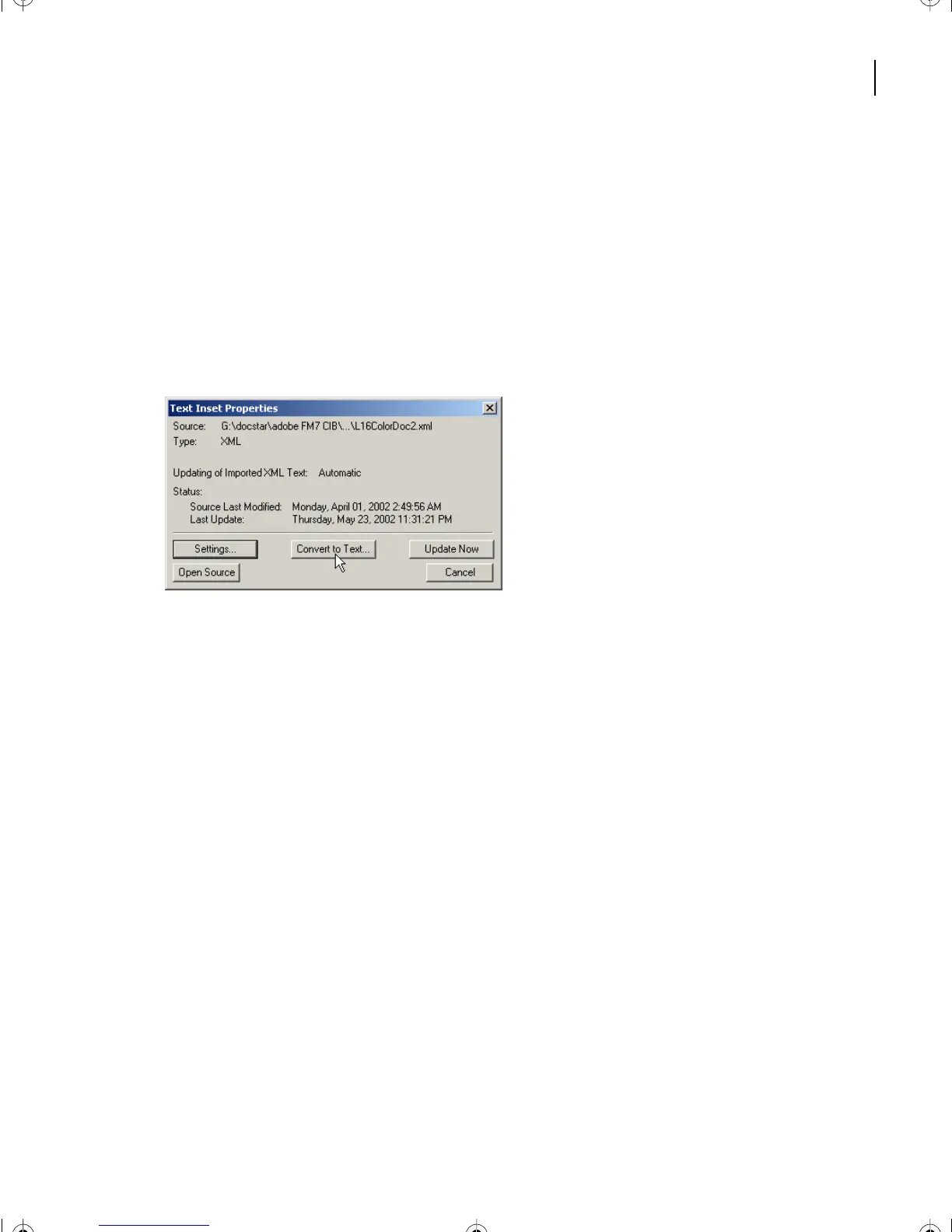
Place the cursor anywhere in the newly imported XML section.
2
Double-click in the section.
The whole section is selected, and the Text Insert Properties box appears.
3
Select Convert to Text.
The Convert Text Insets to Text dialog box appears.
4
Choose Selected Text Inset and click Convert. The new section is now editable.
5
Save the document.
Reformatting the XML section
Reformat the new section on bitmaps and resolution by placing the cursor in the [Head]
element text beginning with the word
Bitmap
.
1
In the Paragraph Designer, change the paragraph Default Font Family to:
•
(Windows) AGaramond-Semibold.
•
(Mac OS and UNIX) Adobe Garamond, Weight: Semibold.
2
Click Apply.
3
Select the remaining three paragraphs of the newly imported section.
4
In the Paragraph Designer, change the Default Font Family to Myriad-Roman
(Windows) or Myriad (Mac OS and Unix).
5
Click Apply.
L17.fm Page 437 Saturday, July 6, 2002 4:37 PM



 To Next Page