57
ADOBE FRAMEMAKER 7.0
Classroom in a Book
Formatting subsequent numbered items
Now you’ll create a paragraph format for the subsequent numbered items in a list. (This
format will increase the step number of each successive item by 1.) You’ll begin by
applying the Step1 format to the other paragraphs in the numbered list, because that
format is very close to the format you want. Then you’ll create a new paragraph format
for the paragraphs and change the autonumber format.
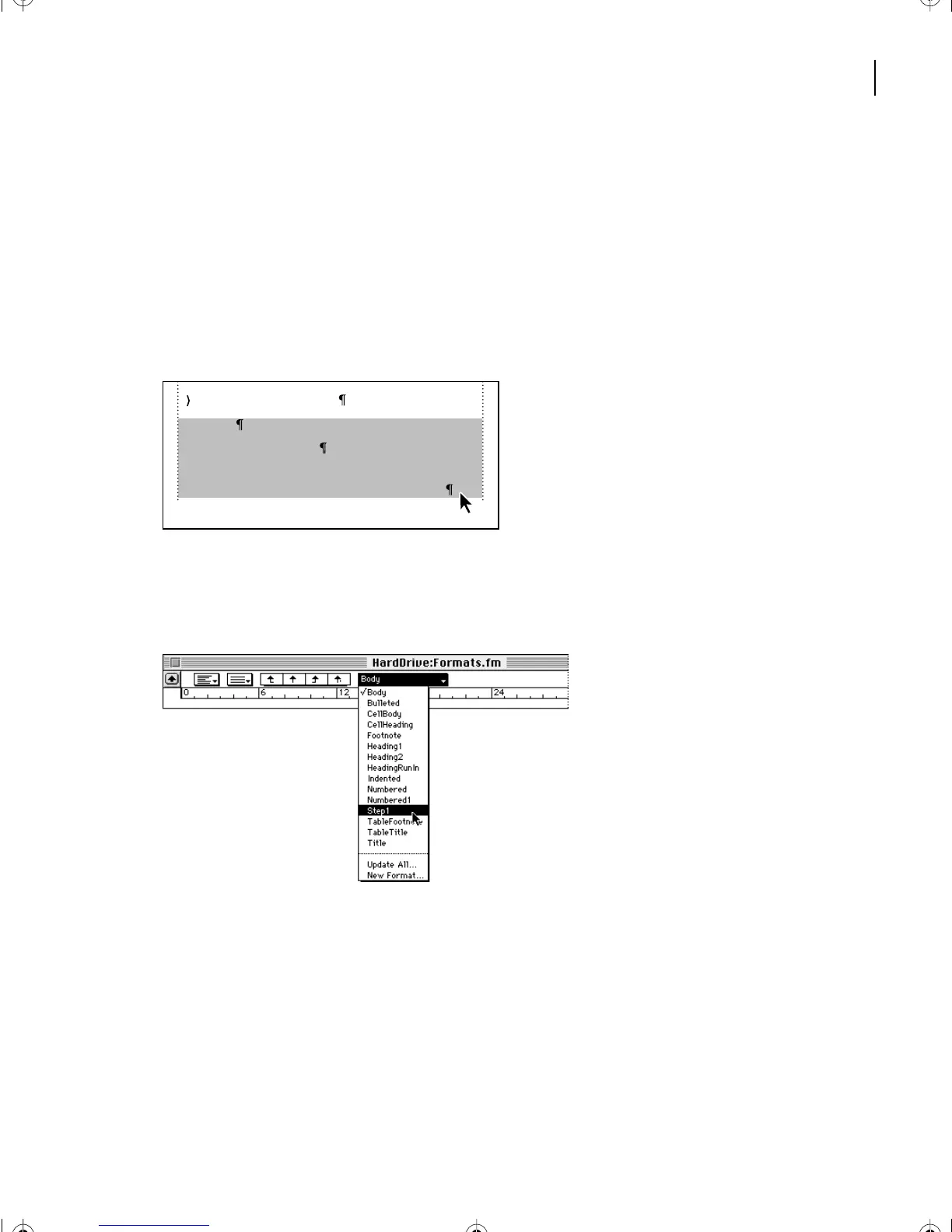
1 Drag to select the three paragraphs below the numbered step.
2 Choose Step1 from the Paragraph Formats pop-up menu in the formatting bar. This
pop-up menu contains all the formats in the Paragraph Catalog. You can apply formats
from this menu just as you apply them from the catalog.
All the selected paragraphs now begin with the number 1, but you’ll fix that next.
3 In the Paragraph Designer, choose New Format from the Commands pop-up menu.
4 Enter Step in the Tag text box.
5 Make sure that the options Store in Catalog and Apply to Selection are selected and
click Create.
1 Planning and organizing
Design
Content development
Prepress tasks where your electronic files are
prepared to be reproduced with ink on paper.
L02.fm Page 57 Saturday, July 6, 2002 11:23 AM



 To Next Page