75
ADOBE FRAMEMAKER 7.0
Classroom in a Book
3
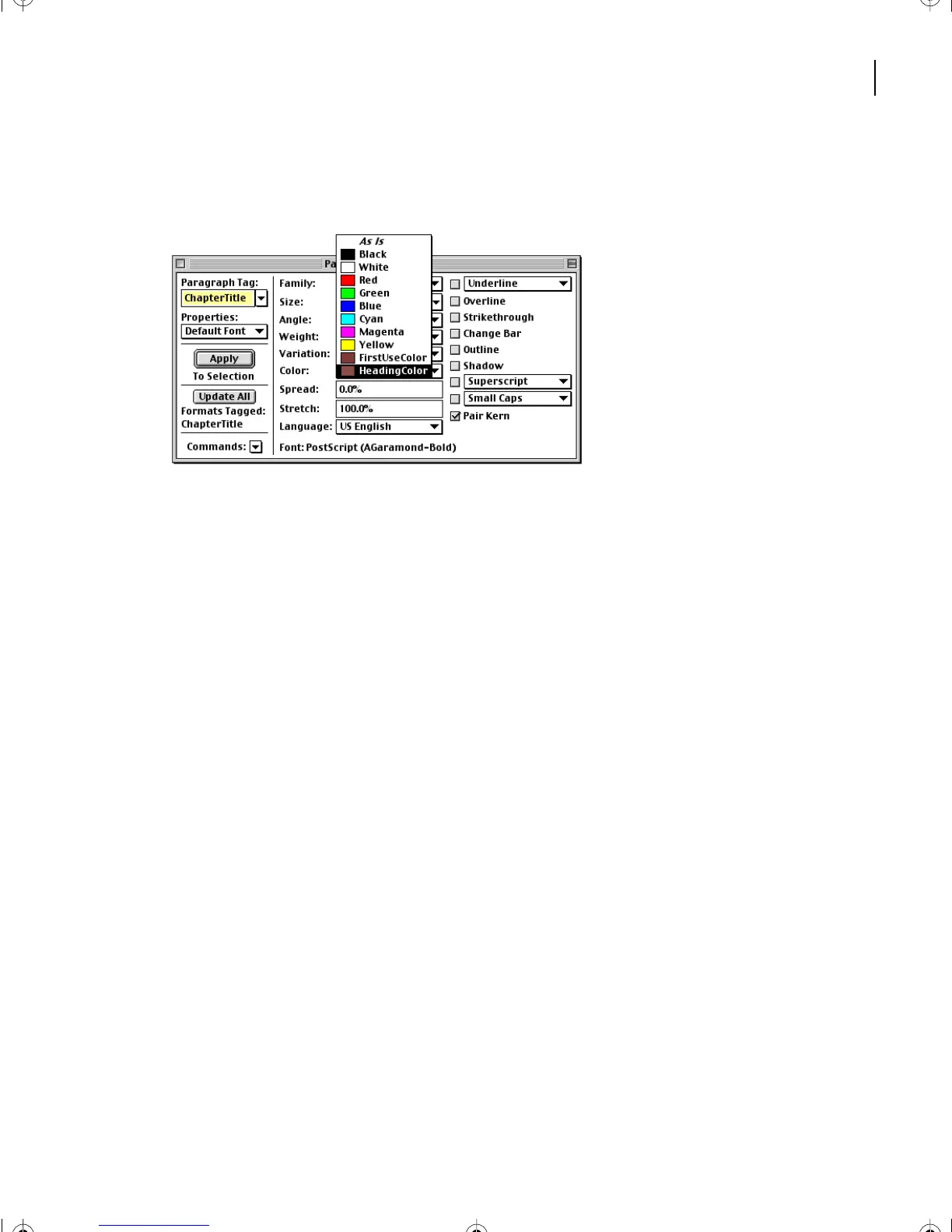
Choose HeadingColor from the Color pop-up menu and click Update All. The chapter
title appears in color.
Now you’ll add color to the headings.
4
Click in the heading
Planning and evaluation
.
5
In the Paragraph Designer, choose HeadingColor from the Color pop-up menu
and click Update All.
6
Go to page 3 and click in any Heading2 paragraph. (The Heading2 paragraphs are in
the side-head area.)
7
In the Paragraph Designer, choose HeadingColor from the Color pop-up menu and
click Update All.
8
Save the document.
Adding color to autonumbers
In numbered lists, the automatically inserted numbers currently appear in black, but
you’ll make them appear in color.
Creating a character format
To add color to the autonumbers, you’ll create a
character format
—a format that you use
for characters, words, or phrases rather than for whole paragraphs. A character format
can change one or more text properties.
L03.fm Page 75 Saturday, July 6, 2002 11:39 AM



 To Next Page