LESSON 4
96
Page Layout
3
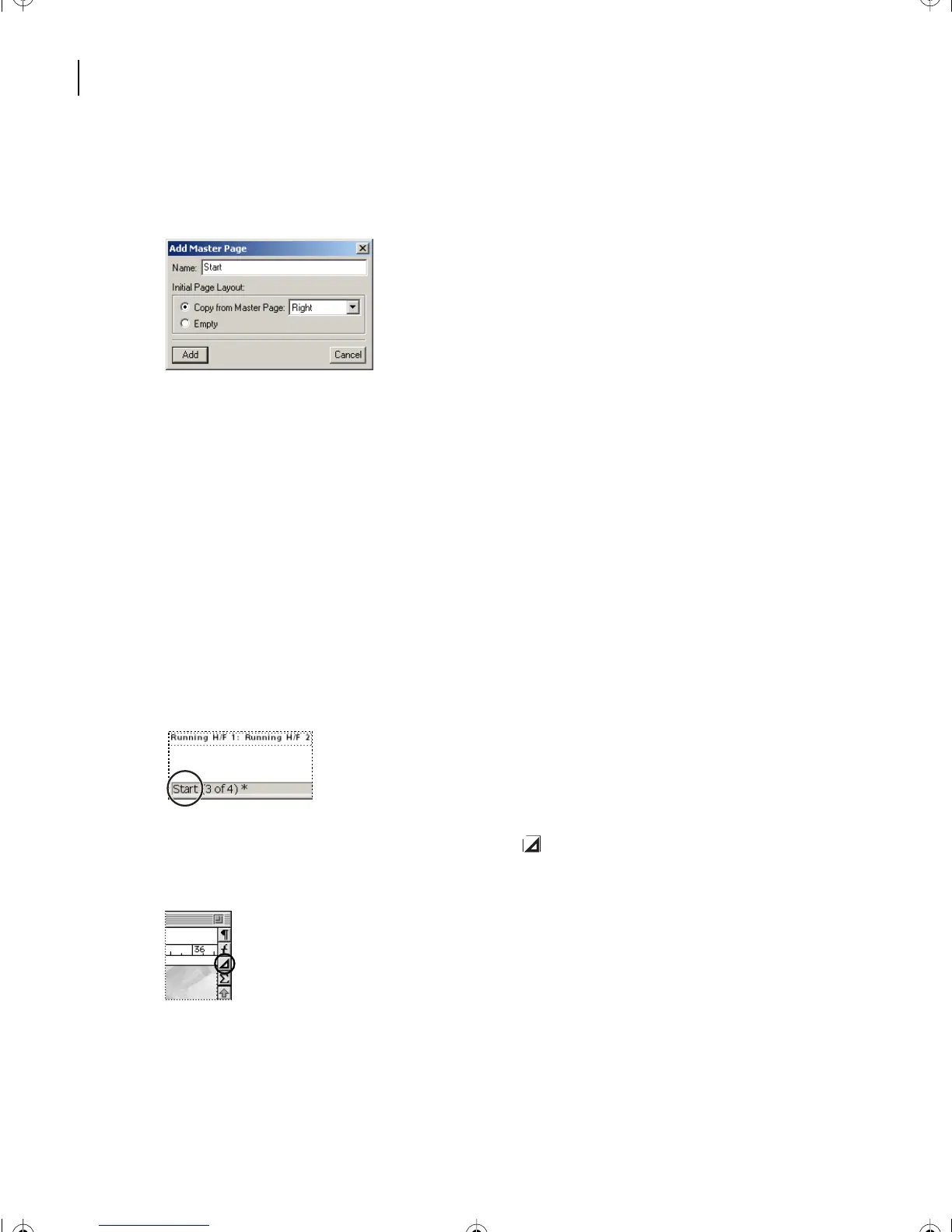
Choose Special > Add Master Page and enter
Start in the Name text box.
4 Select Right from the Copy from Master Page pop-up menu and click Add.
The final exercise in this lesson will address the Start master page. Now you’ll create a
second custom master page that won’t be based on the Right or Left master pages.
1 Choose Special > Add Master Page and enter Last in the Name text box.
2 In the Initial Page Layout area, select Empty and click Add.
3 Save the document.
Modifying a custom master page
You can define different headers and footers, change margins, and change the column
layout in custom master pages.
1 Go to the master page called Start.
2 Click the Display the Tools Palette button ( ) at the upper right corner of the
document window to access the Tools palette.
L04.fm Page 96 Saturday, July 6, 2002 11:34 AM



 To Next Page