97
ADOBE FRAMEMAKER 7.0
Classroom in a Book
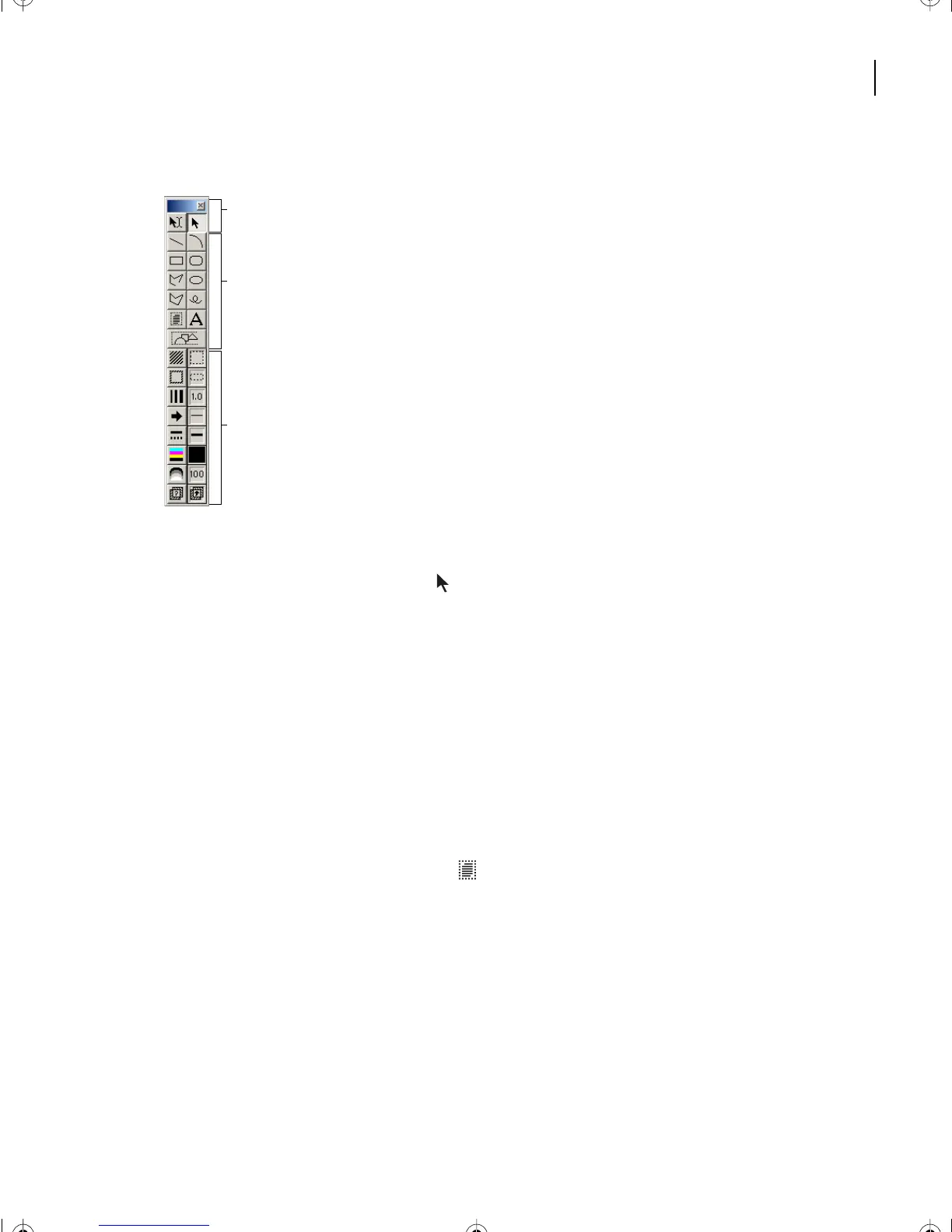
The Tools palette appears.
A. Selection tools B. Drawing tools
C. Drawing properties
3 Select the Select Object cursor ( )from the top right corner of the Tools palette. You
will discover more contents of the Tools palette in Lesson 5.
4 Click anywhere in the header of the Start master page to select its background text
frame.
5 Delete the header text frame by pressing Delete.
6 Delete the footer in the same way. You’ll modify this master page more later.
Now you’ll customize the Last master page by creating a second text frame in which you
can type your own notes separately from the rest of the document text flow.
7 Go to the master page called Last.
8 Select the Place a Text Frame tool ( )from the Tools palette to add a new text frame.
A
B
C
L04.fm Page 97 Saturday, July 6, 2002 11:34 AM



 To Next Page