101
ADOBE FRAMEMAKER 7.0
Classroom in a Book
6 Click Apply. Notice that the first page of Layout1.fm no longer has a footer or page
number in the header.
7 Go to the last page of Layout1.fm and click inside the text frame.
8 Choose Format > Page Layout > Master Page Usage.
9 In the Use Master Page area, choose Last from the Custom pop-up menu.
10 In the Apply area of the dialog box, make sure Current is selected to apply the changes
to the body page you have currently selected.
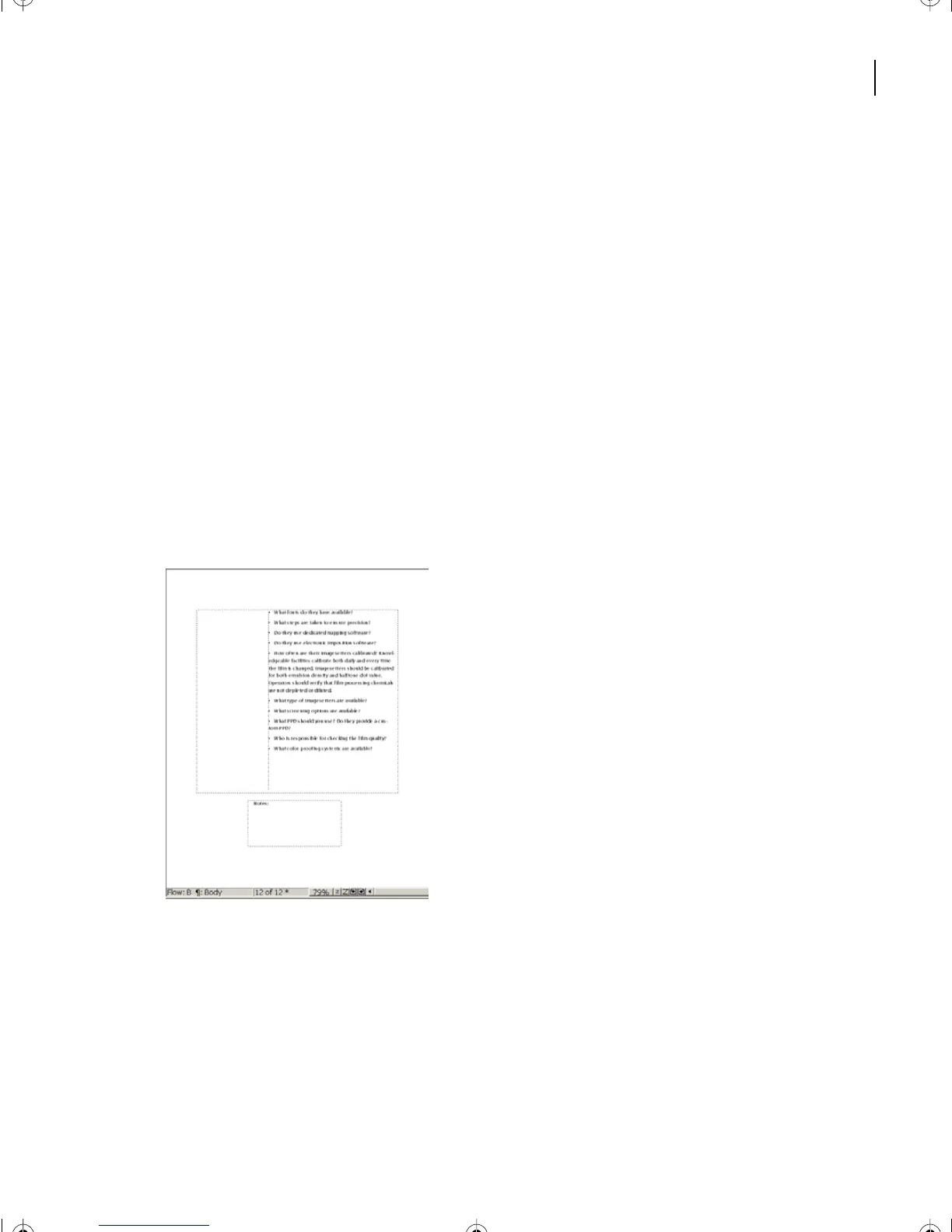
11 Click Apply. Notice that the last page of Layout1.fm contains a small text frame. This
is a convenient way to add your own notes to a newsletter or any other document that
requires multiple text flows.
12 Click on the smaller text frame and type Notes:. You can experiment by typing more
text into the text frame. Notice how the text in this text frame is disconnected from the
rest of the text flow.
L04.fm Page 101 Saturday, July 6, 2002 11:34 AM



 To Next Page