REPLACING THE DISC
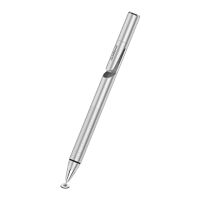
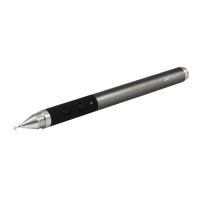
The Jot Touch’s disc can be replaced if the disc is
damaged, or if it is dislodged from the Jot Touch for
any reason. The disc is attached to the ball tip of the
stylus. The following image shows the ball tip of the
stylus, and the small recess in the disc, in to which
the ball tip is pushed.
To remove the Jot Touch’s disc, place the disc flat
on a hard surface, and position the stylus at an
angle so you can see the disc clearly. The stylus
should now look like the following image.
Hold the disc down firmly with two fingers on either
side of it, then pull the stylus up sharply with your
other hand. The stylus should pull out of the disc.
To put a new disc on the stylus, place the disc flat
on a hard surface. Hold the stylus directly above the
disc, and push straight down so that the ball tip is
inserted into the recess of the disc. It should look
like the following image.
CLEANING
Jot Touch does not like water, so don’t go swimming
with it. If you need to clean Jot Touch, please use
a slightly damp cloth. Do not attempt to open the
stylus, as there are no serviceable parts inside.
JOT READY APPS
Although Jot works with any app, some apps have
been calibrated for a precision stylus rather than
a finger. These apps have integrated Adonit’s Jot
Ready SDK so when used with Jots, they are the
best stylus experience on the market. Check them
out. If your app isn’t on the list, email us which app
you would like to see integration with. Also let that
app know you want integration. If you don’t tell
them, they won’t know.
For an updated list of Jot Ready apps please visit
http://adonit.net/product/jot-ready-apps/.
WHY IS THE WRITING OFFSET?
You may notice that in some applications your
writing on the screen is slightly offset from the Jot
Touch’s tip. This is because most software designed
for capacitive touch screen styli deliberately offsets
the point of contact from the center of the pen to
allow for imprecision in the stylus. The software is
causing the offset, not the Jot Touch.
SCREEN PROTECTORS
Jot Touch plays well with the majority of screen
protectors but, due to the large variety, there are
some that Jot does not. Jot Touch does NOT work
well with these screen protectors due to their extra
grip nature:
• Zagg Glossy Invisible Shield
(but Smudge-Proof Invisible Shield works well)
• Ghost Armor
• Bodyguardz
• Skinomi
• Wrapsol
However, as generally known, when any object, such
as a glass towel, a stylus or your finger, contacts
and moves on an unprotected screen, scratches
may happen due to the particles between the screen
and the object. Therefore, a screen protector is
recommended to be used to maintain the condition
of the screen. If there is wear to the screen
protector, it is recommended to replace a new
one. In any case, it is advised to keep your screen
clean of dust and particles. For further instructions
regarding protecting your screen, please contact the
manufacturer of your appliance for assistance.
JOT TOUCH & IOS5
iOS5 causes problems with various applications,
which then have to be updated; these problems can
result in poor Jot Touch performance.
1. Go to >Settings >General >Keyboard
>International Keyboards >Add new keyboard
>Chinese - Simplified (Handwriting).
2. Press the menu button, to bring up the keyboard
in any application.
3. Press the globe key until you the hand writing
recognition option appears.
4. Try the Jot Touch now; it should perform
correctly. If the Jot Touch performs correctly in this
application, the performance fault is the result of
software issues with other applications.
+
Jot touch
Product Information


 To Previous Page
 Loading...