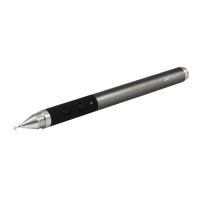
1) TAP Open Concepts.
2) TAP on one of the canvases or works.
3) TAP on the cog symbol in the lower left side of the screen.
4) SEE the "Connect a Stylus" list of styluses on the right side (or TAP on whatever name
is listed at the top of the list on the right side)
5) TAP "Adonit Jot Series"
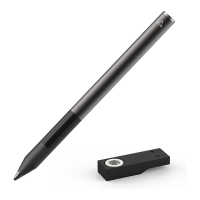
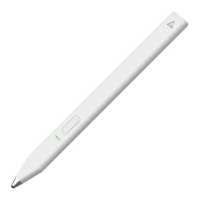
6) PICK UP Pixel stylus; PRESS and HOLD the bottom black button nearest the tip until
you see a green light get brighter in three steps.
7) PLACE the Pixel tip on the red bullseye connection symbol until "Connected is shows
(you should also see a green light flash once on Pixel showing it is connected).
NOTE: if the pairing does not happen right away, try removing and placing the Pixel tip
on the red bullseye again to have it pair (it may take up to 10 seconds for it to connect,
and you there is no need to press the tip down hard to make it connect).
8) SEE that it is paired, and go to the Writing Set-up steps below:
Writing Set-up Steps:
1) TAP Open Concepts.
2) TAP on one of the canvases or works.
3) TAP on the 2nd squiggly line in the upper left side.
4) TAP on the small downward arrow in the upper left side (it should open several things
in a column; you'll see the name of the tool, like "Marker" next to that small arrow).
5) TAP the tool tip name (like Marker) to open the Tip options.
6) SLIDE the wheel and choose "Pencil" if not already chosen.
7) TAP the number next to "px" in the column of settings below the Tool tip name, and
SLIDE the triangle upward so you see a bigger width of writing display.
8) TAP the number next to the "%" under the "px", and SLIDE the arrow upward to make
the writing darker.
9) TAP any color that is NOT white near the bottom of the open column of settings.
10) WRITE with Pixel slightly increasing the pressure downward and you should see the
difference in writing as the pressure downward is varied.
Hand, Shortcut and Pressure Response Adjustment Steps:
In the same Pairing window as discussed above:
1) FIND "Button Setup
2) TAP on "B1" and an action to program the black Button nearest the tip
3) TAP on B2 and an action to program the black Button nearest the light
4) FIND "Hand Position" On the right side of the screen
5) TAP on different positions to find the one that gives the best performance for you
6) FIND "Pressure Response"


 To Next Page
 Loading...