red pulsing light means that it is not full charged; a green light means that it is fully
charged. The red light will turn green once it is fully charged. Remove the Pixel from the
charger as it is now ready to be used!
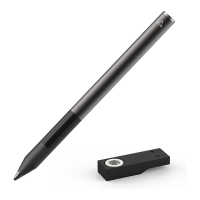
2) To turn on Pixel, locate the bottom black button closest to the tip, and press and hold
that button for up to 5 seconds until you see the Pixel brightly light up green in three
steps. The green light will go off showing that your Pixel is now turned on! At this point,
Adonit Pixel can be us as basic stylus or can be paired with a compatible Pixel app.
Turning Adonit Pixel off:
1) To turn off Pixel, press the same bottom button for about 10-15 seconds until you see
a red light come on and then go off; Pixel is now turned off.
Charging Adonit Pixel:
1) Push the USB charger into a USB port (some chargers may feel like they have a tight
fit to make sure they don’t become loose, so some chargers may not be pushed in all
the way into the port and would not charge correctly)
2) Place the back of Pixel on to the USB charger (the light may show red at first to show
charging is needed, and then it will turn green to show it is fully charged)
3) If the green light shows, then it is fully charged and can be removed from the charger
and used.
Pairing Pixel:
1) To pair Pixel with a compatible app, first see the compatible apps on the Pixel product
web page here (some may require payment to be
downloaded): http://www.adonit.net/jot/pixel/
2) Once you have downloaded the app, then you might find a pairing video here on
Youtube (please know that the videos were made with other Adonit Bluetooth styluses
and older versions of apps, but the pairing will be the same; not all apps are compatible
with Pixel):
The Jot-Ready apps page (here: http://www.adonit.net/jot-ready-apps/) also shows
which Bluetooth stylus works with each app under the text "BLUETOOTH FEATURES" for
each app.
If you might want to get more information on whether it will be compatible and when
for other apps, we suggest you might want to contact the app developers directly, as
the developers would most likely want to hear directly from the users.
Specific steps for each app is normally described within the app, but each app is almost
the same in it's Pixel use, so, if it helps, let's take a look at the Concepts app as an
example:
To Pair in Concepts:


 To Next Page
 Loading...