Quick Start Guide, 61700570F1-13B, February 2015 1
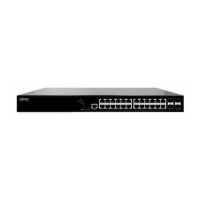
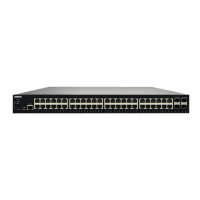
NETVANTA 1531 SERIES GIGABIT ETHERNET SWITCHES
P/N 1700570F1, 1700571F1
4 Copyright © 2015 ADTRAN, Inc. All Rights Reserved.
GETTING STARTED
Two configuration methods are available for your NetVanta unit:
• Web-based graphical user interface (GUI)
• ADTRAN Operating System (AOS) command line interface (CLI)
The GUI lets you configure the main unit settings and provides online guidance and explanations
for each setting. However, using the AOS CLI may be necessary for more advanced
configurations.
ACCESS THE GUI
You can access the GUI from any web browser on your network by following these steps:
1. Connect the unit to your PC using any of the ports on the front of the unit and an Ethernet
cable.
2. Set your PC to a fixed IP address of 10.10.10.2. To change your PC IP address, navigate to
Computer > Control Panel > Network Connections > Local Area Connection >
Properties > IP (TCP/IP) and select Use this IP Address. Enter these parameters:
IP Address: 10.10.10.2
Subnet Mask: 255.255.255.0
Default Gateway: 10.10.10.1
You do not need to enter any domain naming system (DNS) server information. After the
information is entered, select Ok twice, and close the Network Connections dialog box. If
you cannot change the PC’s IP address, you will need to change the unit’s IP address using
the CLI. (Refer to the next two sections for instructions.)
3. Open a web browser and enter the unit’s IP address in your browser address line as follows:
http://10.10.10.1. The default IP address is 10.10.10.1, but if you had to change the unit’s IP
address using the CLI, enter that address in the browser line.
4. You will then be prompted for the user name and password (the default settings are admin
and password).
5. The initial GUI screen appears. You can access initial setup information by selecting Setup
Wizard from the menu on the left.
ACCESS THE CLI
Access the AOS CLI via the CONSOLE port, Telnet, or SSH session. To establish a connection to
the NetVanta unit CONSOLE port, you need the following items:
• PC with VT100 terminal emulation software
• Straight-through serial cable with a DB-9 (male) connector on one end and the appropriate
interface for your terminal or PC communication port on the other end
There are many terminal emulation applications available on the web.
PuTTY, SecureCRT, and HyperTerminal are a few examples.
CONFIGURE YOUR APPLICATION
The applications you will need to configure vary by product and by network. Review the list of
defaults for your unit before deciding what applications to configure. The following are some
common applications that should be configured on startup. These are all available online on
ADTRAN’s Support Community
.
RESTORING FACTORY DEFAULTS
For information on restoring factory defaults, refer to the guide Restoring an AOS Device to
Factory Default available online at https://supportforums.adtran.com
.
Configuring Layer 3 Switching in AOS Configuring a Port Scheduler in AOS
Configuring Hardware ACLs in AOS Configuring Port Mirroring in AOS
Configuring DoS Protection in AOS Enabling Persistent Debug Logging in AOS
Configuring Ethernet Switch QoS and CoS
in AOS
Understanding PoE and Power Management
in AOS
Configuring DHCP Server in AOS Configuring NetVanta Switches for a VoIP Network
Important: For additional details on product features, specifications,
installation, and safety, refer to the NetVanta 1531/1534/1544 Series
Hardware Installation Guide at https://supportforums.adtran.com
.
Feature Default Value
IP Address 10.10.10.1
User Name admin
Password password
HTTP Server Enabled
Event History On
IP Routing Enabled


 To Next Page
 Need help?

 General