The ADXCOM223 Firebundle Core 23 is a gaming keyboard and mouse combo designed for an enhanced gaming experience. This instruction manual provides comprehensive details on its features, specifications, and usage.
Function Description
The ADXCOM223 combo includes a full-sized gaming keyboard and a gaming mouse. The keyboard features a standard QWERTY layout with additional function keys, a number lock, caps lock, and keys lock indicators, and a dedicated volume control knob. The mouse is equipped with a DPI button, right and left buttons, and a scroll wheel. The combo is designed to be plug-and-play, requiring two available USB ports for connection.
Important Technical Specifications
- Model: ADXCOM223
- Operating Systems: Microsoft® Windows® 8 / 10 / 11
- Hardware: 2 available USB ports
- Keyboard Dimensions (L x W x H): 461 × 188.7 × 36.5 mm
- Mouse Dimensions (L x W x H): 126.3 × 68.5 × 39.5 mm
- Keyboard Net Weight: 740.3 g
- Mouse Net Weight: 149 g
- Mouse DPI Settings:
- Red: 400 DPI
- Orange: 800 DPI
- Yellow: 1600 DPI
- Green: 3000 DPI
- Blue: 4400 DPI
- Purple: 6000 DPI
Usage Features
Keyboard:
- Function Keys (Fn Key Combinations):
Fn + F1: Start default Media Player program.Fn + F2: Decrease volume.Fn + F3: Increase volume.Fn + F4: Mute sound.Fn + F5: Stop playback.Fn + F6: Back to previous track.Fn + F7: Play/pause track.Fn + F8: Go to next track.Fn + F9: Start default Web browser and load Home Web page.Fn + F10: Start default e-mail program.Fn + F11: Lock all keys.Fn + F12: Open Calculator.
- Volume Control Knob: Turn clockwise/anticlockwise to increase/decrease volume. Press to mute/un-mute the volume.
- Backlight Effect:
Fn + ~: Adjust backlight flashing speed.Fn + @: Switch backlight on/off.Fn + #: Change backlight effect.Fn + ▲/▼: Adjust backlight brightness.
Mouse:
- DPI Settings: Press the DPI button repeatedly to cycle through different resolutions (400, 800, 1600, 3000, 4400, 6000 DPI). The corresponding color will light up for 2 seconds to indicate the selected DPI.
- RGB Light Settings: Press and hold the DPI button for approximately 3 seconds to switch between various RGB lighting modes:
- Flowing
- Flickering
- Light Off
- Single Colour Breathing
- Recurring Colour Breathing
- Single Colour On
- Recurring Colour Flashing
Maintenance Features
- General Care: Keep the keyboard away from direct sunlight, moisture, dirt, or abrasive chemical products.
- Cleaning: Do not immerse the keyboard in water or any liquid.
- Troubleshooting: If the unit is not working properly, re-insert the USB plug into the USB port. Ensure the USB plug is fully inserted into a USB port, and the computer is on. Try using a different USB port if issues persist.
- Safety Precautions:
- Do not disassemble the keyboard or remove any parts.
- Avoid using the keyboard close to heat sources or exposing it to high temperatures.
- Do not use the keyboard where strong electromagnetic waves are present, as this can cause damage.
- Never point the optical sensor of the mouse towards the face, particularly the eyes, to avoid possible injury.
- While the mouse is functioning, the optical light is visible to the naked eye. Avoid looking directly into the emitter hole while the mouse is active.
- Serviceability: This product has no serviceable parts. Any adjustments or procedures other than those described in the instruction manual may result in danger.
- Disposal: The product and its packaging should not be disposed of with household waste. It should be handed over to a designated collection point for the recycling of waste electrical and electronic equipment to conserve natural resources and protect human health and the environment.

 Need help?
 General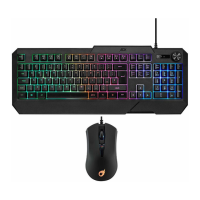

 To Next Page