Uhale Photo quick setup
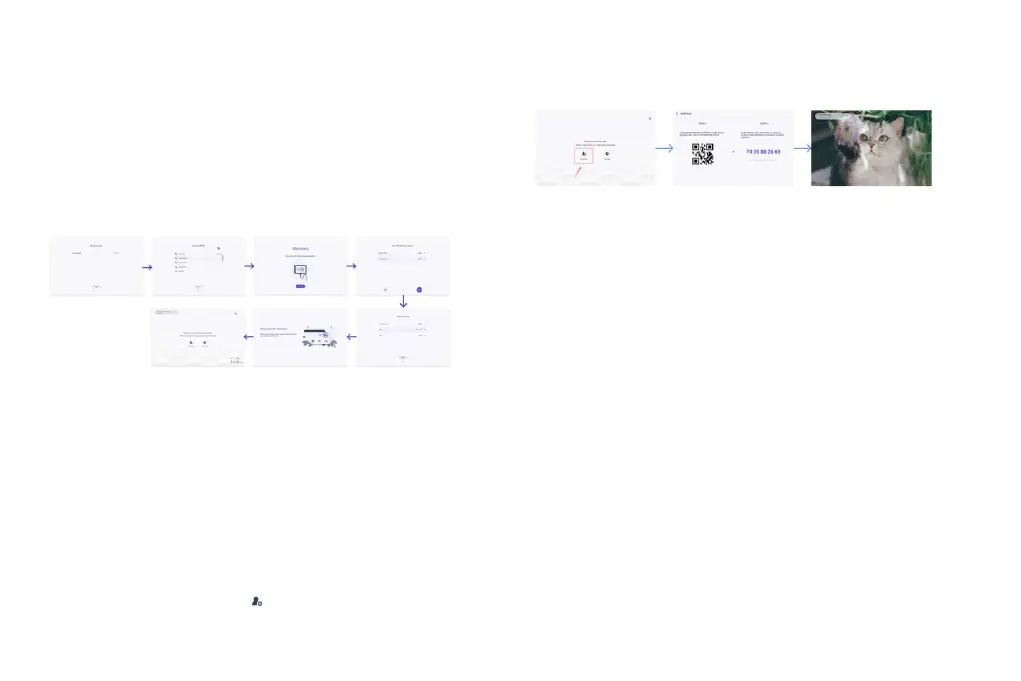
When starting your frame for the first time, you will need to setup the frame.
●
Select a language which will be used on the frame.
●
Connect your frame to 2.4GHz Wi-Fi and hidden Wi-Fi (not support 5GHz).
●
Set time zone, date and time if they are not correct.
● U
hale Photo may ask you to update to the latest version. It is
recommended to update your frame before continuing if asked to.
●
Enter your name, and the location where you have placed your frame e.g.
“Living room”, “Bedroom” or “Workspace”.
Start using Uhale Photo
●
Start by connecting with your friends and family by providing them with a
unique code from your frame.
●
If you want to be able to send photos to the frame yourself, start by
downloading the app for iOS or Android on App Store or Google Play.
Then use the code to connect your frame and app as described below.
Connecting a new friend
●
Make sure that your friend has downloaded and installed the Uhale Photo
app.
●
Click the add friend icon on your frame . A dialog will appear showing
both QR code and SN code (update every 12 hours.)
●
Now share this QR code or SN code through your preferred way E.g. SMS,
E-Mail, IM, phone call, to your friend.
Once the frame is connected to your friend’s Uhale Photo App, you will be able
to find them on the sharing list on the frame.
Share Photos
You can share photos/videos in three ways.
● U
hale Photo App
You can download "Uhale Photo" app through Google Play and Appstore.
Before sharing, please bind the photo frame, and then you can share the
photo/video to the frame through the app.
Sharing photos is divided into picture share and video share.
Photo share: select pictures (up to 50 pictures at a time) - select photo frames
- edit pictures (adjust focus areas and name photos) - send.
Video share: select video (only one video can be selected, 30 seconds length
video) - select photo frame - edit video (video length and video naming) - send.
You can check the status of photo sending tasks and perform some quick
actions on the sending history side.
Delete: Deletes local history data (does not delete framed photos).
Clear: clears the history data (does not delete the task in the sent state).
Resend: you can resend this photo to other frames.
Withdraw: Deletes local history data and frame photos.


 To Next Page
 Loading...