7
8
● U
hale Photo web
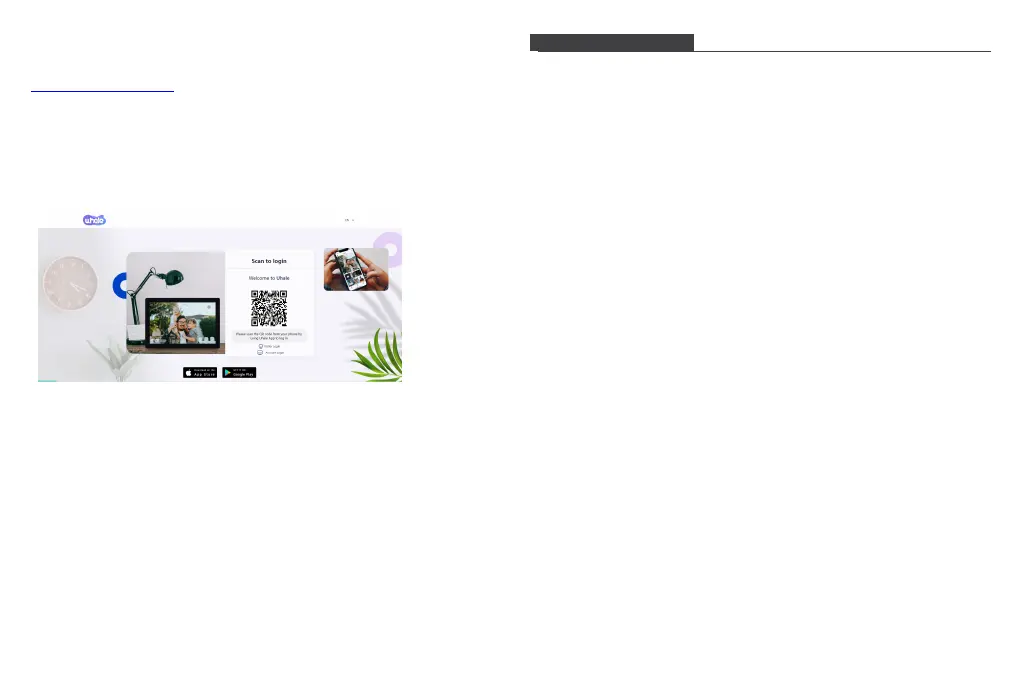
Visit the website to get access to Uhale Photo Web:
https://uhalephoto.zeasn.tv
Download, install and open the "Uhale Photo" APP on your mobile devices,
and find the QR code under [Scan] to log in.
NOTE:When successfully logged in, the web will automatically
synchronize the information from the APP (eg. profile picture, nickname,
connected device).
●
External Devices
You can copy photos to Micro SD card, then insert the Micro SD card
into the frame, and import photos to the frame through Frame -
Settings - Manage Photos - Import Photos. Micro SD card does not
support video import yet.
Through settings, you can personalize your frame to your needs.
1. My frame
●
Set/Change the name of the frame. The frame name is also displayed in
connected mobile devices, under the list of connected photo frames in the
App.
●
Frame location: Set/Change the location of the photo frame. This location
is displayed in the list of connected photo frames of your friends and
family, helping to identify multiple frames.
●
Set language: Sets the language throughout your frame.
●
Set time zone: Sets the time zone that should be used on your frame.
●
Automatic Date and Time: Use network-provided time.
●
Set date/time:The date and time can be manually adjusted after the
automatic date & time is turned off.
●
Enable and disable the 24-hour clock.
●
Power: you can choose from three options: power off, restart, and sleep.
2. Manage photos
●
Memory usage
The Manage Photo section shows you the number of photos stored in the
frame and the storage space occupied/remained.
●
Show/Hide photos
Select the photo you want to hide by tapping the photo. Hidden photos will
Not be deleted from the frame and can be re-displayed at any time.
-You can view only the hidden photos or the displayed photos.
●
Favorite photos
Click to enter the favorite photos album
●
Delete photos
Select the photo you want to permanently delete from the frame by
tapping the photo.
●
Import photos
Allows you to import photos from an external storage device (E.g. a
microSD card).
To import photos:
Insert an external storage device (E.g. a microSD card) into the device
with the photos to be imported.
Select the photos to be imported into the photo frame.
Tap the import button to start.
Settings


 To Next Page
 Loading...