2
ABOUT
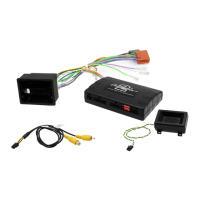
The Connects2 Infodapter for GM vehicles allows vehicle information such as climate
control, parking sensors and heated seats to be displayed on any aftermarket head unit
with rear camera input. Extensive vehicle settings can also be adjusted from the steering
wheel controls. The Infodapter also allows the use of the steering wheel controls with
almost every steering wheel control compatible head unit on the market.
DIP SWITCH SETTINGS
See Fig 1.
Up = Off, Down = On
1: On = Pioneer head units. Off = All other head units
2: Setting for reverse camera. On = PAL, Off = NTSC. The default setting is Off (NTSC).
3: Resets the display settings back to default. If the display settings have been
manipulated in a way that it is no longer possible to make adjustments, change the
DIP switch #3 from Off to On and back. This will reset the screen settings to the factory
defaults. During this procedure the screen background will change to red. While the
background is red, no settings can be made.
4: Not applicable
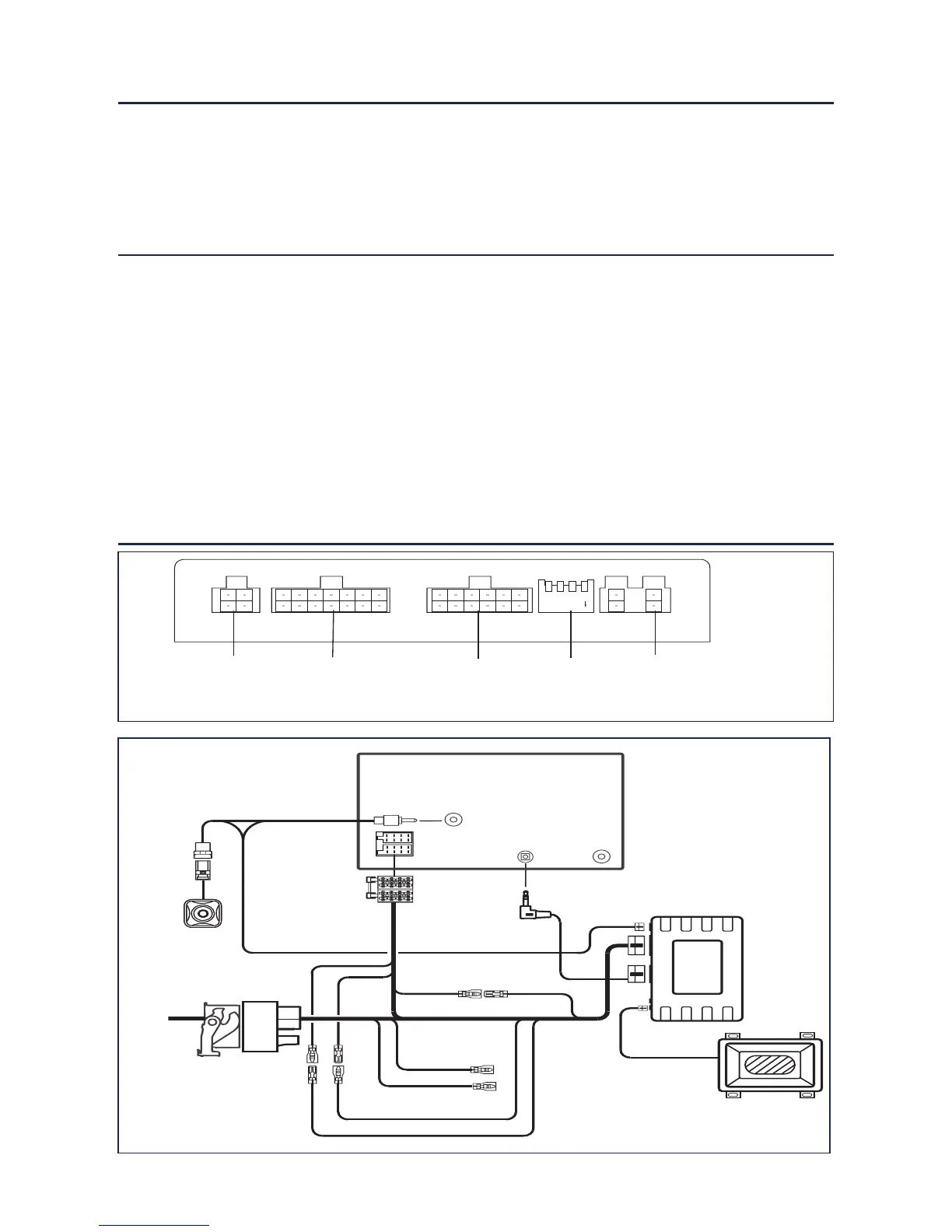
Interface Connections
Fig 1.


 To Next Page
 Loading...