3
1
2
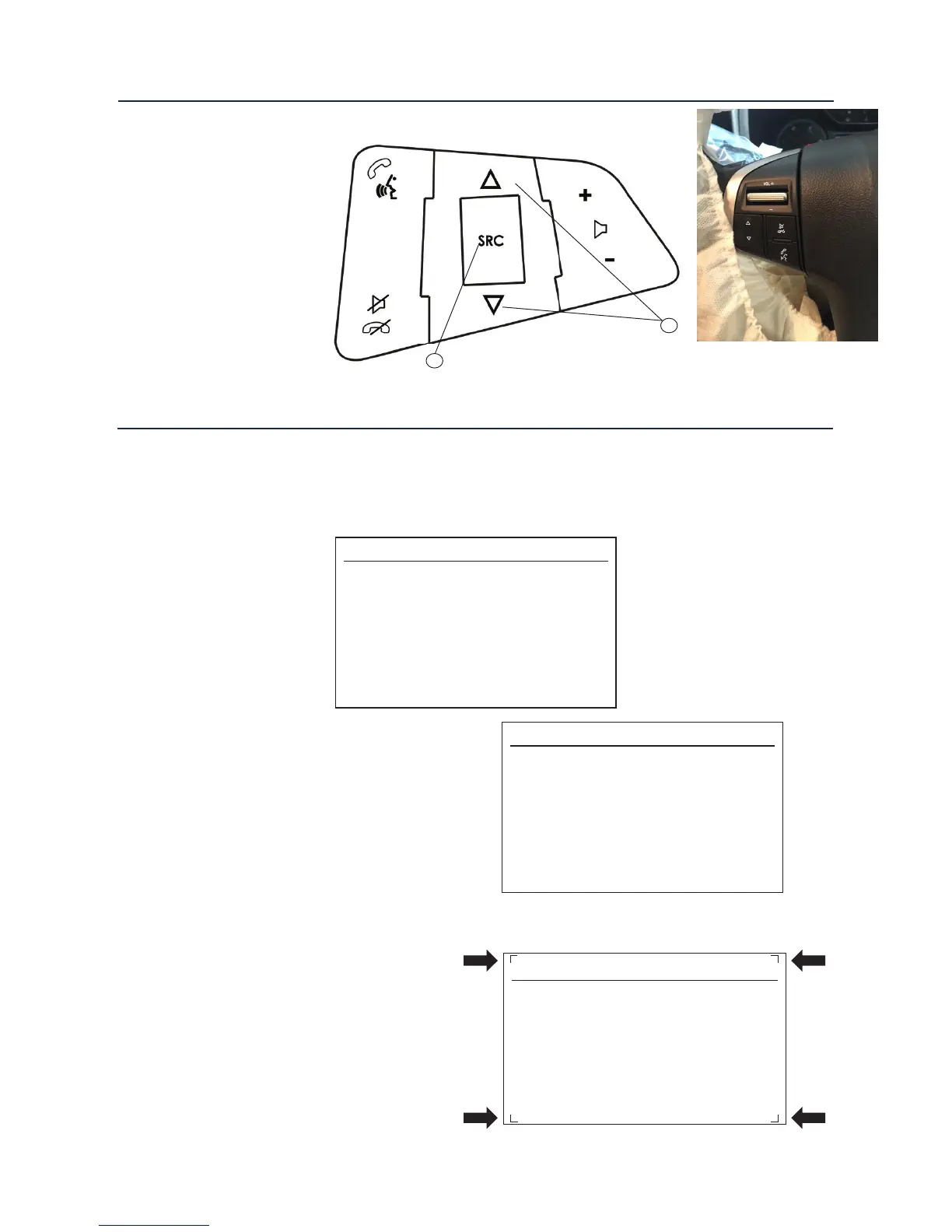
À Source Button
Á Track Up/Down
Fig 3.
Steering Wheel Controls
Conguration Menu
To access the menu, push and hold the Source button or Phone/PTT button for 2 seconds
(Fig. 3). This will
enable the configuration menu. To navigate through the menu options use the Track Up/
Track Down buttons.
To select a menu option, push the source or Phone/PTT button once.
Conguration Menu
Vehicle Settings
Infodapter Settings
Language
Version
< Back
Vehicle Settings
Sport Mode Settings
Time/Date
Climate and air quality
Comfort Settings
Park assist and collision detection
Exterior ambient lighting
Power door locks
Remote locking,unlocking, starting
• Vehicle Settings
Vehicle settings can be adjusted via
the menu. All vehicle setup options
that were available with the original
head unit, are now available through
the aftermarket head unit. See the
vehicle handbook for more information
regarding these features.
Screen Size/Position
Horizontal Size
Horizontal Position
Vertical Size
Vertical Position
< Back
• Infodapter Settings
o Screen Size/Position -
Make sure all 4 corner markers
are touching the corners of the
aftermarket head unit display.
* USE PTT Button
if Source button is
not available


 To Next Page