FUZION USER MANUAL 13
NOTE:
• When capturing succeeds, the image freezes for 1 second and a prompt
shows on the display.
• For exporting captured pictures, refer to Export Files.
2.1.10 CONNECTING THE DEVICE
1. Open the cable interface cover.
2. Connect the device and PC to copy/delete files.
2.1.11 FILE EXPORT
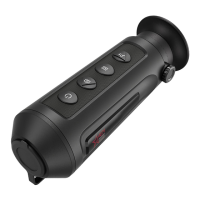
1. Connect the thermal monocular to your PC with USB cable and open the
detected disk.
2. Open computer disk and select the disk of device. Go to the DCIM folder and
find the folder named after the capture year and month. For example, if you
capture a picture or record a video on June 2021, go to DCIM -> 202106 to
find the picture or video.
- Select and copy the videos to PC and play the file with the player.
- Select and copy the snapshots to PC and view the files.
3. Disconnect the device from your PC.
NOTE:
• The device displays images when you connect it to PC. But functions such as
recording, capturing and hot spot are disabled.
• When you connect the device to PC for the first time, it installs the drive
program automatically.
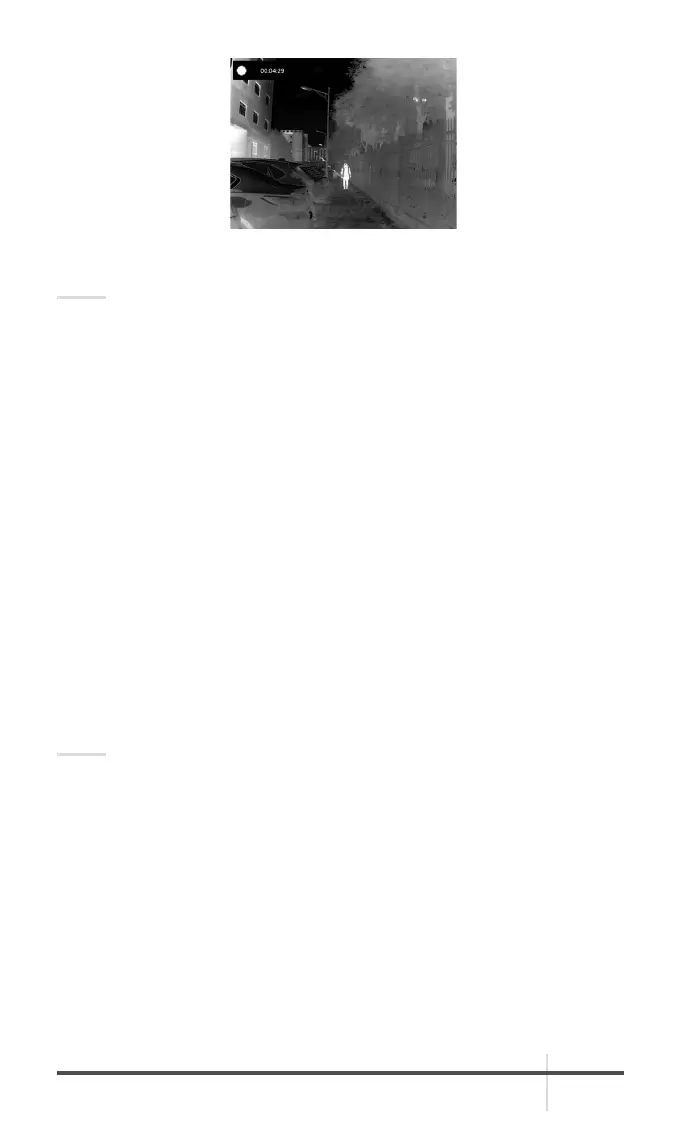
FIGURE 2-4. VIDEO RECORDING



 To Next Page