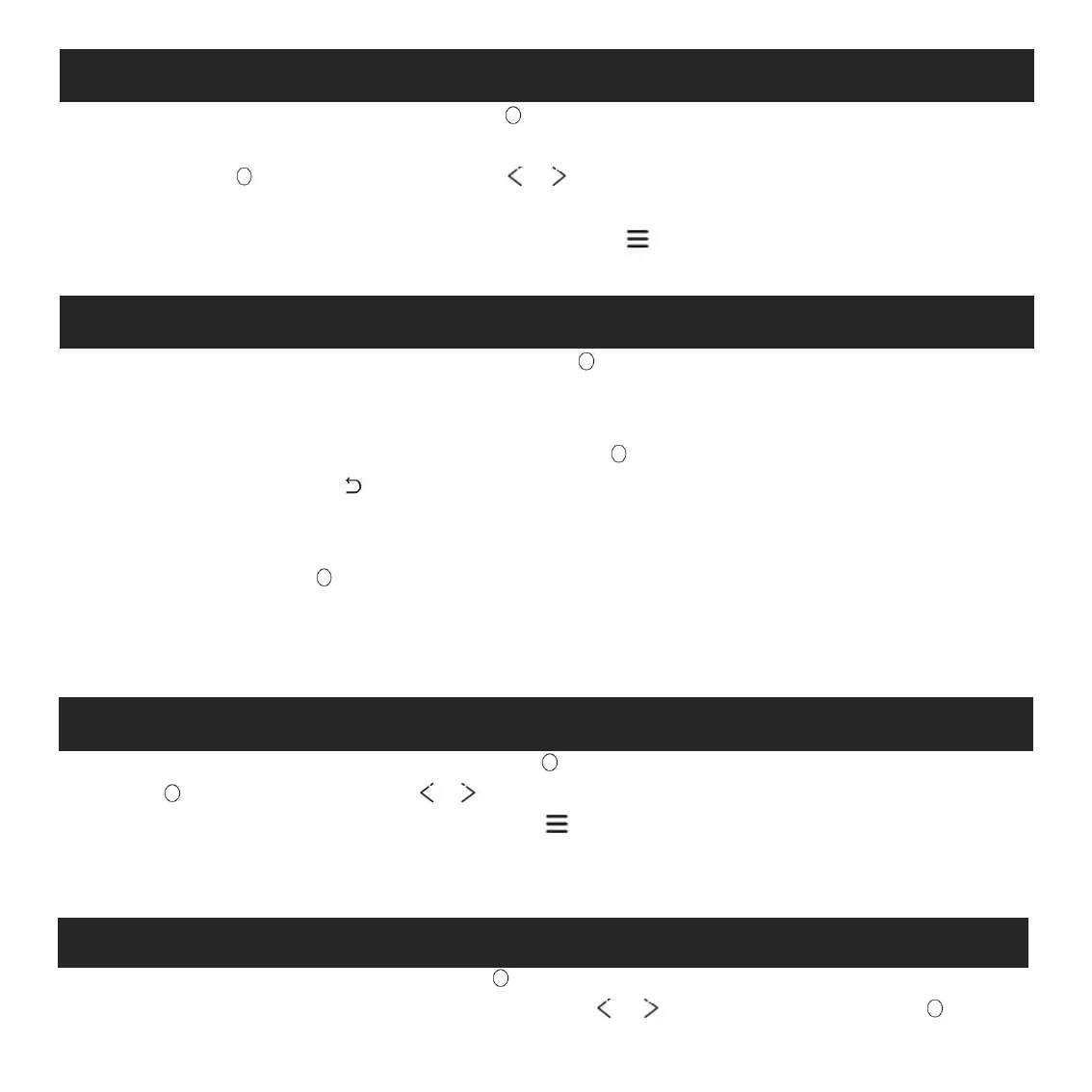
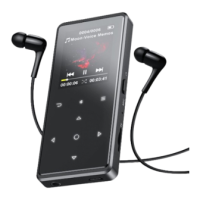
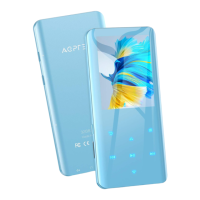
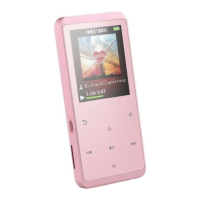
Find "Video" on Home menu, press button to access to its function. You will need to choose
from local folder or card folder if the memory card is inserted.
Press button to watch videos, press / to go to previous/next video or hold down to
When it’s on video playing interface, press button to access to its submenu, including:
Repeat, Delete Video. Set according to your preference.
Find “Recordings” on the Home menu, click button to access to its function. The related list will
show, including: Start Voice Recording, Recordings Library, Save location(only available when SD
card inserted), Record Format, VOR On/Off.
Choose “Start Voice Recording” and press button to start voice recording, press again to
pause. Press the button and choose “yes” to save the recording file.
Find the saved recordings in Recordings >Recordings library.
Save location. Choose to store your recordings in internal or external memory. Confirm your
Record Format. Choose the record format between MP3/PCM.
VOR On/Off. When you start recording under VOR mode, the recorder will start recording
automatically if sound is detected and stop recording when no sound detected.
Find “Pictures” on the Home menu, click button to access to its function.
Click to view pictures, click / to go to previous/next picture.
When it’s on picture viewing interface, press to access to its submenu, including: Slideshow
settings, Delete picture, Set according to your preference.
Note:
The device only supports pictures in JPG, BMP and GIF format.
Find "EBook " on Home menu, click button to access to its function.
- While it’s on text playing interface, click button / to turn the pages. Click to play


 To Next Page