CHAPTER 3
28
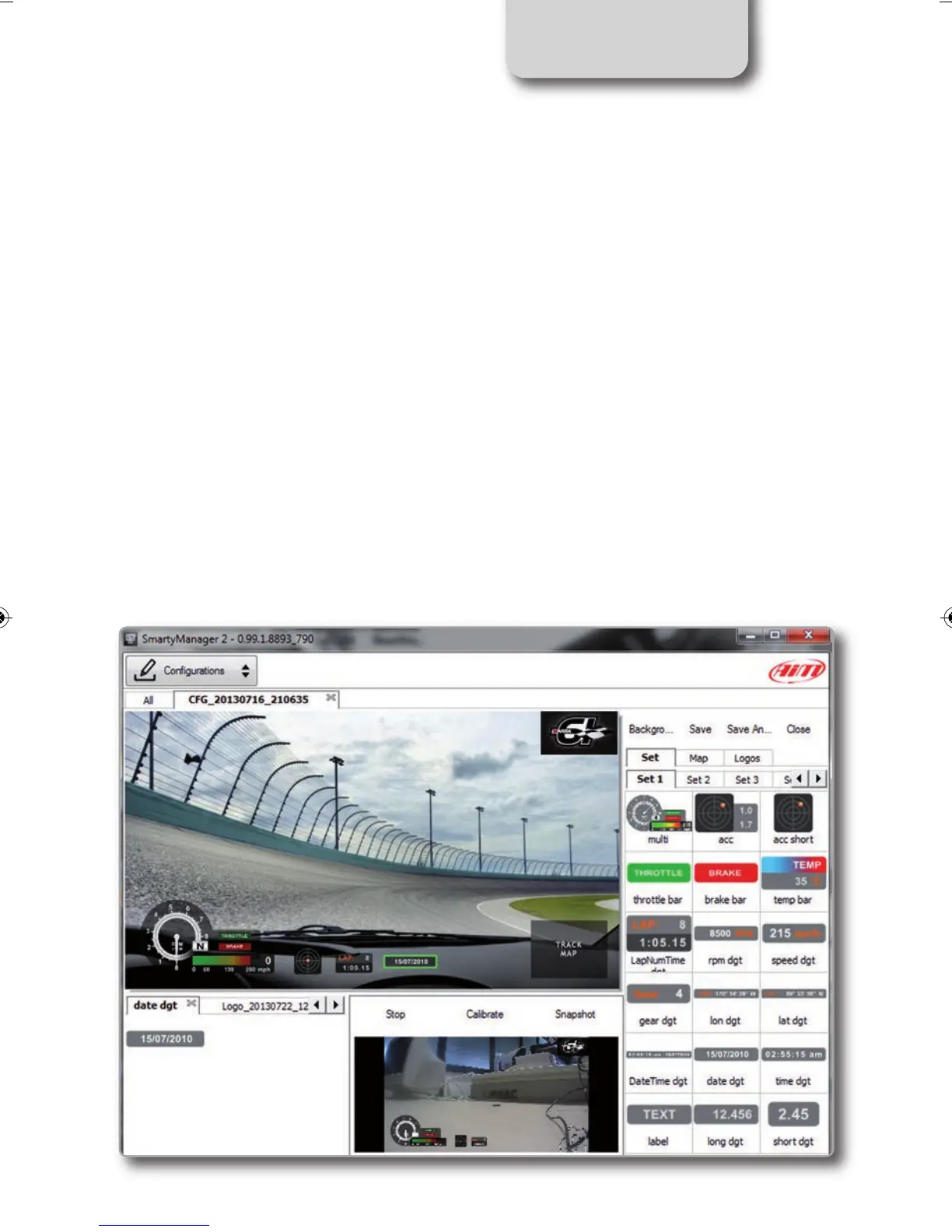
In the CONFIGURATIONS page push
“NEW”, or click on the [+] pushbutton.
Right of the preview panel available gra-
phic objects are grouped in “Sets” ;
double click on the desired object to select
it or drag and drop it in the preview area
fill in the layer of the loaded object that ap-
pears down on the left of the software win-
dow.
When the panel shows the desired configu-
ration, push “SAVE and CLOSE” for saving
the configuration.
Create a new configuration
For transmitting the new configuration to
your SmartyCam HD, go back to the “Con-
figurations Page” and drag and drop it to
the camera.
You can also use a snapshot of the image
of SmartyCam HD, in order to better un-
derstand how the graphical controls fit in
the image.
Please, start the “ONLINE” feature and
push “SnapShot”: the image will be imme-
diately saved in the list of possible back-
ground images
SMARTYCAM HD MANUALE ENG _Layout 1 24/07/13 20.41 Pagina 29


 To Next Page