WIFI SETUP
The Wi-Fi setup screen can be
accessed from the home screen by
using Menu/Previous/Advanced/
Wi-FiSetup.
After touching “Wi-Fi Setup” this
screen will appear with the “Wi-Fi:”
saying “Not connected”, if the router
has not been connected yet:
Wi-Fi
Wi-Fi Module
On
WPS Connect
Manual Connect
SSID: Not selected yet
Wi-Fi: Not connected
Cloud: Not available
Product ID: nnbshhbxsf3
Please note down the Product ID now,
as it’s required to register the mobile
app and will need to be recorded in
your customer record.
You now have two options to
connectthe Wi-Fi.
Some routers have a WPS feature,
which allows an automatic
connection from a Wi-Fi device
totherouter. There is usually a
button on the router to enable
WPS connecting. Touch the “WPS
Connect” button on the touchscreen
display. Additional instructions will be
displayed. Go to the router and push
the WPS button on the router. Once
the router is in WPS mode return to
the touchscreen display and touch
“Continue”.
If the router does not support WPS,
then you can connect manually.
Thisfunction is very similar to
connecting a mobile phone to Wi-Fi.
Touch the “Manual Connect” button.
Scanning will be displayed in the title
and then after a delay this screen will
appear (note, in some rare cases, this
can take up to a minute the first time):
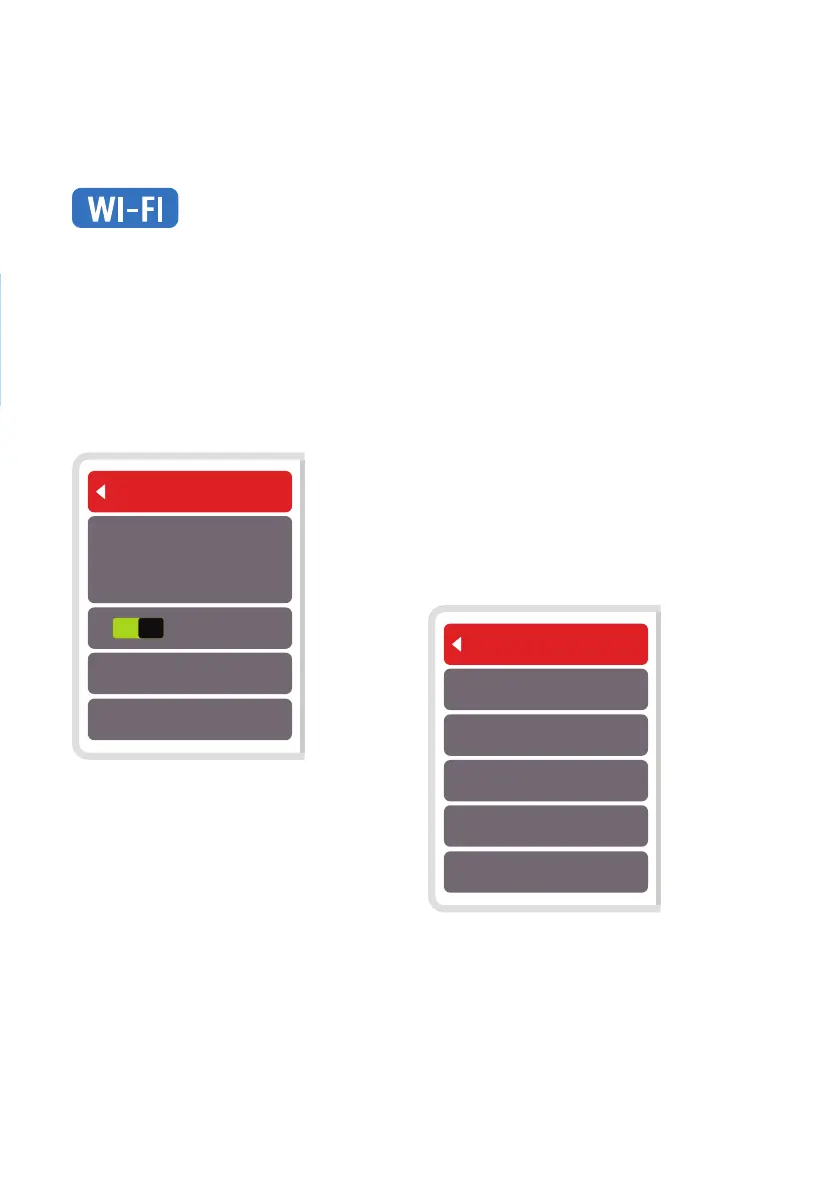
Select SSID
Router1234
HomeNetwork
YourSSID
InvisionNet
The routers in the list will be dierent
to the ones displayed above as they
are the 5 strongest Wi-Fi signals
foundnear to the touchscreen
display. This screen will refresh every
10 seconds, so if the router you are
looking for does not appear, wait for
the next scan. Select the one you


 To Next Page
 Loading...