want to connect to and then this screen
will appear:
Check that you have selected the
correct router SSID. There are five
security levels (“OPEN”, “WEP”, “WPA_
PSK”, “WPA2_PSK”, “WPA_WPA2_PSK”).
If the security shown is “OPEN”, then
touching the “Connect” button, should
complete the connection and you can
go to page 3. If it is not “OPEN”, then
touch the “Enter Password” button to
see the password screen shown below.
SSID:
Your SSID
Security:
WPA2_PSK
Wi-Fi Connect
Enter Password
passw
|
Password
Please enter the
Wi-Fi password
a s d f g h j k l
z x c v b n
m
123 Space Connect
q w e r t y u i o p
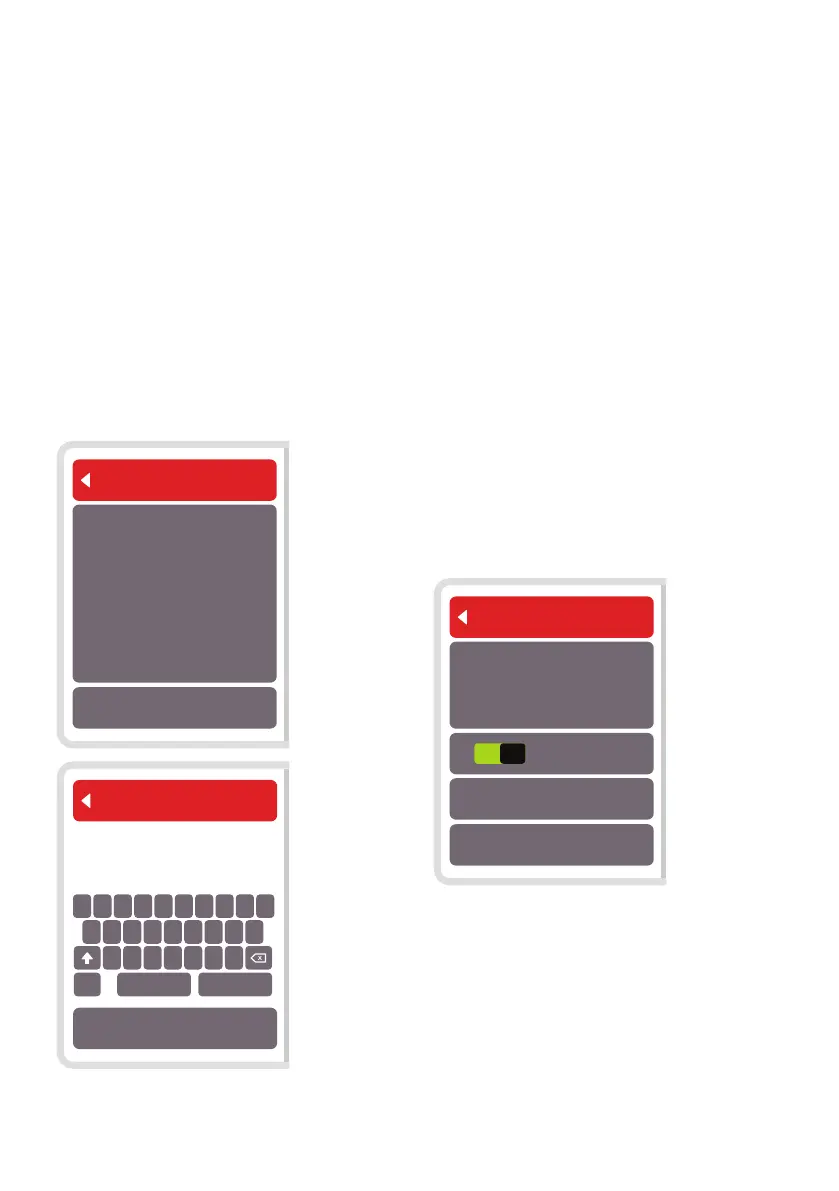
Enter the password for the router you
are connecting to, and then touch
the “Connect” button. If you find the
buttons a bit small for your fingers, you
can use a blunt pointed instrument to
push the buttons, like a tablet stylus or
a finger nail or a knitting needle or the
edge of a ball point pen, with the ink
part retracted.
WARNING: using too sharp an
instrument may damage the display
and void the warranty.
After a delay, the display will now
change back to the first screen shown
with Wi-Fi and Cloud status showing
“Please wait…”
If successful, the Wi-Fi status will show
“Connected”, and the cloud service will
show “Available”, as shown below:
Wi-Fi
Wi-Fi Module
On
WPS Connect
Manual Connect
SSID: Your SSID
Wi-Fi: Connected
Cloud: Available
Product ID: nnbshhbxsf3
Congratulations, you are now
connected to the Wi-Fi and the HRV
cloud.
If for some reason you do not connect,
then double check your password and
repeat the procedure above.
Note, for the cloud status to show
“Available”, your router must have an
internet connection.


 To Next Page
 Loading...