System Update
9. Disconnect the USB cable from the controller board inside the unit. The upgrade process will
automatically start.
10. Once the upgrade is complete, the screen will display “Upload successful” and return to the main screen.
This may take up to 5 minutes.
11. Repeat process d-g for all HVAC units to be upgraded.
12. Reinstall the display on the ASMUC.
Step 2: Save Controller Settings
The software upgrade procedure will reset all settings to factory defaults. Some settings must be manually
reconfigured. Complete the following steps from the ASMUC.
1. Press Prg and enter the default password (0004). Press Enter.
Note: If password has been changed from factory default, consult the facility manager for correct password.
2. Press Up or Down to reach “Control Config” and press Enter.
3. Press Enter at “Network”
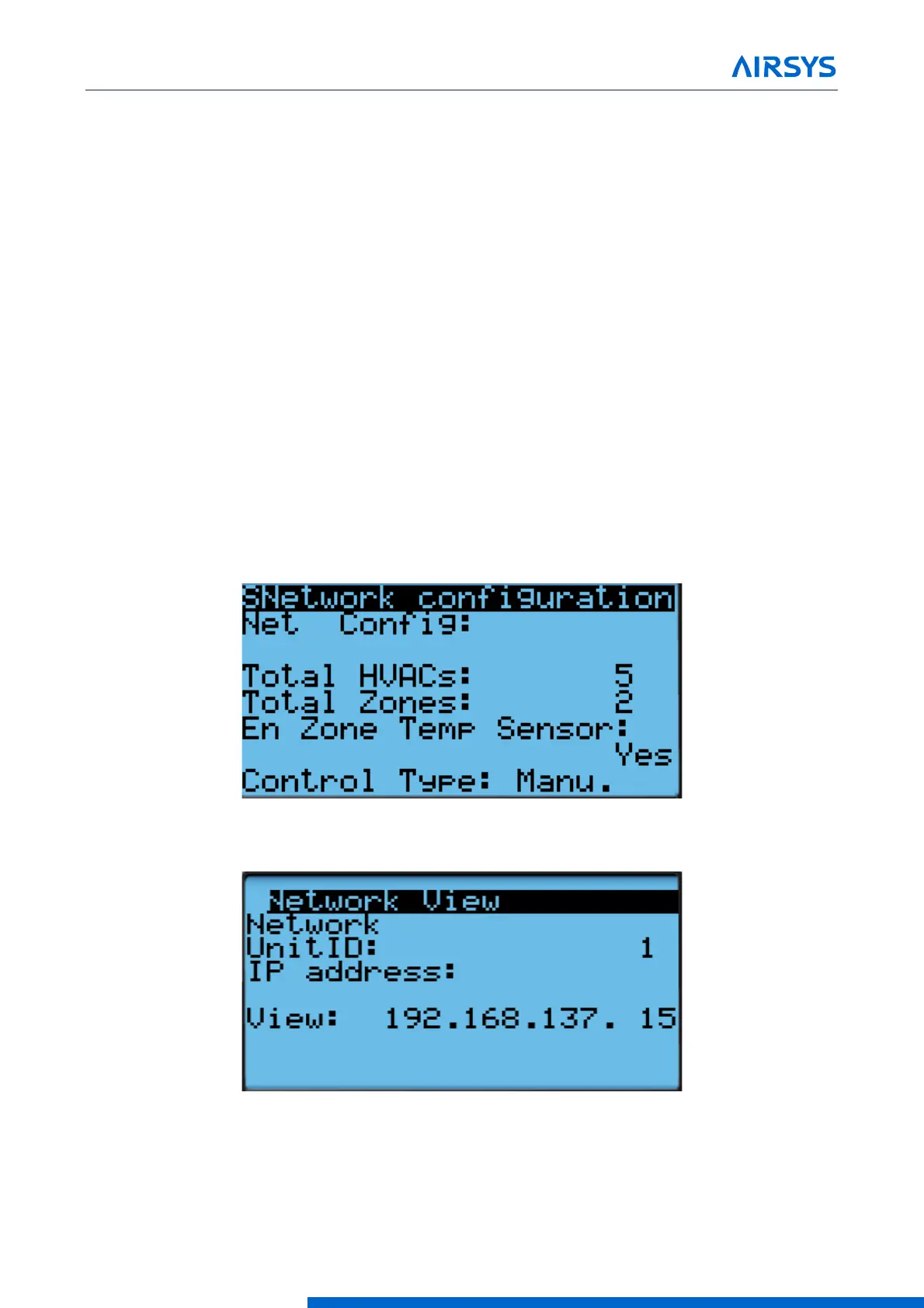
4. Record all network settings (a-d). Press Down to access each individual screen.
• Total # of HVAC and Total # of Zones
• IP address of all connected HVAC units (Press Enter and use the Up and Down buttons to cycle through
units. Press Enter to display the IP of each unit.)
• Zone assignment (which units are assigned to which zones).



 To Next Page