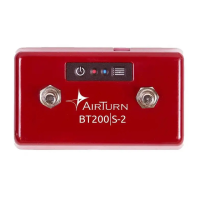
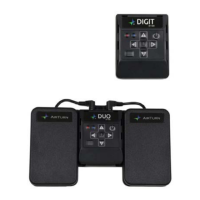
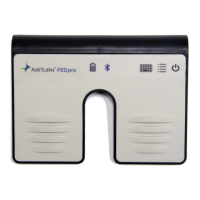
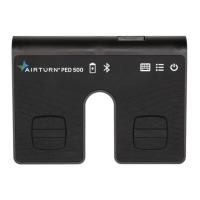
The AirTurn BT200 is a series of hands-free Bluetooth controllers designed for use with Bluetooth 4 tablets and computers. These controllers allow users to manage various functions, such as page turning, effects management, and presentation control, without using their hands. The series includes the BT200 and BT200S/QUAD 200 models, offering different configurations of footswitches.
Function Description:
The AirTurn BT200 series functions as a versatile Bluetooth controller, providing hands-free operation for a wide range of applications. It connects to Bluetooth 4-enabled devices like iPad 3 and later, iPhone 4S and later, Android devices running 4.3 or later, and most PCs and Macs with Bluetooth 4.x and HID (keyboard) support. For older PCs, Bluetooth 4.1 USB dongles can be used.
The controllers offer seven distinct modes, each sending a different signal for each pedal/switch. Mode 2 is the default setting. Modes 2-6 are customizable using the AirTurn Manager App.
There are three compatibility modes:
- AirTurn Direct: Designed for AirTurn-specific apps, preventing conflicts with the virtual keyboard.
- HID (Keyboard/Mouse): Allows the controller to emulate keyboard or mouse inputs, making it compatible with a broad range of applications.
- MIDI: Enables sending basic MIDI commands to compatible apps, requiring Bluetooth MIDI support and potentially special setup for the tablet or computer. MIDI commands can be configured via the AirTurn Manager.
Important Technical Specifications:
- Connectivity: Bluetooth 4.0 low energy radio.
- Transmit Power: +0 dBm.
- TX Peak Current: 18.2 mA.
- Frequency: 2.402GHz to 2480GHz.
- Approximate Range: 33 feet (10 meters), subject to orientation and other factors.
- Battery Life: Approximately 200 hours on a single charge.
- Power Consumption: Averages 1160 µA when powered on and 5 µA when off.
- Charging: Micro-USB port for BT200. BT200S/QUAD 200 models can also use a center negative power supply (5-9V, 9V preferred).
- Compliance: RoHS and REACH standards compliant. FCC Part 15 compliant. Contains Transmitter Module FCC ID: QOQBLE113 and IC: 5123A-BGTBLE113. CE certified (R&TTE DoC available at www.silabs.com). MIC Japan certified (007-AB0103). KCC (Korea) certified (KCC-CRM-BGT-BLE113).
Usage Features:
BT200 Controls:
- Power Button: Turns the device on/off.
- Membrane Pad: 5 buttons (1-5) for various functions.
- Mode Button: Dedicated button for changing modes (Button 6).
- Stereo Ports: Two ports for connecting up to four pedals.
- LED Indicators: Two LEDs (red and blue) for power and Bluetooth status.
- Micro-USB Port: For charging.
BT200S/QUAD 200 Controls:
- Power Button: Turns the device on/off.
- Footswitches: 2, 4, or 6 footswitches (Switch 1, Switch 2, etc.).
- LED Indicators: Two LEDs (red and blue) for power and Bluetooth status.
- Power Port: For external power supply or internal rechargeable battery.
Power Management:
- Turning On: Press and hold the Power Button for one second; LEDs flash. Blue LED blinks twice per second until pairing starts.
- Turning Off: Press and hold the Power Button until red and blue LEDs turn off.
- Idle Timeout: Automatically powers down after two hours of inactivity when connected, to conserve power. The timer resets with any button press. This period can be customized or turned off using the AirTurn Manager software.
Connecting and Pairing:
- Open Pairing (Default): Allows connection to up to 8 Bluetooth devices (unlimited in AirDirect Mode 1) without needing to delete previous pairings. If connecting to more than 8, the least recently used pairing is deleted. If pairing is deleted or "forgotten" on a device, restarting Bluetooth and re-pairing may require two attempts.
- Closed Pairing: Locks the AirTurn to a single tablet, phone, or computer. Recommended for use in ensembles to prevent inadvertent connections to other devices. Pairing is required in all modes.
- Reset Pairing: To delete all pairings, hold the power button for 6 seconds until LEDs turn off, then blink 3 more times.
- Switching Pairing Methods: With the AirTurn off, hold down the MODE button and then the power button. Both LEDs will flash twice for open pairing or three times for closed pairing. Can also be changed in the AirTurn Manager App's Advanced settings.
Pairing Procedures:
- AirDIRECT MODE 1: Power on AirTurn, ensure it's in Mode 1 (hold MODE button for 1 red flash). Turn on device's Bluetooth. For iOS, go to the app's Bluetooth setup screen. For Android, use the AirTurn Manager App. Find and tap AirTurn in the device list, then tap Pair if prompted.
- MODE 2-6 (Keyboard/Mouse):
- iOS: Settings > Bluetooth, turn on. Tap AirTurn when discovered, then Pair.
- Android: Settings > Bluetooth, turn on. Tap SCAN. Tap AirTurn when it appears, then OK if passcode verification is requested.
- PC: Control Panel > My Bluetooth Devices > "Add a device" > Next > Complete pairing.
- Mac: Apple > System Preferences > Bluetooth, turn on.
- MODE 7 (MIDI): Ensure Bluetooth is on and AirTurn is in Mode 7.
- iOS: Go to MIDI App's Bluetooth MIDI connection settings. Select AirTurn, then Pair if requested.
- Android: Settings > Bluetooth. Tap SCAN. Tap AirTurn, then OK if passcode verification is requested.
- PC: Control Panel > My Bluetooth Devices > "Add a device" > Next > Complete pairing (middleware may be required).
- Mac: File > New Finder Window > Applications > Utilities > Audio MIDI Setup > "Bluetooth" > Next to AirTurn click "Connect".
MIDI Mode: Sends basic MIDI commands. Requires Bluetooth MIDI support and potential special setup. Configuration via AirTurn Manager. More details online at AirTurn.com/support/midi or via support.
Changing the Mode:
- Turn on the AirTurn.
- Press and hold the MODE button. The red LED will flash once per second (1 to 7 flashes), corresponding to the mode number.
- Release the MODE button after the desired number of flashes. Both blue and red LEDs will flash together the same number of times to confirm the new mode setting. The mode remains set until changed again.
Virtual Keyboard in iOS:
To activate the virtual keyboard in iOS, place the cursor in a text box and press the Power Button. Both LEDs will flash once. This feature works in Modes 2-6. Virtual keyboard support for Mode 1 is automatic. Not available for Android unless using Mode 1.
LED Indications:
- 3 red flashes on power-on attempt: Battery too low to operate.
- Red flash every 3 seconds: Battery is low.
- Red flash once a second: Charging.
- Solid red: Fully charged.
- Blue flashing rapidly (twice a second): Ready to connect.
- Blue flashing very rapidly (5 times a second): Connecting.
- Blue flash every 3 seconds: Connected.
- Solid blue: Pedal pressed.
AirTurn Manager App:
Available on Apple App Store, Google Play Store, and for Mac computers. Used to:
- Change AirTurn configuration.
- Update firmware.
- Configure key repeat rate.
- Adjust power saving settings.
- Select pairing method.
- Configure pedal signals for each mode.
Firmware updates will be notified in the app. After an update, the AirTurn will shut down. Users should remove pairing from their device, power on the AirTurn, and reconnect.
Unit Identification:
The Bluetooth host name includes the firmware number (e.g., v2.1.0) and the MAC address (e.g., ABCD), which helps in identifying specific units, especially when multiple AirTurn devices are present. The MAC address is also labeled on the bottom of the AirTurn at the end of the serial number.
Maintenance Features:
- Cleaning: Wipe down with a damp cloth and mild detergent or soap-based cleaner to remove dirt and stains.
- Environmental Care:
- Do not get the AirTurn wet.
- Avoid direct sunlight for extended periods.
- Servicing: Do not open the unit; there are no user-serviceable parts.
- Disposal: Do not put in trash; please recycle. AirTurn will recycle returned batteries and electronics. Request an RMA for battery/electronics recycling.
Warranty:
AirTurn, Inc. provides a one-year limited warranty to the first consumer purchaser, covering defective workmanship and materials. AirTurn will repair or replace defective products or parts at no charge for parts or labor. The warranty does not cover:
- Appearance items.
- Products with damaged or defaced exteriors.
- Products subjected to misuse, abnormal service or handling.
- Products altered or modified in design or construction.
- Supplied batteries.
To enforce warranty rights, purchasers should request an RMA number via email or phone as directed on the support page. This warranty is in addition to implied warranties granted by law, but all implied warranties (including merchantability and fitness for use) are limited to one year from the purchase date. AirTurn's liability is limited to the correction of defects as described. AirTurn is not liable for damages or defects caused by unauthorized repairs or for incidental or consequential economic or property damage. Specific legal rights vary by state.

 Need help?
 General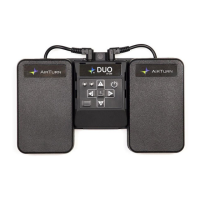

 To Next Page