870;5;0
@
G %8,1,%
> 4-G6)5;0*4-6)+/5*
The selected Event will be pasted.
%%
J%5%+%5%##
25%
= 05%#87
%
You can select several Pads by pressing the up/down [CURSOR] buttons while
holding in [SHIFT]. You can then select several Grids by pressing the right/left
[CURSORS] or turning the [DATA] wheel while holding [SHIFT].
@ 4-G6)5;0*4-@6)&D5*
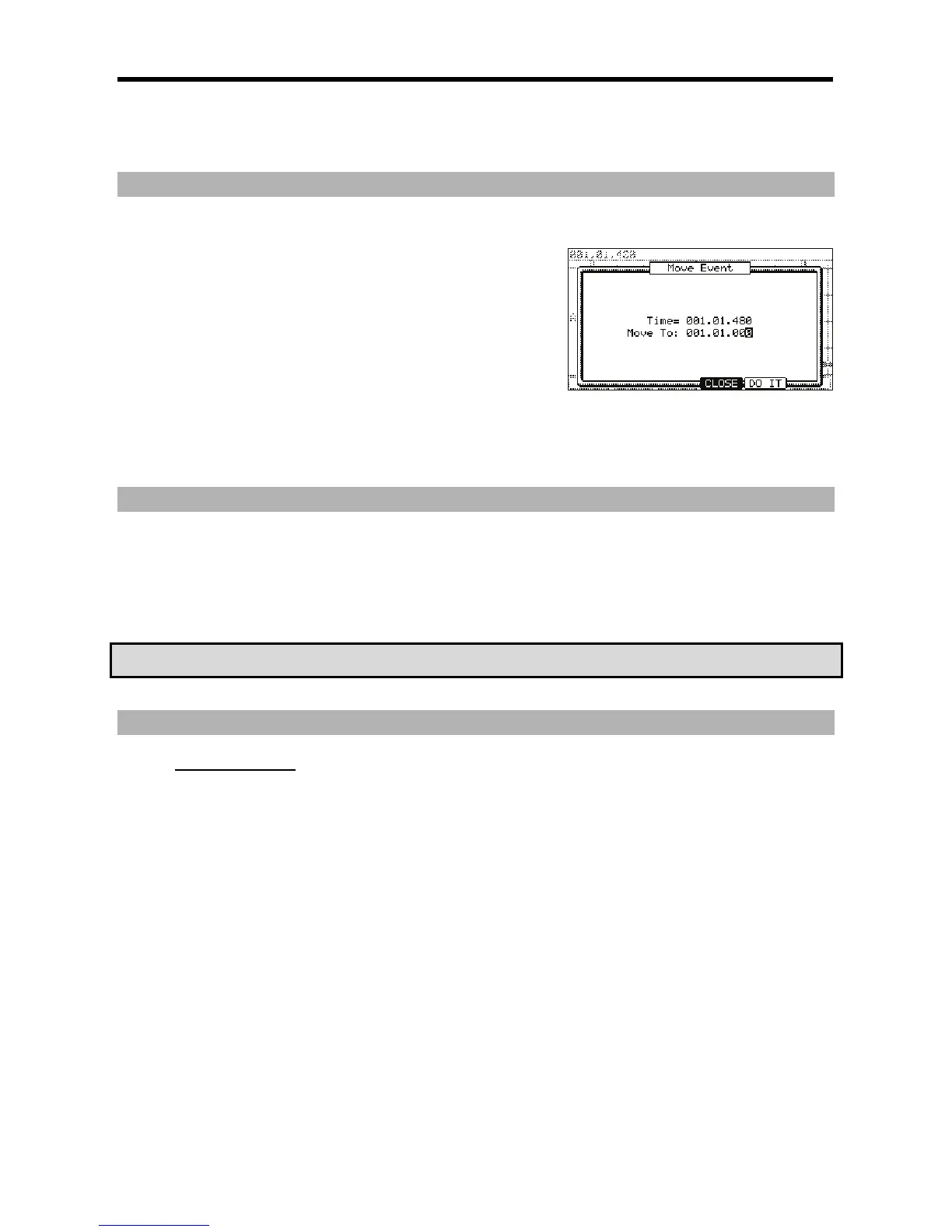
When you press [F3] (EDIT), the display of [F2] will change to (MOVE) until you
release the button.
G %5%
Time =: The selected Event time (the start point) is displayed. You cannot change this value.
Move to: You select the time that you wish to move the selected Events to.
> 4-6);&0*
The selected event will be moved.
;%
5%#
= 05%#87
You can select several Pads by pressing the up/down cursor button while holding in the [SHIFT] button. You can then select several Grids by
pressing the right/left cursor or turning the [DATA] wheel if you continue to hold in the [SHIFT] button.
@ 4->6);5I55*
The selected Event will be deleted.
)')+5")!)+5")%B+4)4#&*
I>&
+25%#%%4:1;&6
5%
+$#%
0870;5;0##%0;0.%#
%),1,*J%
/7
= 0870;5;0#47564&D57;:(6
The LED of the [OVERDUB] button will be lit, which indicates that you can now enter events by hitting a pad.
@ %%2
You can also move the cursor by turning the [DATA] wheel or selecting the time position in the 'Now' field.
G 9
The Event will be recorded and the cursor will move to the next grid automatically.
If you select NO in 'Auto step increment' field in the Step Edit Options in STEP EDIT mode, the MPC5000 will stop the auto step increment. See
the 'Detailed setting for Step Recording' in the next section for more information.
> 4/&6
The LED of the [OVERDUB] button will be turned off and you can finish the Step Recording.




 To Next Page