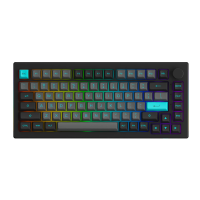
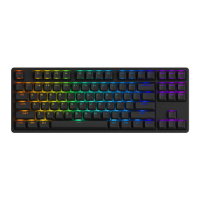
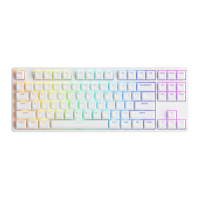
0106
Packing List
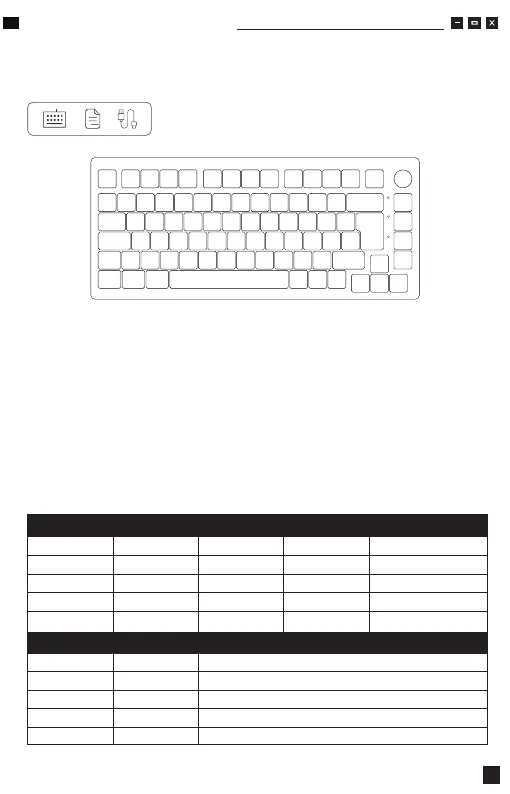
LED Indicators
Bluetooth device 1
Bluetooth device 2
Bluetooth device 3
2.4G wireless device
Wired mode
Low Battery
Charging
Fully Charged
Caps
Lock WIN
Side LED Indicator 2
Side LED Indicator 2
Side LED Indicator 2
Side LED Indicator 1
Side LED Indicator 3
Red light blinks slowly
Steady green
LED OFF
Steady white
Steady white
LED for Key E
LED for Key R
LED for Key T
LED for Key Y
LED for Key U
Blue light blinks slowly
Blue light blinks slowly
Blue light blinks slowly
Green light blinks slowly
N/A
Blue light blinks fast
Blue light blinks fast
Blue light blinks fast
Green light blinks fast
N/A
Blue light stays on for 2
seconds and then turns off
Blue light stays on for 2
seconds and then turns off
Blue light stays on for 2
seconds and then turns off
Green light stays on for 2
seconds and then turns off
Red light stays on for 2
seconds and then turns off
Status Indicator Re-Connecting
Status Indicator Indicating mode
Pairing Connected
Thank you for supporting Akko
To provide you with a better user experience, please read this manual carefully before using the product.
System Requirement
Windows®XP / Vista / 7 / 8 / 10 or higher version
Connectivity Method
Connect the keyboard to your computer by plugging in the USB cable into an
available USB port to start using it.


 To Next Page