Need help?
Do you have a question about the Akko 5087S RGB and is the answer not in the manual?
Key combinations involving the Fn key for various functions like calculator, mute, volume control, and WASD swap.
Procedure to reset the keyboard to its original default configuration.
Controls for various backlight lighting effects using dedicated keys.
Advanced backlight adjustments like brightness, animation, color, and speed using Fn key combinations.
Steps to activate macro recording mode by pressing Fn + Left Win.
Process for recording custom macro sequences using Fn + Custom Key.
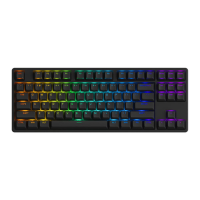
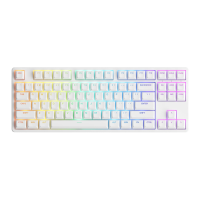
This document outlines the features and usage instructions for the Akko 5087S RGB mechanical keyboard, designed for both Windows and Mac operating systems. It covers hotkeys, system commands, backlight functions, and detailed instructions for Akko Macro V1.0, a hardware-based macro programming system.
The Akko 5087S RGB keyboard offers a comprehensive set of hotkeys for various functions, primarily applicable to Windows systems. These hotkeys allow users to quickly access common applications and control multimedia playback. For instance, Fn+F1 opens File Explorer, Fn+F2 launches the E-mail client, and Fn+F4 opens the default browser homepage. Multimedia controls include Fn+F6 for Pause/Playback, Fn+F7 for Previous Song, and Fn+F8 for Next Song. Volume adjustments are managed with Fn+< to decrease volume and Fn+> to increase it. A unique feature is the ability to swap WASD keys with arrow keys using Fn+W, which can be particularly useful for gaming. Additionally, Fn+C opens the Calculator, and Fn+M mutes audio. The manual emphasizes that these key combinations might vary with different Windows systems or updates, advising users to check the Akko website for the latest information.
Beyond hotkeys, the keyboard provides several system commands for Windows users. These commands enable users to manage system functions and switch between operating modes. For example, Fn and the left Win key can be pressed to lock the Windows key, preventing accidental presses during gaming or intensive tasks. To restore factory settings, users need to hold down the left Win key and press the right Win key for 5 seconds. The Ctrl key can be reverted to a Menu (APP) key by holding down Fn and pressing the right Ctrl key for 3 seconds. The keyboard also supports switching between Windows and Mac systems. To enter Windows system mode, users hold down Fn and press the Q key for 3 seconds. Similarly, to enter Mac system mode, users hold down Fn and press the O key for 3 seconds. These system commands provide flexibility and customization options for users working in different environments.
For Mac users, the Akko 5087S RGB keyboard offers specific system commands tailored to macOS. These commands facilitate control over display brightness, mission control, Siri, and multimedia functions. F1 decreases display brightness, while F2 increases it. F3 opens Mission Control, and F4 activates Siri. Multimedia controls include F7 to skip back (audio), F8 for pause/play (audio), and F9 to skip forward (audio). Volume adjustments are handled by F11 to decrease volume and F12 to increase it. The manual also notes the mapping of Right Alt to Command and Right Win to Option, which are standard for Mac keyboards. Additionally, Left Win maps to Option and Left Alt maps to Command. A convenient feature for Mac users is the ability to use Fn + (F1 ~ F12) to access the F1 ~ F12 functions directly, providing a seamless experience for macOS users.
The Akko 5087S RGB keyboard features extensive backlight functions, allowing users to customize the keyboard's lighting effects. These functions are accessed through Fn key combinations. The keyboard offers various lighting modes such as Breathe, Steady, Gradient, Wave, Centered, Aurora, Effect H, Effect F, Effect B, Effect D, Effect E, Column Gradient, Effect A, Effect I, Effect C, Ripples, APM Color Switch, and Rainbow Diffusion. Each mode can be activated by pressing Fn along with specific keys like Ins, Home, PgUp, Del, End, and PgDn. For instance, Fn+Ins cycles through Breathe, Steady, and Gradient modes. Fn+Home activates Wave, Centered, and Aurora modes. Fn+PgUp switches between Effect H, Effect F, and Effect B. Fn+Del controls Effect D, Effect E, and Column Gradient. Fn+End manages Effect A, Effect I, and Effect C. Fn+PgDn activates Ripples, APM Color Switch, and Rainbow Diffusion. The L key combined with Fn can turn the light on or off.
Further customization of the backlight includes adjusting brightness, animation direction, color, and animation speed. Fn+ and the + key increases brightness, while Fn+ and the - key decreases it. Fn+ and the " key changes the animation direction. Fn+ and the " key changes the color of the backlight. Fn+ and the " key slows down the animation, and Fn+ and the + key speeds it up. These detailed controls allow users to personalize their keyboard's aesthetic to match their preferences or gaming setup, enhancing the overall user experience.
One of the standout features of the Akko 5087S RGB keyboard is its Akko Macro V1.0 system, a hardware-based macro programming tool that operates without the need for software. This means macros are stored directly on the keyboard, making them portable across different computers. The macro setup instructions are divided into three parts, guiding users through the process of defining and calling macros.
The first part of the macro setup instructions highlights key characteristics and limitations of Akko Macro V1.0. It emphasizes that the system is hardware-based, eliminating software dependencies. Certain keys cannot be programmed, including Esc, Fn, Left Win, and Right Win. The system does not support simultaneous trigger, meaning if AB is pressed, it will trigger A followed by B. Additionally, Akko Macro V1.0 does not allow for customized interval times between key triggers; the system's default trigger time is used. These points are crucial for users to understand before attempting to program macros.
The second part details the macro setup process through a series of steps and a flowchart. To enter Macro Mode, users long-press Fn + Left Win. Once in Macro Mode, Fn + Esc launches the Macro Editor. To define a custom key, users press Fn + Custom Key to start recording, then press the desired keys to store the macro, and finally press Fn + Custom Key again to end the recording. The flowchart illustrates the flow: Enter Macro Mode -> Start Macro Editor -> Fn + Custom Key (to start recording) -> Macro Recording (Press Keys to Store) -> Fn + Custom Key (to end recording). After recording, users can record the next key or exit Macro Mode. To exit Macro Mode and return to default settings, users can either go back to default mode or exit the Macro Editor by pressing Fn + Esc. The manual also explains how to clear a macro definition: after entering the Macro editor, press FN + the key to clear its definition. To re-customize a key, press FN + the key again to start a new Macro recording after clearing the old definition.
The third part provides a practical example of macro recording: defining "A" as "AKKOGEAR". The steps are as follows:
Fn + left Win for 3 seconds to enter Macro mode.Fn + ESC to launch the Macro editor.Fn + A to select key "A" for recording.A, K, K, O, G, E, A, R in order as the replacement definition for "A".Fn + A again to end the Macro recording for key "A".
At this point, pressing "A" in a notepad would display "AKKOGEAR". If a user wants to create a macro for key "B", they would press Fn + B to start the Macro recording.Fn + Esc to exit the Macro editor.
Under Macro mode, users can configure the keys and macros they have set.Fn + Left Win for 3 seconds to exit Macro mode and return to the default key definition. This example clearly illustrates the process, making it easy for users to follow and create their own custom macros.Calling macros can be done through two methods. Method A involves entering Macro mode by long-pressing Fn+left Win. In this mode, all keys will use their pre-configured macro definitions, with the Windows key locked. Users can unlock the Windows key if necessary by pressing Fn+Win. It's important to note that Macro mode is turned off by default every time the keyboard is rebooted or re-plugged, and all keys revert to their default definitions until Macro mode is re-entered. Method B allows users to quickly call customized content of specific keys from the default key definition by pressing Fn+right Alt+the key that has been defined through Macro. The manual emphasizes that Fn must be pressed first, followed by Alt, to call the macro. These methods provide flexibility for users to access their macros as needed, whether they prefer a dedicated macro mode or on-the-fly access.
The Akko Warranty and Service Statement outlines the terms of service and precautions for the keyboard. Akko provides a 1-year warranty for customers in mainland China, with specific warranty policies for other regions handled by local distributors. If the warranty expires, customers are responsible for repair costs. Akko may provide repair instructions for users who prefer to repair the keyboard themselves, but users assume full responsibility for any losses incurred during self-repair. Disassembling the keyboard without manufacturer/seller's instruction immediately voids the warranty. The return and warranty policy may vary across different platforms and are subject to the specific distributor at the time of purchase. Precautions highlight that man-made damage, such as immersion, falling, or pulling off wires with excessive force, is not covered by the warranty. This comprehensive statement ensures users are aware of their rights and responsibilities regarding the keyboard's maintenance and service.
 General
| Layout | 87-key |
|---|---|
| Backlight | RGB |
| Connection | Wired |
| Keycap Material | PBT |
| Interface | USB |
| Layout size | Tenkeyless |
| Hot-swappable | Yes |
| Model | 5087S RGB |
| Brand | Akko |
| Type | Mechanical Keyboard |
| Switch Type | Akko CS Switch |
| Weight | 0.95 kg |

 To Next Page