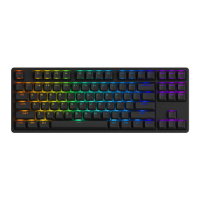
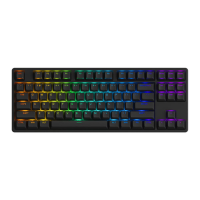
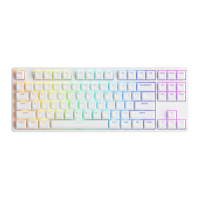
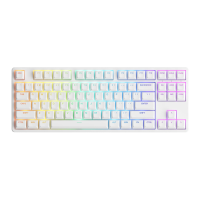
Need help?
Do you have a question about the Akko 5087B Plus and is the answer not in the manual?
Physical size of the keyboard.
The overall weight of the keyboard.
The manufacturing location of the product.
Classification of the keyboard, e.g., Mechanical Keyboard.
Material used for the keycaps, e.g., PBT Material.
Available methods for connecting the keyboard.
The type of port used for connection, e.g., Type-C to USB.
The power capacity of the keyboard's battery.
Indicates the presence of dedicated multimedia control keys.
Support for pressing multiple keys simultaneously without input loss.
Details on customizing key functions and lighting effects.
Defines the functions assigned to F1 through F4 keys.
Defines the functions assigned to F5 through F8 keys.
Explains the function of the Fn+W key combination for WASD movement.
Details functions for Fn+C (Calculator), Fn+M (Mute), Fn+< (Volume Down), Fn+> (Volume Up).
How to disable the Windows key to prevent accidental presses.
Procedure to reset the keyboard to its default factory configuration.
Instructions to change the functionality of the right Ctrl key.
Functions of F1 through F12 keys on macOS.
Mapping of Windows keys (Win, Alt) to Mac equivalents (Command, Option).
Specific functions activated by Fn + F1 to F12 on Mac.
Controls for cycling through backlight effects 1-9.
Controls for cycling through backlight effects 11-16.
Function assigned to the Fn+L key combination.
Key combinations for adjusting backlight brightness and animation.
How to connect and switch between multiple Bluetooth devices.
Instructions for connecting via the 2.4G wireless dongle.
Details on connecting the keyboard using a USB cable.
Explanation of the indicator lights for different modes and power status.
Steps to enable Bluetooth mode and initiate pairing.
Information on device names for Bluetooth 5.0 and 3.0 frameworks.
Steps for pairing the keyboard with various devices.
How to toggle between paired Bluetooth devices.
Instructions for powering down the keyboard for power saving.
Procedure to clear paired devices and reset Bluetooth connection.
Details on warranty duration, regional differences, and repair policies.
Important notes on handling and avoiding damage to the keyboard.
 General
| Model | 5087B Plus |
|---|---|
| Brand | Akko |
| Layout | ANSI |
| Keycap Material | PBT |
| Printing Technology | Dye-sublimation |
| Backlight | RGB |
| Battery Capacity | 3000mAh |
| Mounting Method | Gasket Mount |
| Case Material | Plastic |
| Polling Rate | 1000 Hz |
| Anti-ghosting | Full N-key rollover |
| Software | Akko Cloud Driver |
| Switch Type | Akko CS switches |
| Connectivity | Bluetooth/2.4 GHz/Wired |

 To Next Page